CRM Mini App - User Guide
The CRM Mini App is the member workspace of the VIO Admin Portal. It reads your organisation's members, vouchers, sign-up campaigns and points from VIO, and lets your team understand member behaviour, group members into audiences, write emails, send email campaigns, run automatic reminders and measure the results.
Note: The CRM is used by operators only. Members never open it: they receive the emails it sends, and their unsubscribe link and App notification settings decide what they get.
Table of Contents
- Before You Start
- Key Concepts
- Overview
- Users
- Audiences
- Content Studio
- Marketing (Campaigns)
- Automation
- Reports
- Settings
- Limits and Rules Reference
- Troubleshooting
- Glossary
1. Before You Start
1.1 Open the CRM
- Sign in to the Admin Portal with a tenant or sub-company admin account.
- Go to Mini Apps → CRM. The CRM opens inside the Admin Portal and signs you in with your Portal session. No separate password is needed.
The CRM always works on the organisation you are signed in to (the tenant, or a sub-company). Each organisation has its own data, settings, audiences, content and campaigns.
| Screen | When it appears | What to do |
|---|---|---|
| Open from the Admin Portal | The CRM was opened without a valid Portal session, or the session expired. | Open it again from Admin Portal → Mini Apps → CRM. |
| Connect VIO member data | Your organisation has no VIO External API key yet, and VIO couldn't create one (the message says why). | See 1.2. |
| Couldn't check the VIO connection | The CRM couldn't reach its server to check the key (network or timeout). | Select Try again. |
| No access to the CRM | Your account has no CRM role. | Ask an Admin to add you in Settings → Permissions (they can find you by name, email or phone), then select Try again. |
| Couldn't open the CRM | The CRM couldn't load after sign-in. | Check your connection, or open the CRM again from the Admin Portal. |
1.2 Connect VIO Member Data
The first time a Portal admin (tenant or sub-company admin) opens the CRM, it connects VIO member data by itself: VIO creates a key named VIO CRM for the organisation, with the scopes users, vouchers, campaigns and tokens, and the CRM opens. The key is listed in Admin Portal → Settings → API keys; revoking it disconnects the CRM.
The CRM asks for a key only when it can't do this: the person opening it is not a Portal admin, or VIO refused (for example, the organisation already has 10 active keys; the message says why). Then:
- In the Admin Portal, go to Settings → API keys and create a key with the scopes users, vouchers, campaigns and tokens.
- Paste the key into VIO External API key and select Save and continue.
The CRM checks the key with VIO before saving it. If VIO refuses it, or a scope is missing, the key is not saved and the message names the problem (for example, This key is missing the tokens scope).
Note: The key is stored for your organisation only. A sub-company never uses its tenant's key, so each sub-company connects its own. Saving a key needs the Admin role (Settings permission).
1.3 Choose How Emails Are Sent
Nothing is emailed until the organisation chooses an email sender. Until then the header shows Choose email sender; select it to open Settings → Email. You can also choose from the prompt that appears wherever an email would go out (campaign wizard, send confirmation, automation editor).
| Sender | What it means |
|---|---|
| Your SMTP server (default) | Emails go out from your own company mailbox (Microsoft 365, Google Workspace, Zoho Mail or any SMTP server). You set it up yourself in Settings → Email; see 10.3. |
| Platform sender | Emails go out from the platform's address, with your brand name and logo in the email. Useful to start quickly. |
1.4 Who Can Use the CRM
Tenant and sub-company admins open the CRM as Admin. Anyone else, including other Portal staff, needs a role in Settings → Permissions. A role listed there replaces the Portal role for that person.
| Role | Can do |
|---|---|
| Admin | Everything, including Settings, approvals, export and email sender settings. |
| Editor | Create and edit audiences, content, campaigns and automations; send tests; send campaigns (when approval is off) and enable automations. |
| Analyst | View every screen. |
| Approver | View every screen; approve or reject campaigns. |
Two extra permissions can be given to any role with checkboxes in Settings → Permissions:
- Export: export member lists as CSV, and see members' full email and phone.
- Channels: change the email sender and WhatsApp settings, correct a member's consent, and see members' full email and phone.
Without Export or Channels, email addresses and phone numbers are partly hidden (for example ab••••@example.com).
1.5 The Screen
- Sidebar: Workspace (Overview, Users, Audiences), Engagement (Content Studio, Marketing, Automation, Reports) and Manage (Settings). On narrow screens the same sections appear as tabs at the top.
- Data indicator (header): VIO data · updated 5 min ago. It reads VIO data (incomplete) when VIO could not return part of the data, and VIO data (refresh failed) when the latest refresh failed; hover for details. Member data is refreshed automatically every few minutes.
- Refresh (circular arrow): reloads member data from VIO immediately.
- Email status (header): appears only when email needs attention: Choose email sender, Email on hold (your SMTP server refused to send) or Email not set up. Select it to open Settings → Email.
- Your name and role (header).
- Banners: Member data didn't load (with Retry, and Check API key when VIO refused the key), and Email sending is paused (with Review), see 10.3.4.
1.6 Quick Start: Your First Campaign
- Overview: check the period's numbers and find a group worth contacting, for example Members with unused vouchers → View members.
- Users: review the list and select Save as audience. Give it a name.
- Content Studio: select New content → Email, write the subject and body (or use Generate), choose where the button goes, and select Mark ready.
- Marketing: select Create campaign, then go through the six steps: goal and offer, audience, content, channel, send time, review.
- On Review, send a test to your own address, then Confirm & send. The confirmation shows exactly how many real emails go out.
- Reports: follow clicks, returns to the App, voucher claims and uses over the next 7 days.
2. Key Concepts
2.1 Where the Data Comes From
The CRM reads from VIO and never changes member data in VIO.
| Data | Source |
|---|---|
| Members, tier, registration source and date, language, profile country, last activity | VIO members |
| Vouchers, categories, brands; claims, uses and expiry | VIO vouchers and claims |
| Sign-up campaigns, visits and participants | VIO campaigns |
| Points balances and nearest expiry | VIO points (tokens) |
| App visits, active time, pages opened, voucher views, activity country | Reported by the Members' App while members use it |
| App notification settings (Email, Promotions, Vouchers, News, Membership, Transactions) | Set by each member in the App |
| Email and WhatsApp marketing consent | Set by each member in the App; unsubscribes and corrections are kept in the CRM |
| Tags and notes | Added in the CRM |
Claimed means a voucher was added to a member's wallet. Used means the voucher was redeemed at a merchant.
2.2 "Not measured" Is Not Zero
When VIO or the App does not provide a figure, the CRM shows Not measured (with an eye-off icon) or Not recorded, never 0. A 0 always means the data exists and nothing happened. Members whose data is missing for a condition are never counted as matching it; they appear as missing data · not included.
2.3 Time Periods and Time Zone
All dates and "last N days" windows use the organisation's time zone (Settings → Frequency & quotas). Last 30 days means the 30 calendar days up to and including today, so the Overview, Users filters and audiences count the same days.
2.4 Message Types and App Notification Settings
Every campaign and automation has a message type that matches the notification types members control in the App: Promotions, Vouchers, News, Membership and Transactions. Members who turned that type off are skipped, and members who turned Email off receive no email at all.
Important: In the App, Promotions is off unless a member turns it on. A campaign sent as Promotions therefore reaches far fewer members than one sent as Vouchers or News. Choose the type that honestly describes the message.
2.5 Consent
Before every send, the CRM checks each member's marketing consent for the channel. Members choose in the App whether they receive marketing email and WhatsApp (on unless they turn it off). Members who unsubscribe through an email link are unsubscribed in the CRM at once. Addresses on the suppression list are never contacted.
2.6 Real Sending
With real member data, every campaign and automation sends real emails. There is no test mode for real members; instead:
- every campaign shows the number of emails before it goes out and asks you to confirm; from 100 emails you type the number;
- enabling an automation is confirmed in the same way;
- test emails go only to the addresses you type in.
2.7 Ready Content and Versions
Content is reusable. Ready means it has passed its checks and can be used by campaigns and automations; it sends nothing by itself. Every save creates a version, and a campaign keeps the version it was set up with, so later edits never change a campaign that is already scheduled or sent.
3. Overview
The Overview shows members, App activity and vouchers for a period. Open it from Overview in the sidebar.
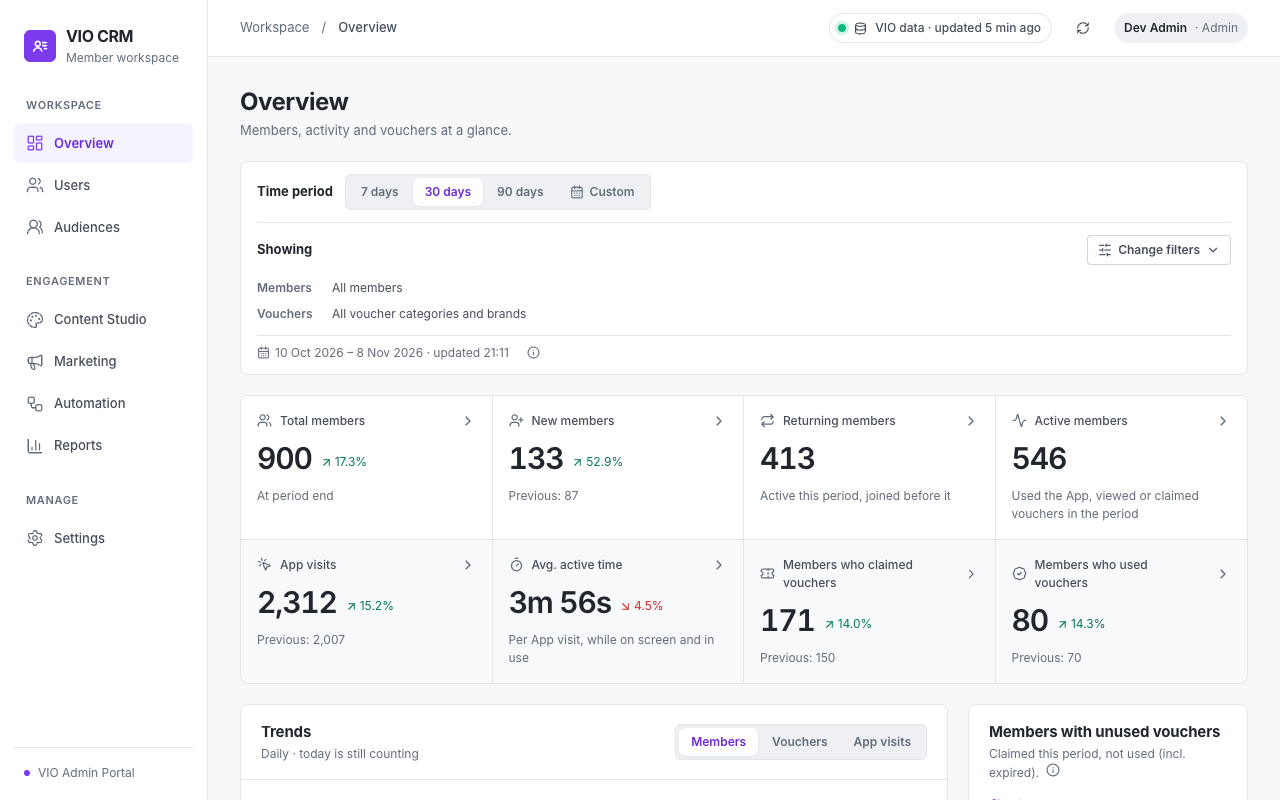
3.1 Filter Bar
The same filter bar appears on the Overview and its detail pages, and the choices are kept while you move between them.
- Time period: 7 days, 30 days (default), 90 days or Custom (choose from and to dates). Each period is compared with the period of the same length just before it.
- Change filters opens:
- Which members?: Membership tier, How they registered (Direct registration, Sign-up campaign, Store, Admin-created), Participated in campaign, and Country. Under Country source choose Profile country, App activity (estimated) or Voucher country.
- Which vouchers?: Voucher category and Voucher brand. These narrow voucher figures only, not member totals.
- Showing lists the active filters as chips; select a chip to remove it.
- The line under the filters shows the period's dates and when the data was updated. The info icon shows the comparison period and the time zone.
3.2 Key Figures
Select a figure to see the members behind it.
| Figure | Meaning |
|---|---|
| Total members | Members registered by the end of the period. |
| New members | Members who registered in the period. |
| Returning members | Members active in the period who joined before it (or, where the App reports visits, who used the App before the period). |
| Active members | Members who used the App, viewed or claimed vouchers in the period. |
| App visits | Visits to the App in the period. One visit can include several pages. |
| Avg. active time | Average time per App visit while the App was on screen and in use. |
| Members who claimed vouchers | Members who added at least one voucher to their wallet in the period. |
| Members who used vouchers | Members who used at least one voucher in the period (the voucher may have been claimed earlier). |
Each figure shows the change against the previous period (green up, red down). When the previous period can't be measured, no change is shown. For example, VIO records each member's latest activity only, so Active and Returning can't be compared with earlier periods until the App reports visits for everyone.
3.3 Trends
A daily chart for the period: Members (active and new members), Vouchers (claims and uses, counted as events) and App visits. Today is still counting.
3.4 Members with Unused Vouchers
Claimed this period, not used (incl. expired): members who claimed vouchers in the period and still haven't used at least one of them, expired vouchers included. Each member is counted once, under their most urgent voucher: Expiring ≤ 7 days, otherwise Valid, otherwise Expired. View members opens these members in Users; Expiring ≤ 7 days opens only those with a voucher about to expire.
3.5 Detail Pages
- App activity: when members use the App (day of week × hour), how long visits last, which pages they open, and which vouchers they view. Shown when the Members' App reports visits.
- Voucher insights: per voucher, members who viewed, claimed and used it, and Unused now (any claim date) (members holding it unused and unexpired, whenever they claimed it); a funnel from view to claim to use; the members holding vouchers claimed in the period and not used (one row per voucher, with how many reminders the CRM sent them); points holders and points expiring in 30 days; sign-up campaign visits and participants. Members / Voucher actions switches between counting members and counting every action.
- Member distribution: members by country, tier and registration source. Every count opens those members in Users.
Most detail pages offer View users, Save audience and Create campaign for the group shown.
3.6 Explore with AI
At the bottom of the Overview, Explore with AI → Summarise period writes a short summary of the period with observations and up to three suggested follow-ups (each with Preview and Draft). You can also ask a question about the data. AI only reads CRM figures; it never sends anything or changes data. When AI is unavailable, a rule-based summary is shown and labelled Rule-based.
4. Users
Users lists every member and is where you find members and save them as audiences.
4.1 Find Members
- Search: name, member ID or CRM reference; email and phone too with the Export or Channels permission.
- Saved audience: show only the members of an audience.
- Filters: see 4.2.
- Views: save the current search, filters, audience, sort and columns under a name. Views are saved in this browser only.
- Columns: choose the columns shown. Member and Contact details are always shown.
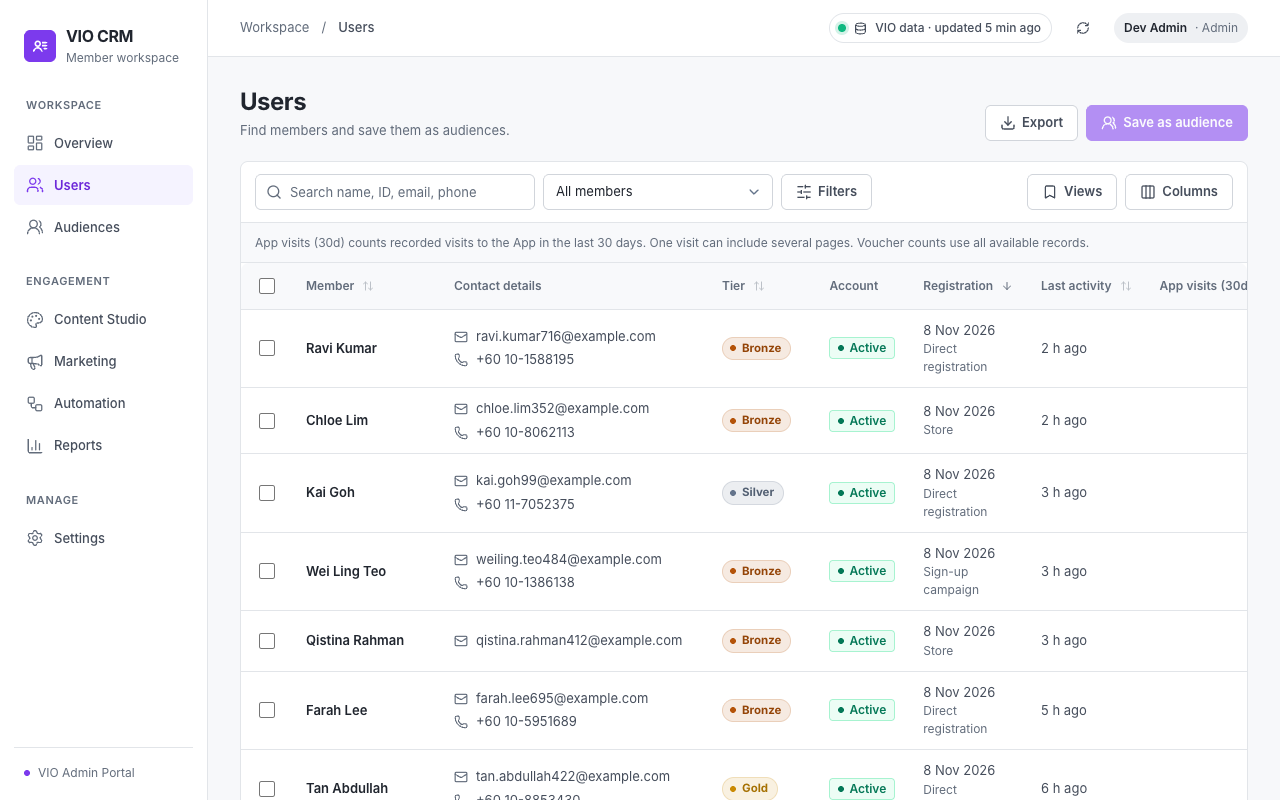
When filters are active, a bar above the table shows how many members match (for example 124 of 900 members), the conditions in words, and Clear.
Table columns include Tier, Account (Active or Deactivated in VIO), Registration (date and source), Last activity (Today, Yesterday or N days ago when VIO records the day only), App visits (30d), Vouchers claimed, Vouchers used (with "N valid, unused") and Channels (green when the member can receive email or WhatsApp; hover for the reason when not). Select a row to open the member's profile.
4.2 Filters
Several values in one field match any of them (OR); different fields must all match (AND). The live count at the bottom updates as you change filters. Apply applies them; closing the panel discards unapplied changes.
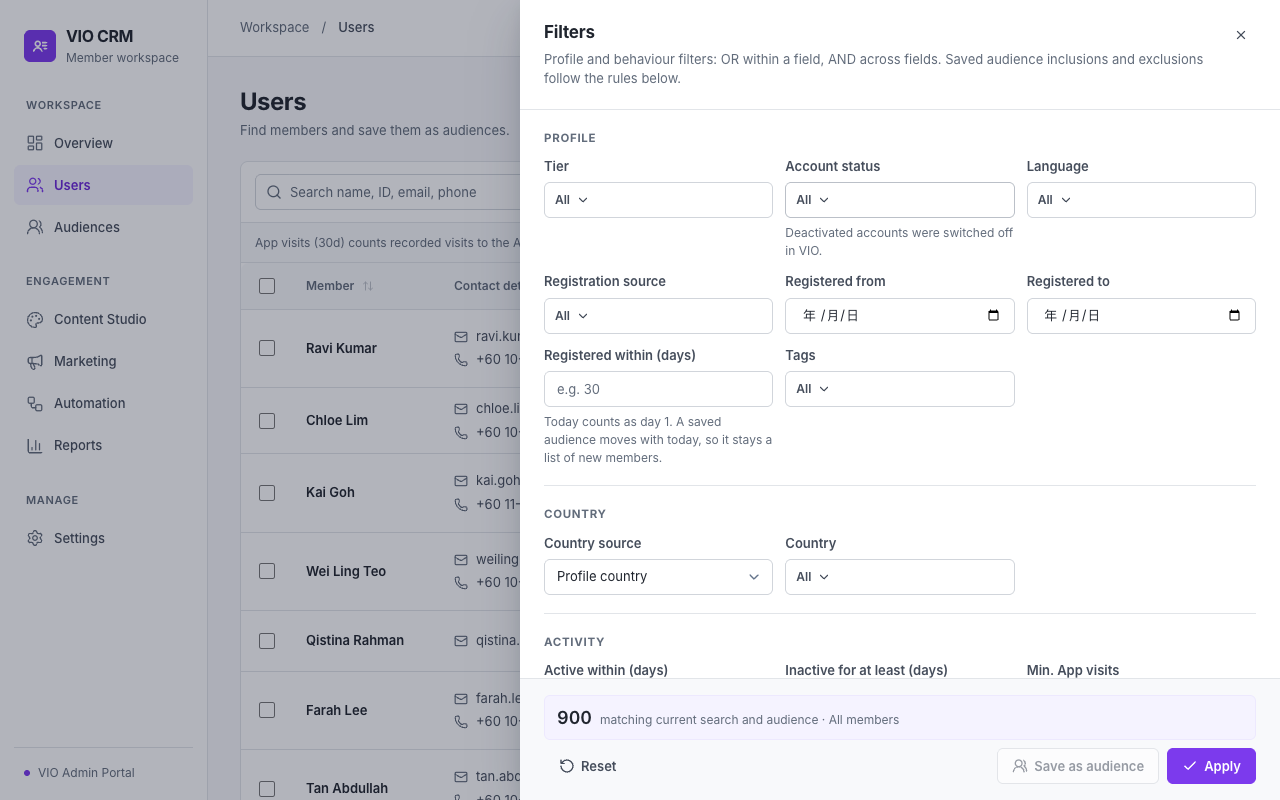
| Section | Fields |
|---|---|
| Profile | Tier, Account status (Active / Deactivated), Language, Registration source, Registered from / to, Registered within (days), Tags |
| Country | Country source (Profile country, App activity (estimated), Voucher country), Country, Activity period |
| Activity | Active within (days), Inactive for at least (days), Min. App visits, Min. active time in the App, Time window |
| Vouchers | Behaviour (Viewed, Claimed a voucher, Used a voucher, Claimed a voucher still unused, Has not claimed a voucher, Viewed but not claimed). After choosing a behaviour: Category, Brand, Voucher, Claimed through campaign, Min. count, Period (days); for unused vouchers also Expiring within (days) and Include expired vouchers |
| Campaign | Campaign, Participated / Did not participate |
| Points | Points type, Min. balance, Expiring within (days) |
| Saved audiences | Include members of (adds them even if they don't match the other filters), Exclude members of (always wins) |
| Consent | Channel (Email / WhatsApp) and state (Opted in, Unsubscribed, No valid contact, No opt-in recorded) |
Registered within counts today as day 1 and moves with today, so an audience saved from it keeps only recent sign-ups. Inactive for at least leaves out members with no activity on record. Views (search, filters, audience, sort and columns) can be saved under Views; saving over or deleting a view asks first. Fields that VIO doesn't measure for your organisation are disabled or marked Not measured.
4.3 Save Members as an Audience
- Save as audience saves the current filters as an auto-updating audience: members join and leave it as their data changes.
- When a search term is used, or a saved audience is combined with filters, the result can't be kept up to date by rules. The CRM then saves a fixed list of the members found now, and says so.
- Tick rows (across pages) and select Create fixed list to save exactly those members.
4.4 Export
With the Export permission, Export downloads a CSV of all members matching the current search, audience and filters (not only the current page), with full contact details and, per channel, whether the member can receive messages or why not. Every export is recorded in the audit log.
4.5 Member Profile
- Header: name, tier, a Deactivated badge when the account is deactivated in VIO, join date and source, last activity, and AI summary (a short read-only summary of the member).
- Figures: vouchers claimed, vouchers used, unused vouchers (still valid), App visits in 30 days.
- Timeline: App use per day, vouchers viewed, claimed and used, and CRM messages (sent, clicked, unsubscribed), newest first with Show more. Filter by App use, Vouchers or Marketing.
- Vouchers: every claimed voucher with status (Used, Valid, Expiring soon, Expired), dates and voucher country.
- Marketing: every CRM message to this member, including the ones not sent and why.
- Audiences: the audiences the member is in right now.
- Details: CRM reference, email, phone, language, profile / activity / voucher country, city.
- Consent: per channel Opted in, Unsubscribed or No opt-in recorded, plus the member's App notification settings (read-only).
- Tags & notes: CRM tags (up to 30) and internal notes (up to 2,000 characters each; the newest 100 are kept), Editor and above. Member data from VIO is never edited here.
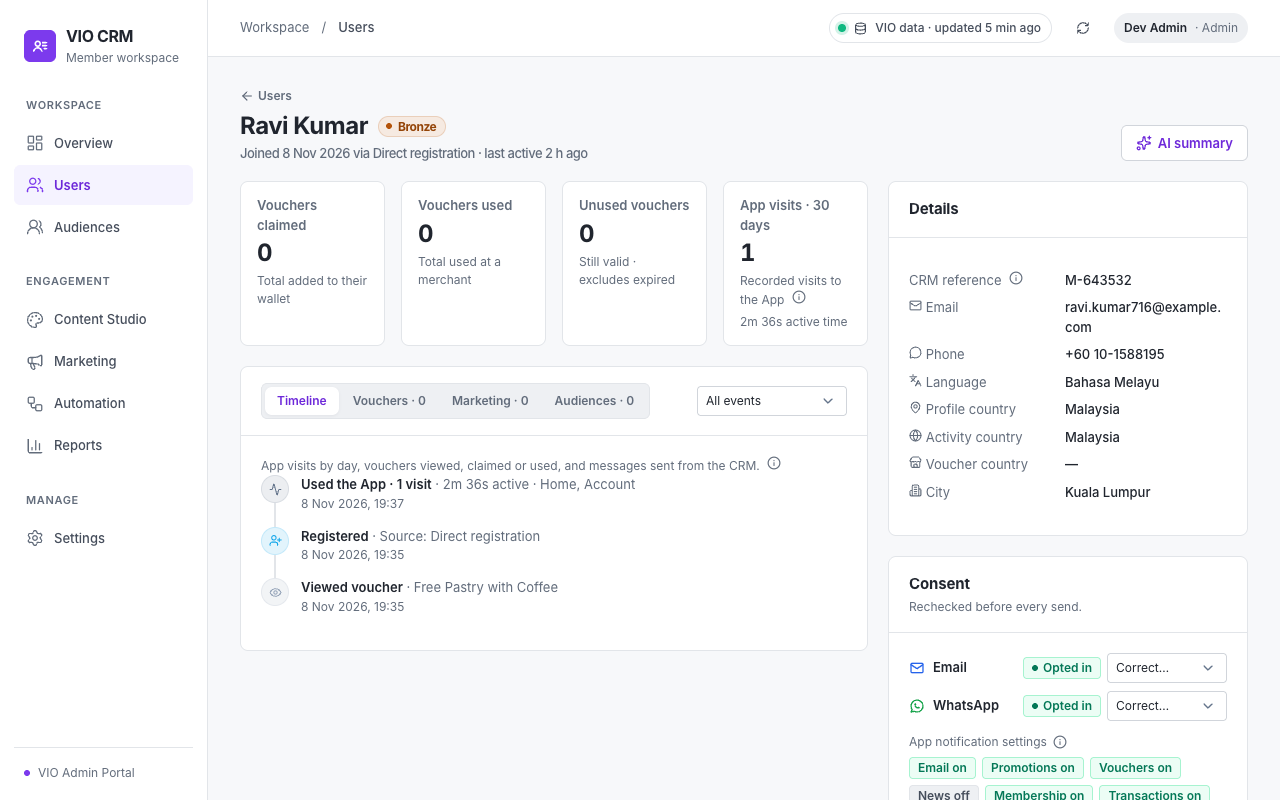
Correct consent (Channels permission): use Correct… when a member asks you directly, for example by phone, to stop or start messages. Choose the new state, enter the reason and confirm. The change applies from the next send and is kept in the audit log with the reason. Use the member's App setting removes a correction. A member on the suppression list can't be corrected here.
5. Audiences
An audience is a saved group of members used by campaigns and automations.
5.1 Audience Types
| Type | Behaviour |
|---|---|
| Auto-updating | Defined by rules. Members join and leave as their data changes; the members are worked out again when a campaign sends. |
| Fixed members | A list of chosen members that stays the same until you edit it. |
For both types, consent, App notification settings and account status are checked again before every send.
5.2 Audiences List
Columns: Audience (name and description or rule summary), Type, Members (matching now, and how many have missing data), Eligible contacts (members who can receive email / WhatsApp), Used in (campaigns and automations) and Updated (with the rule version, for example v3).
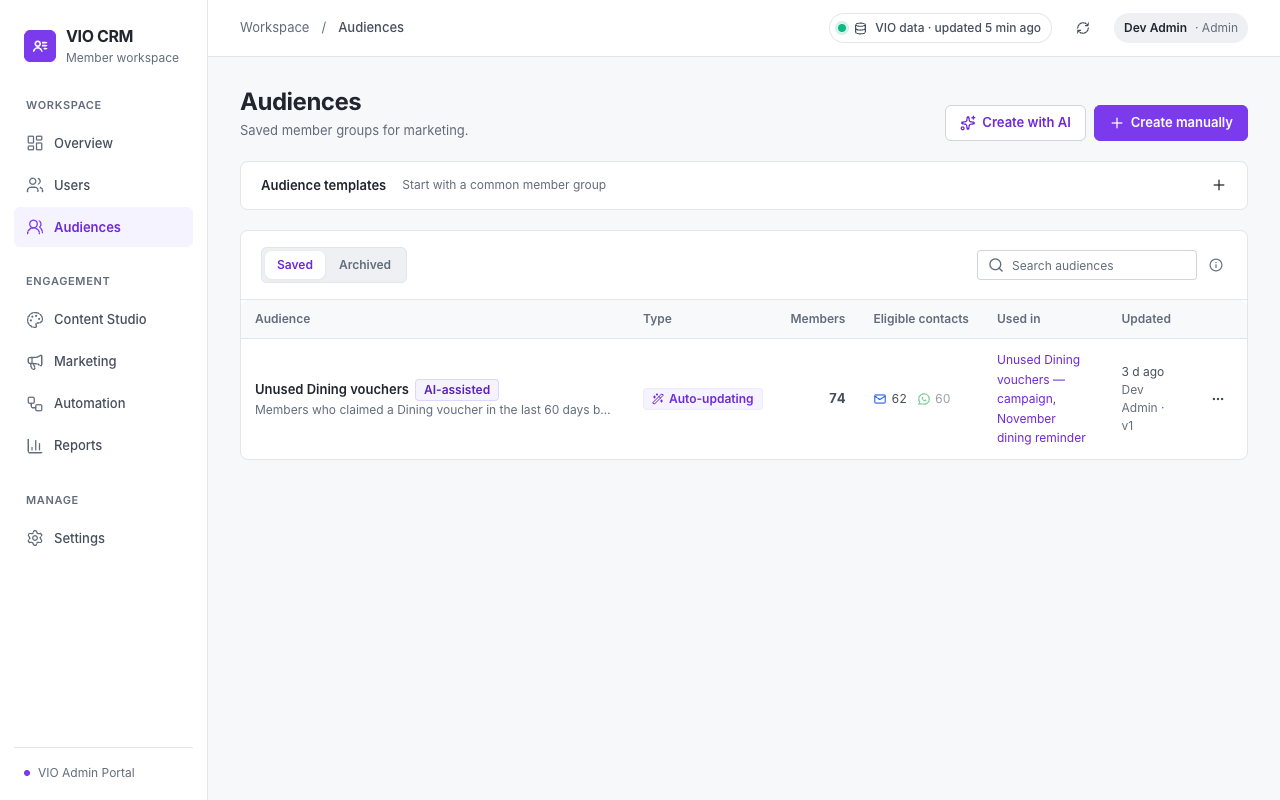
Select a name under Used in to open that campaign or automation. Row menu: View in Users, Edit, Duplicate, Create campaign (starts a campaign draft with this audience), Archive / Restore. Archived audiences can't be used in new campaigns. Archiving an audience that a draft, pending or scheduled campaign or an active automation uses asks you again and names where it is used.
5.3 Create an Audience
- Create manually: opens the audience builder.
- Create with AI: describe the members in your own words (or pick one of the Ideas) and select Draft conditions. AI turns the description into conditions for you to review; nothing is saved until you select Save audience. If part of the request has no matching data (for example a birthday), the draft says what was left out. When AI is unavailable, or can't draft the full request, you can Create manually instead.
- Audience templates: common groups built from your own data, such as New members without voucher claims, Expiring soon, Inactive, your most-claimed voucher category, your main country, or a typical points balance. A template your data can't support is disabled with the reason.
- From Users, the Overview and its detail pages (Save audience).
5.4 The Audience Builder
- Details: name (required), description, and type (Auto-updating audience or Fixed member list). The type can't be changed after the first save.
- Describe to AI (optional): drafts the conditions below from a description.
- Conditions: one or more condition sets. Inside a set, members must meet all conditions (AND) or any condition (OR). With several sets, choose whether members must meet every condition set or at least one.
- Combine audiences: Include members of adds other audiences; Exclude members of removes them (exclusion always wins). With no conditions and only included audiences, only their members match.
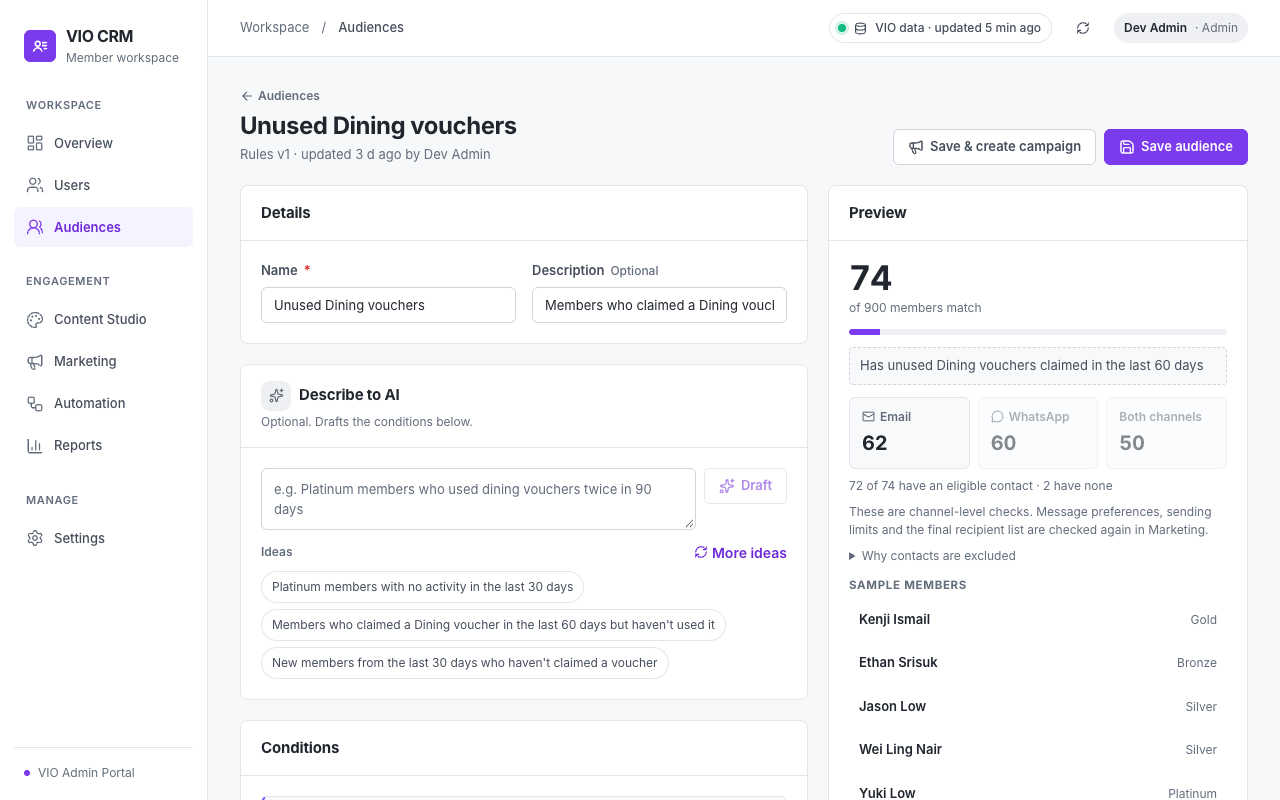
The Preview updates as you edit: matching members, members with missing data (not included), the condition summary, how many can be reached by Email / WhatsApp / both (with Why contacts are excluded), and sample members.
| Group | Conditions |
|---|---|
| Profile | Membership tier, Account status, Language, Registration source, Registration date (in the last N days / more than N days ago / between dates), Tags |
| Country | Country, by profile, App activity (estimated) or voucher country |
| Activity | Last activity (active in the last N days / inactive for at least N days), App visit count, Active time in the App |
| Vouchers | Voucher behaviour: claimed, used, holds unused, has not claimed, has not used, viewed, viewed but not claimed; for all vouchers, by category or brand, or specific vouchers; with a minimum count, a period and (for unused) an expiry window |
| Campaigns | Sign-up campaign participated / did not participate |
| Points | Balance at least, expiring within N days |
| Consent | Channel consent: Opted in, Unsubscribed, No contact details, No opt-in recorded |
Voucher conditions can also be limited to claims made through a sign-up campaign (Claimed through a sign-up campaign). Conditions that need data your organisation doesn't have are marked (not measured), and members can't match them.
Used in (right side) lists the campaigns and automations that use the audience. Saving rule or member changes to an audience used by a campaign waiting for approval or scheduled, or by an active automation, first explains what happens: a campaign waiting for approval must be submitted again, an approved scheduled campaign fails at its send time until it is approved again, an unapproved scheduled campaign sends with the new rules, and an automation starts using them.
5.5 Versions and Approvals
Every save that changes the rules or the member list increases the rule version. If campaigns need approval, an approval covers the rule versions of the campaign's audiences and of every audience they include or exclude. Editing those rules after approval stops the send until the campaign is approved again.
6. Content Studio
Content Studio holds the messages and visuals that campaigns and automations use.
6.1 Content Types
| Type | Used for | Contents |
|---|---|---|
| Campaigns and automations | Subject, preview text, body, image, button | |
| Kept for later | Template name, header, body, footer, button, variables | |
| App Post | App placement plan, download | Title, body, image, button |
| Banner | App placement plan, download (PNG 1080×540) | Title, text, image, button |
| Poster | Download (PNG 1080×1350) | Title, text, image |
Note: WhatsApp sending isn't available yet. WhatsApp templates can be prepared and kept, but they are not sent to members. App publishing isn't connected to the App either: Plan App publication records the placement and schedule in the CRM only.
6.2 Content List
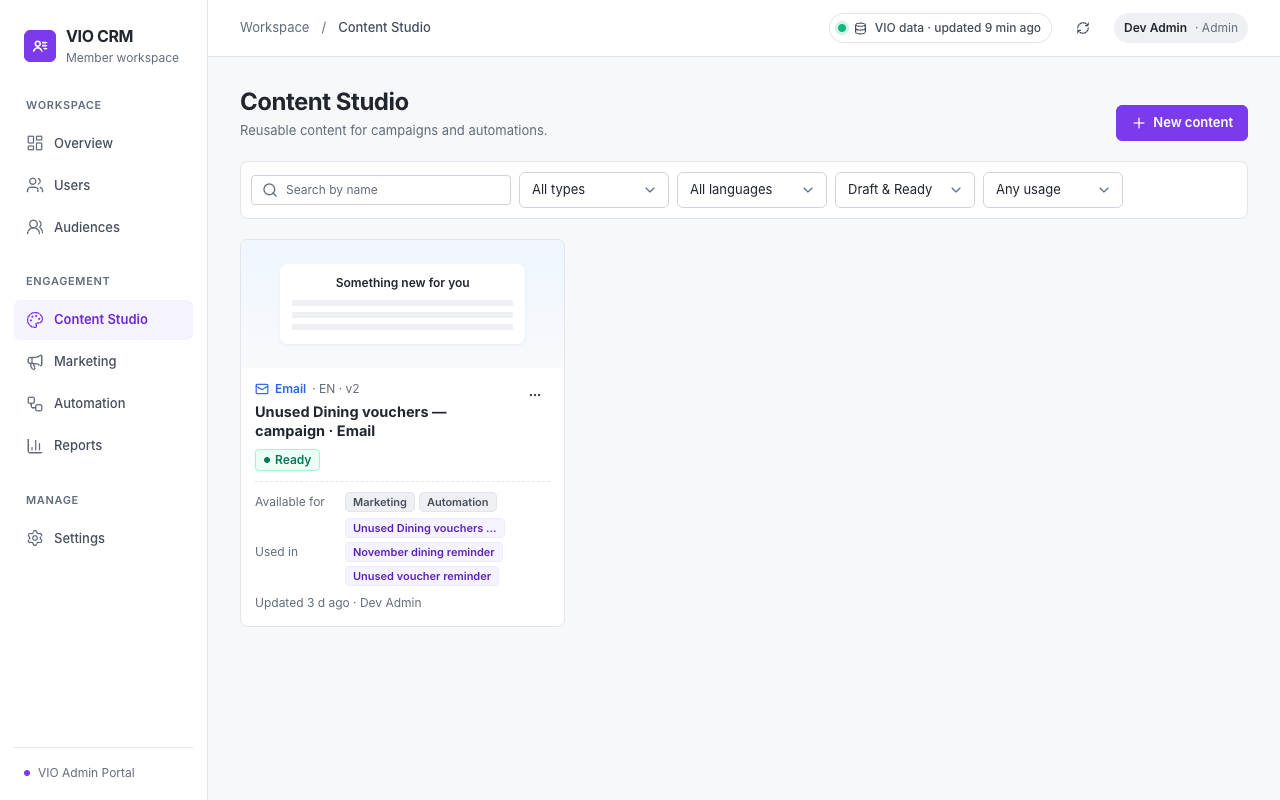
Filter by type, language, status (Draft, Ready, Archived) and usage. Each card shows the type, language and version, status, linked offer, where it is used, and when it was last updated. Card menu: Edit, Duplicate, Use in a campaign (Ready email), Plan App publication, Download PNG, Archive / Restore.
6.3 Create and Edit an Email
- Select New content, choose Email, enter a name and language, and select Create & edit.
- Basics: language and Linked offer (optional). A linked voucher adds its link and terms to the email. A linked voucher that is no longer active is marked as such; choose another.
- Email:
- Subject (required) and Preview text (the line shown after the subject in the inbox).
- Body (required): plain text; line breaks are kept. Insert adds First name, Full name or Tier.
- Image (optional): upload PNG, JPG, WebP or GIF up to 2 MB, or pick one from the Library (voucher images and images used before).
- Button text and Button destination: the linked offer, an App page (Home, Explore vouchers, My vouchers, Membership) or a Web link (must start with
https://). Offer and App links open on the App each member uses. - Variables: the fallback text shown when a member has no name or tier (for example "there" in "Hi there").
- Preview as sent shows the email exactly as a real member receives it. Select Change to preview it as another member.
- Send test: send it to up to 5 of your own addresses, filled in as the preview member and marked as a test.
- Select Save draft, or Mark ready when it is finished.
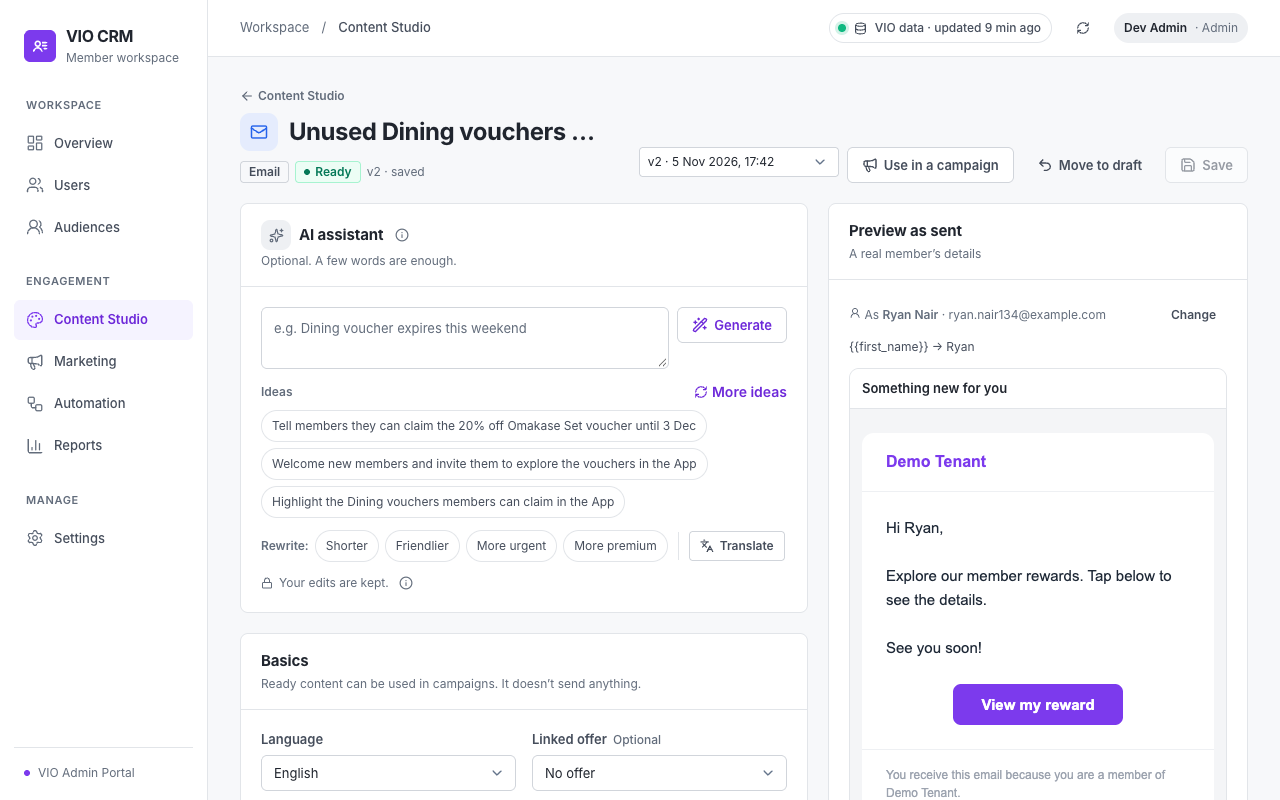
The sender name, logo and footer come from Settings → Brand; when the brand name or logo is empty, your tenant's name and logo in VIO are used. Every email ends with an unsubscribe link.
6.4 AI Assistant
- Generate: write a few words about the message (or pick an Idea) and the AI writes the subject, preview text, body and button text. It uses the linked offer and the brand tone from Settings, and doesn't invent prices, dates or terms. It fills only empty fields and AI text you haven't edited, and points the button at the linked offer or Explore vouchers when none is set.
- The sparkle next to a field regenerates only that field.
- Rewrite: Shorter, Friendlier, More urgent, More premium (body only).
- Translate: creates a copy in another language as a new draft.
When AI is unavailable, Generate fills a generic template (labelled Rule-based) that you should rewrite. Rewrite and Translate need AI.
6.5 Ready, Versions and Archiving
Mark ready checks the content (for example: subject and body present, the button has a destination, every variable has a fallback). Problems are listed under Fix before marking Ready. Ready content is saved with Save and stays Ready; Move to draft takes it back to Draft when no draft, pending or scheduled campaign or active automation uses it. Every save that changes the content creates a version; the version menu shows earlier versions read-only. Campaigns and automations keep the version they were set up with; the campaign wizard tells you when a newer version exists and offers to use it.
Archived content can't be used in new campaigns. Archiving content that is still in use asks you again and names where it is used.
6.6 App Publication Plan
For a Ready App Post or Banner, Plan App publication records where (News or Marketing Page), the position, visibility (all members or selected tiers) and when. It is saved in the CRM only and doesn't appear in the App. Remove plan in the Usage card deletes a plan.
7. Marketing (Campaigns)
A campaign sends one email to the members of one or more audiences, once, now or at a scheduled time.
7.1 Campaign List
Tabs: All, Drafts, Pending (waiting for approval), Rejected, Scheduled, Sending and Finished. Columns show the offer, audiences, channels, status, send time, creator and results (sent or reached, and clicked). Row menu: Edit / Open, Duplicate, View report, Cancel campaign (scheduled or pending), Delete (drafts and rejected campaigns).
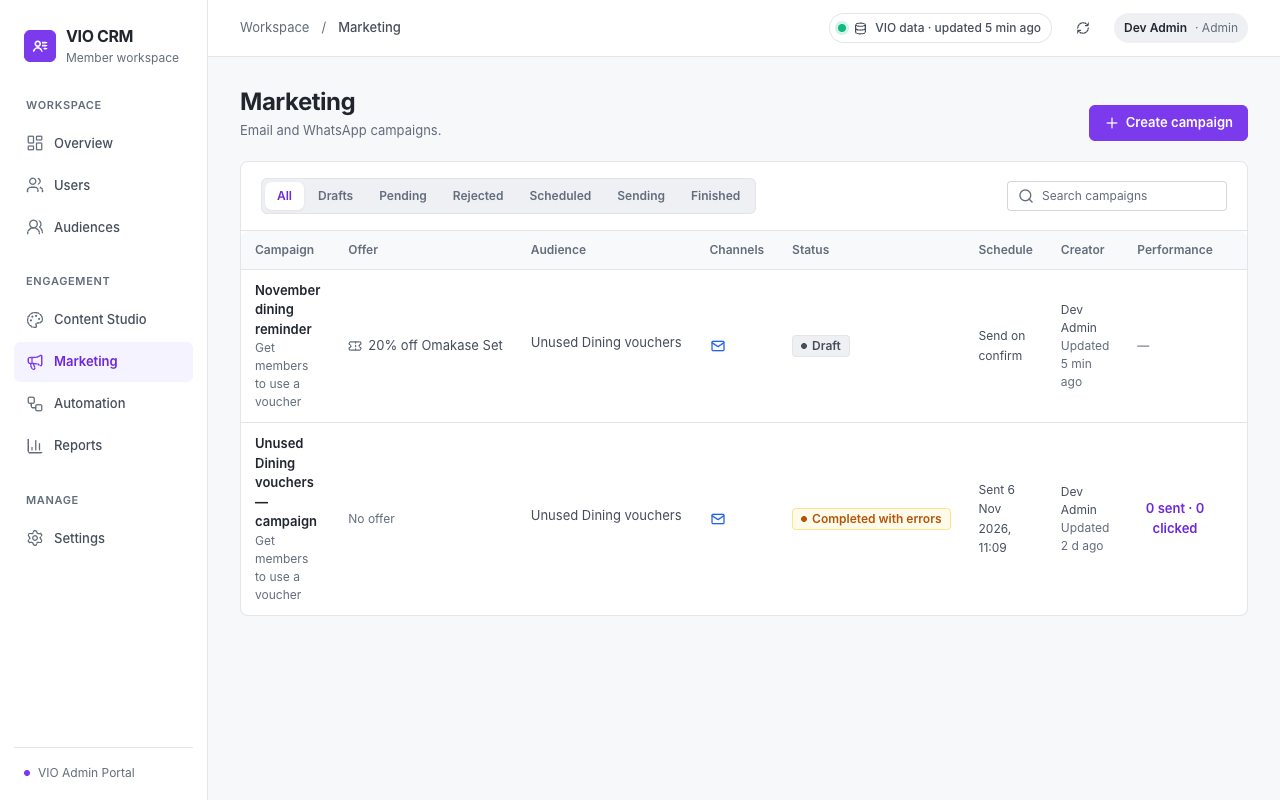
| Status | Meaning |
|---|---|
| Draft | Being set up. Nothing is sent. |
| Pending approval | Submitted; waiting for an Approver. |
| Rejected | The Approver rejected it with a comment. Edit and submit again, or delete it. |
| Scheduled | Confirmed; waiting for its send time or for quiet hours to end. |
| Sending | Emails are going out. |
| Completed / Completed with errors | Finished; with errors, some emails failed (see the report). |
| Cancelled | Cancelled before sending, or stopped while sending (emails already sent can't be recalled). |
| Failed | Could not start; the reason is shown. Duplicate the campaign to send it again. |
7.2 Create a Campaign
Select Create campaign, enter a name and select Create draft. Nothing is sent until you confirm at the end. The wizard saves as you move between steps.
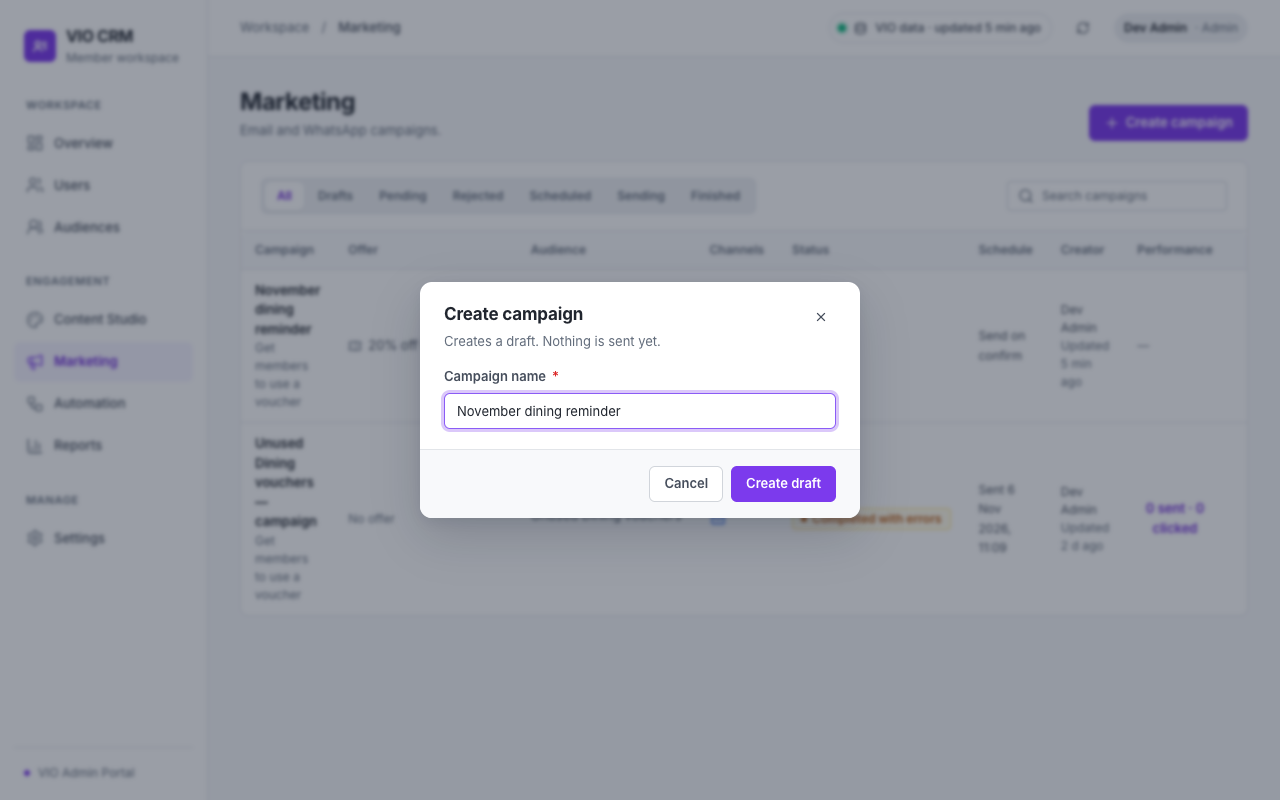
Step 1 · Goal & offer
- Goal: Get members to claim a voucher, Get members to use a voucher, Bring members back to the App, Get members to join a sign-up campaign, or Get members to spend points. The goal sets the default message type and what the report measures.
- Message type: Promotions, Vouchers, News, Membership or Transactions; see 2.4. Promotions is off in the App unless members turn it on. Once an audience is chosen, each type shows how many matching members turned it off.
- Offer: a voucher, a sign-up campaign, or No offer. Expired or withdrawn offers can't be chosen. Suggest offers proposes offers from the audience's past activity (data-backed, not AI). Choose a voucher when you want the report to measure claims and uses.
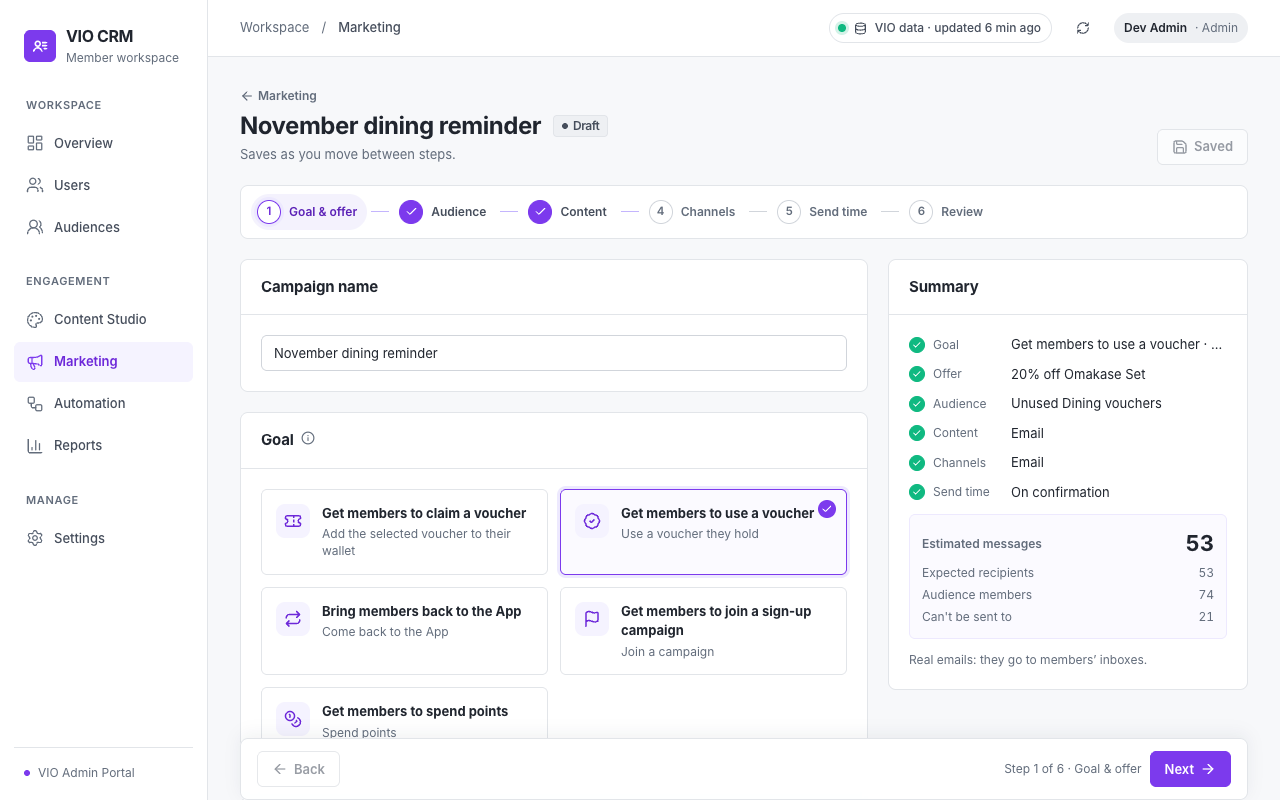
Step 2 · Audience
Select one or more audiences (they are merged without duplicates) and, with Exclude audiences, audiences to leave out (shown as removed by exclusions). Create audience lets you build one and return. Who will be reached shows audience members, how many can receive messages, and how many Can't be sent to, with the reasons. When many members turned the message type off, a note offers Change message type.
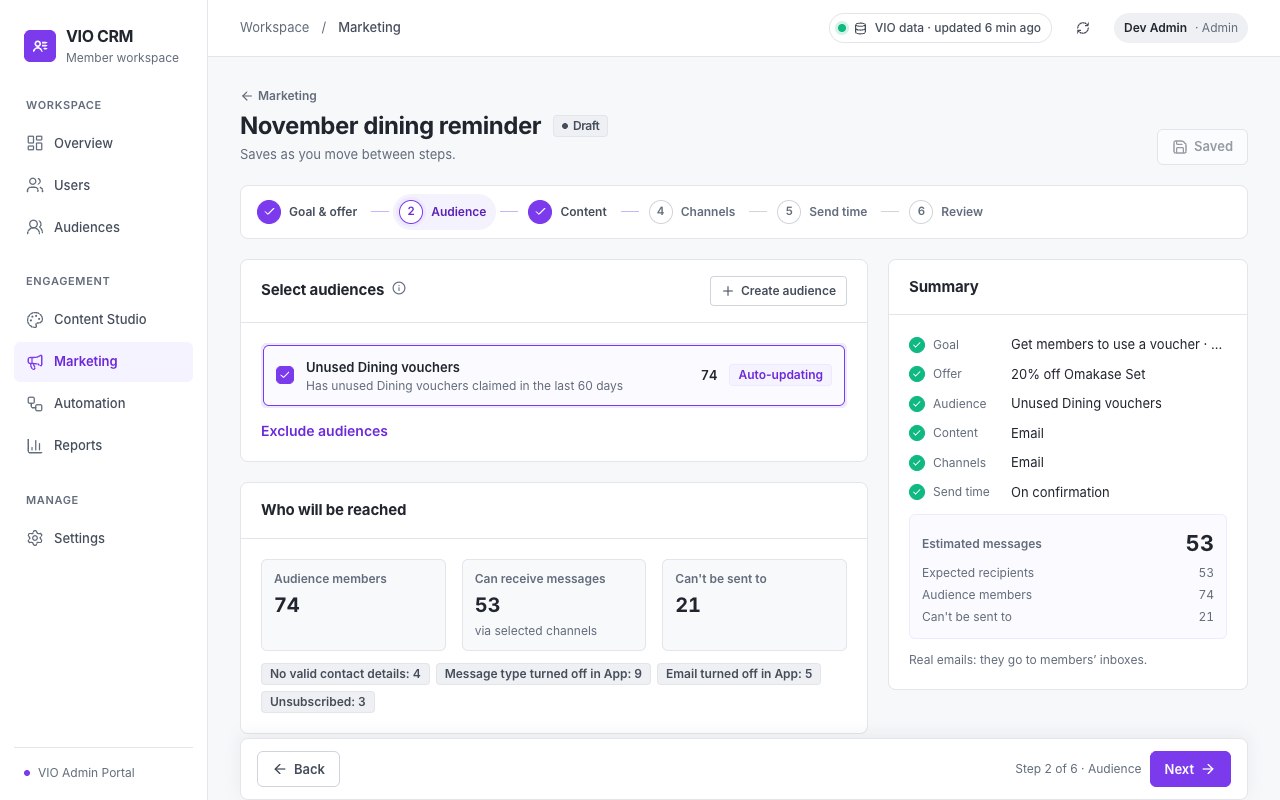
| Reason | Meaning |
|---|---|
| Account deactivated | The member's account is deactivated in VIO. |
| No valid contact details | No email address. |
| Unsubscribed | Unsubscribed, or on the suppression list. |
| Email turned off in App | The member turned Email off in the App. |
| Message type turned off in App | The member turned this message type off in the App. |
| No opt-in recorded | No marketing consent for the channel. |
| Frequency limit reached | The member already received the allowed number of messages today or this week. |
Step 3 · Content
Pick a Ready email (or select New email to write one in Content Studio and come back with it selected). The version you pick stays fixed for this campaign. WhatsApp isn't available yet.
Step 4 · Channels
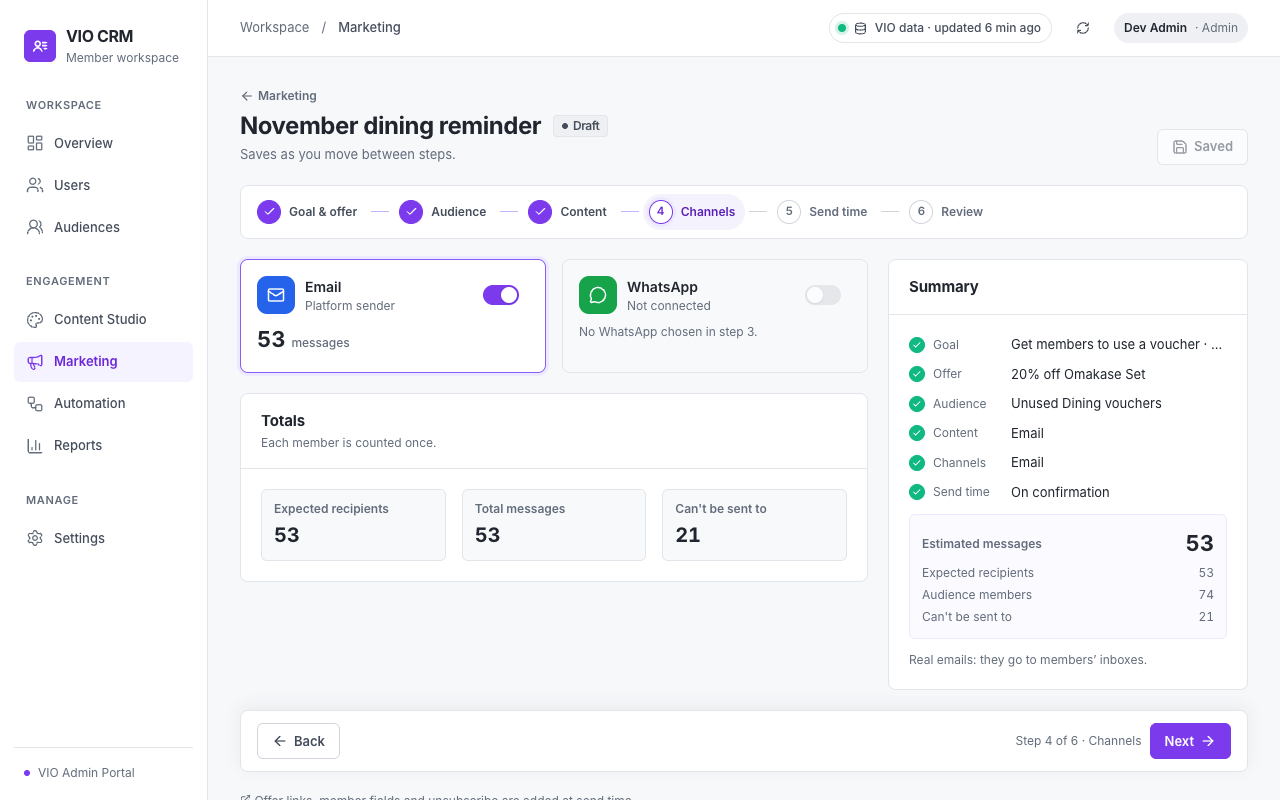
Turn on Email. The card shows the sender and how many messages go out. If no sender is chosen yet, set one up here.
Step 5 · Send time
- Send now or Schedule (a date and time in the organisation's time zone). Suggest a time proposes a time from when the audience usually uses the App; it needs App visit data.
- Sending rules shows quiet hours, frequency limits and the monthly quota left. A send inside quiet hours waits until they end.
Step 6 · Review
- A summary of the campaign and the number of messages.
- Before sending: how many recipients have no name (and see the fallback), no tier, or use the App in another language.
- Send a test: up to 5 addresses at a time; tests are filled in with the member shown in the preview, are marked as tests, and don't count in results.
- Preview as sent.
- Confirm & send, Confirm schedule, or Submit for approval when approval is required.
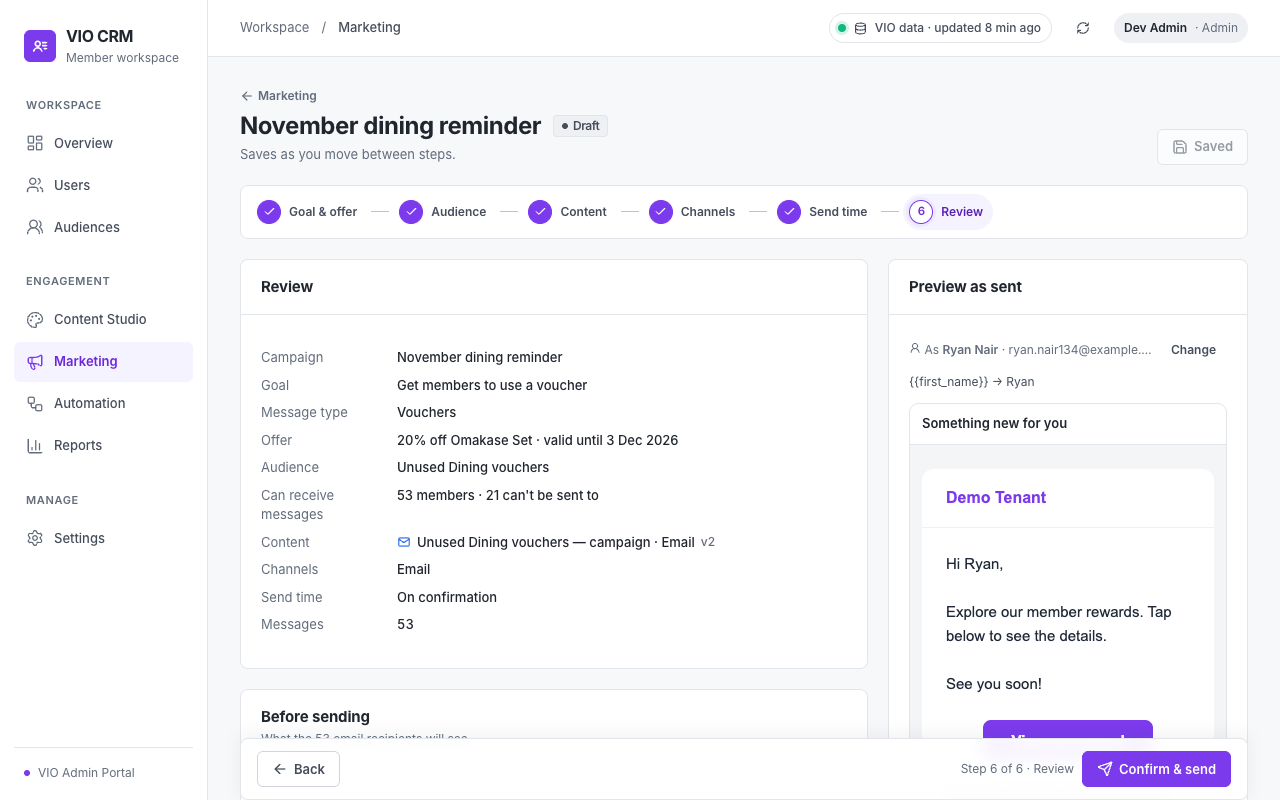
You can move freely between steps. A step that still misses something shows a warning in the step bar and next to Next; on Review, Fix before confirming lists each problem with a link to its step.
7.3 Confirm and Send
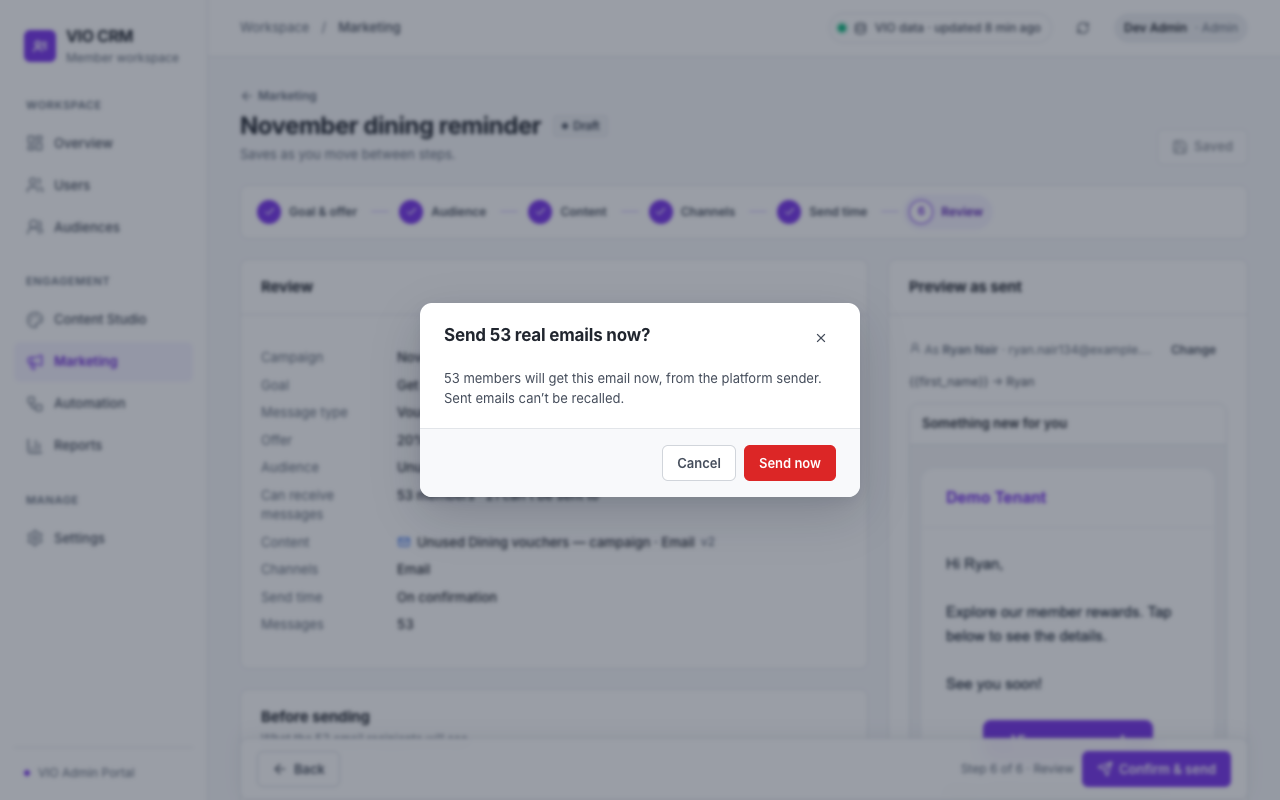
The confirmation shows the number of real emails, how many members get them, when, and from which sender. From 100 emails you type the number to confirm. If the campaign grew after you confirmed (for example, more members joined an auto-updating audience), the CRM refuses it and asks you to confirm the new number. A scheduled campaign whose audience grew beyond the confirmed number by its send time fails instead of sending more emails than were confirmed.
7.4 Approvals
When Campaigns need approval to send is on (Settings → Permissions):
- The Editor selects Submit for approval on step 6.
- An Approver (or Admin) opens the campaign, optionally adds a comment, and selects Approve & send / Approve & schedule (confirming the number) or Reject (comment required).
- The submitter can't approve their own campaign unless Allow self-approval is on.
Changing the campaign, or the rules of its audiences, after submission requires a new approval.
7.5 After Sending
The campaign page shows Results so far, the History and the campaign details. Emails leave one at a time at the sender's pace, wait during quiet hours, and are checked again just before they leave (unsubscribed members, expired offers and stopped campaigns are skipped). Stop sending drops emails not yet sent. Edit campaign returns a scheduled or pending campaign to draft. Duplicate copies any campaign as a new draft.
8. Automation
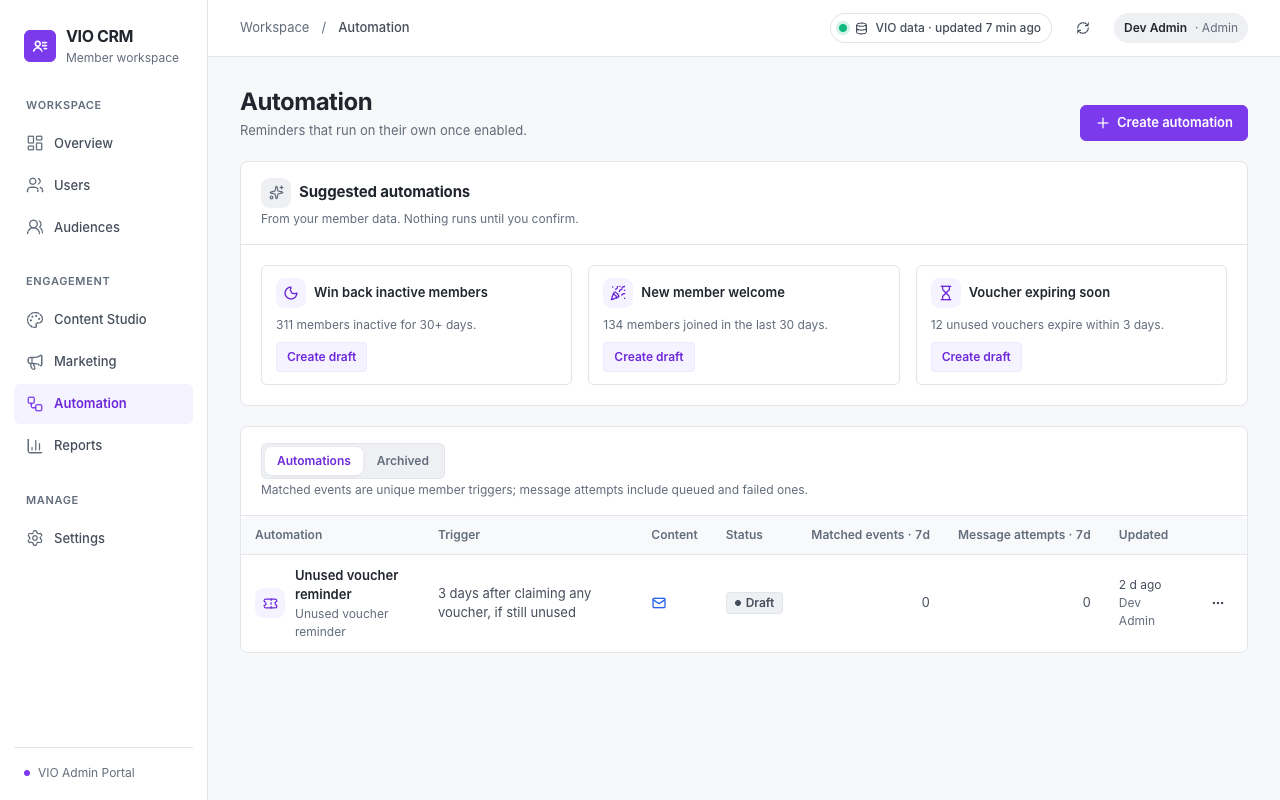
Automations send reminders on their own, to each member when they meet a trigger.
8.1 Templates
| Template | Sends when | Settings | Message type |
|---|---|---|---|
| Unused voucher reminder | N days after a member claimed a voucher they haven't used | Vouchers; days after claiming (1–90, default 3) | Vouchers |
| Voucher expiring soon | N days before an unused claimed voucher expires | Vouchers; days before expiry (1–90, default 3) | Vouchers |
| Points expiring soon | N days before a batch of points expires | Points type; days before expiry (1–90, default 7) | Transactions |
| Win back inactive members | After N days without App use | Days without App use (7–365, default 30) | Promotions |
| New member welcome | Right after registration, or 1 day later | Send timing | Membership |
Each automation sends once per voucher, expiry batch, inactive period or member. Members without activity data are never treated as inactive. The editor shows the template's message type and, under the number of members reachable, why the others are skipped.
8.2 Create and Enable an Automation
- Select Create automation and choose a template, or Create draft on a Suggested automation (suggestions come from your member data).
- 1 · Trigger: adjust the days or timing.
- 2 · Content: choose a Ready email (or Create content).
- 3 · Audience (optional): limit the automation to a saved audience.
- Check Preview as sent and send a Test.
- Select Save draft, then Enable.
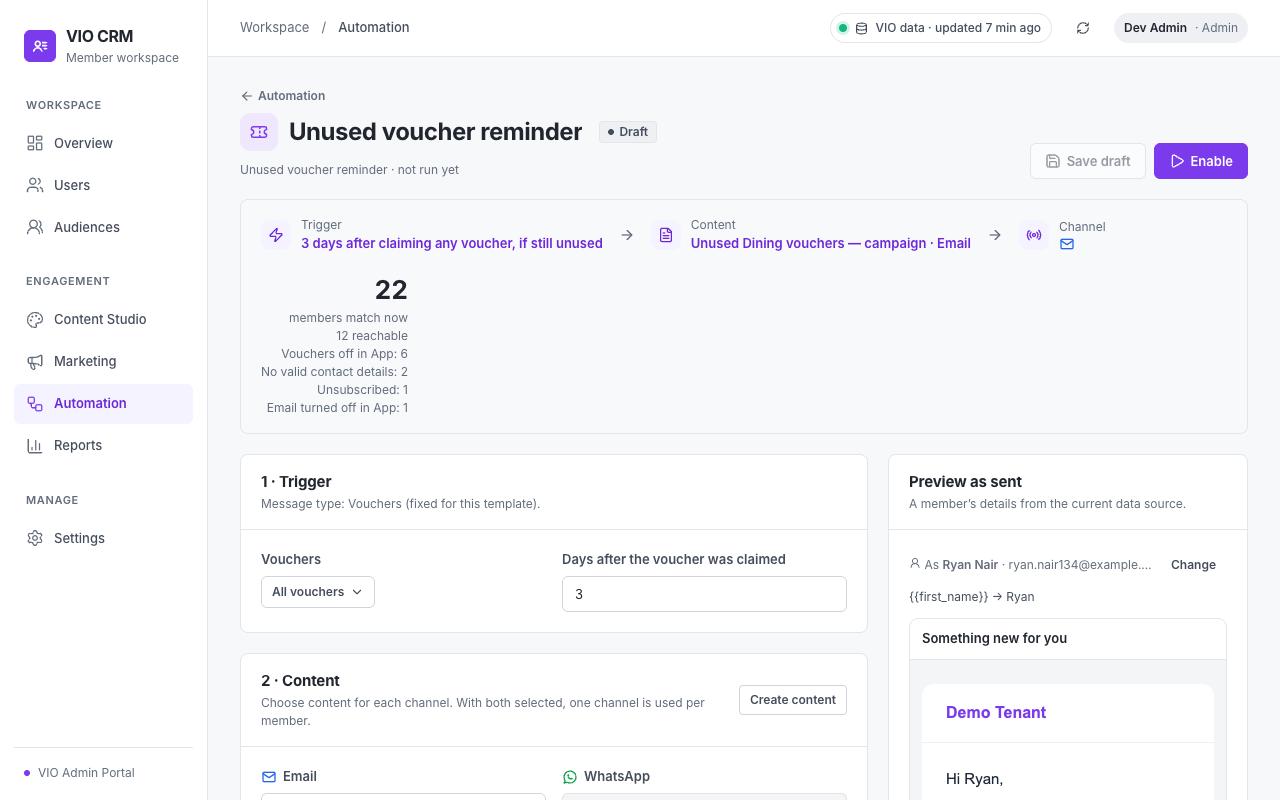
Anything that stops the automation from running (for example content that isn't Ready, or no points type) is listed under Fix before enabling, and Enable stays off until it is fixed. The enable confirmation says how many members who already meet the trigger can be emailed right away. From 100 you type the number. After that, every member who meets the trigger gets the email.
Two automations from the same template: they don't block each other, so a member who meets both gets both emails (for example two welcome emails). The editor and the enable confirmation name the other automation so you can decide.
Consent, App notification settings, quiet hours and frequency limits are applied automatically. Members skipped because of a limit are tried again while the trigger still applies.
8.3 Statuses
| Status | Meaning |
|---|---|
| Draft | Not running. |
| Active | Checked about once a minute; sends as members meet the trigger. |
| Active · waiting | Enabled, but email can't go out right now (no sender, sender on hold, or sending paused). It continues by itself once email can go out. |
| Paused | Stopped by a person. Enable to continue. |
| Paused · needs fix | Stopped automatically because its content or audience is no longer usable; the reason is shown. Fix it and enable it again. |
| Archived | Stopped for good; can be duplicated. |
Saving changes to an active automation pauses it until you enable it again. The list shows Matched events · 7d (member triggers handled) and Message attempts · 7d (messages queued, sent or failed). View report opens Reports for that automation.
9. Reports
Reports show what happened after campaigns and automations sent messages. Figures count unique members unless stated otherwise.
9.1 Reports Page
Filters: date range, campaign or automation, channel, and More filters (audience, voucher). Refresh results reloads the latest figures. Percentages are of members reached, or of members sent to when the sender doesn't report delivery.
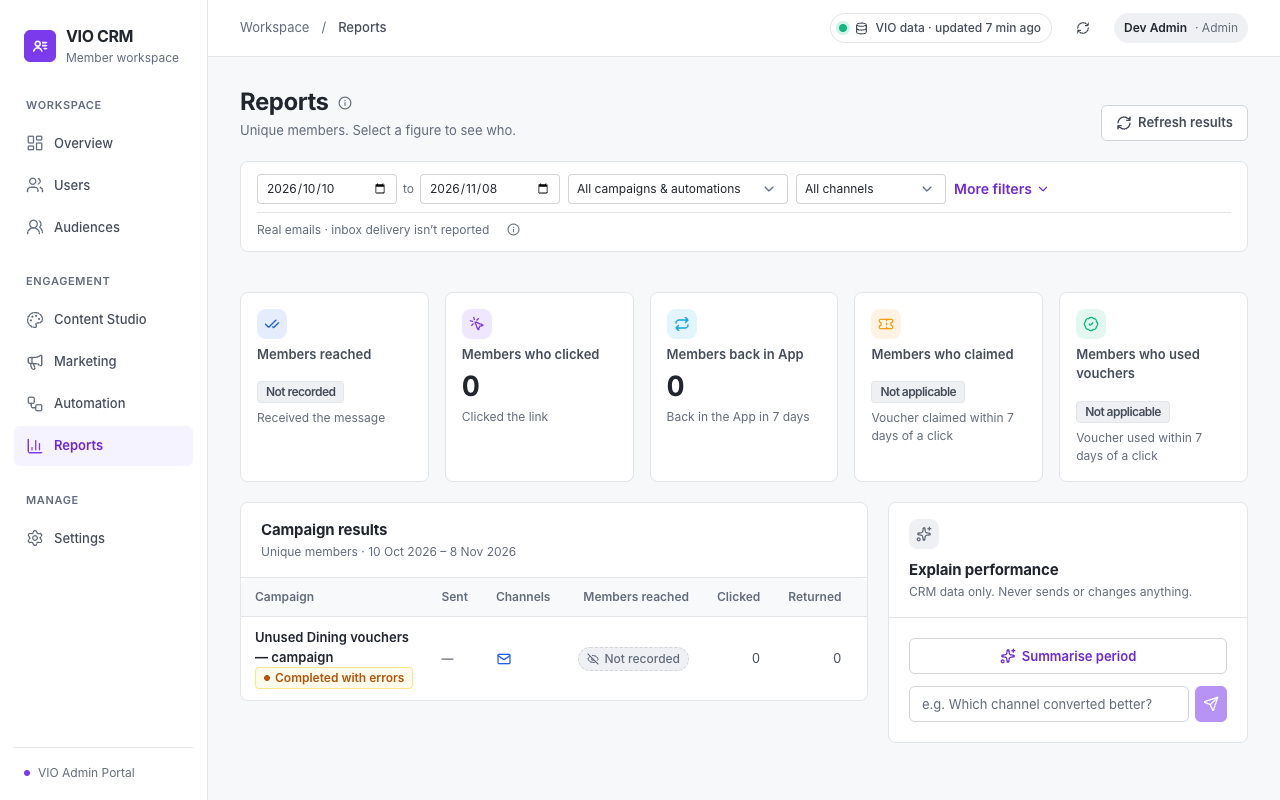
| Figure | Meaning |
|---|---|
| Members reached | The email was confirmed delivered. Shows Not recorded when your sender doesn't report delivery (SMTP never does); use Message attempts and Failed instead. |
| Members who clicked | Clicked the email's button. Several clicks count once. |
| Members back in App | Opened the App within 7 days of the email, with their average active time. Observed, not proof the email caused it. |
| Members who claimed | Claimed the campaign's voucher within 7 days of clicking. Not applicable without a voucher offer. |
| Members who used vouchers | Used that voucher within 7 days of clicking. |
Select a figure to see the members behind it. Campaign results lists each campaign and automation with the same figures; select a campaign to open its report. Explain performance writes an AI summary of the results.
9.2 Campaign Report
- The five figures for this campaign, and a comparison by channel.
- Sending results: Members targeted, Still queued, Message attempts (counts messages, not members), Reached, Failed, Unsubscribed and Not sent, with a list of reasons.
- For sign-up campaign offers: the campaign's visits from all sources.
Results keep growing for about a week after sending, as clicks, returns to the App, claims and uses come in.
10. Settings
Settings apply to the whole organisation. Analysts and Approvers can view them. Editing needs the Admin role, except Email and WhatsApp, which the Channels permission can change. Each section is saved separately with Save; leaving a section with unsaved changes asks first.
10.1 Data Connection
The VIO connection (API key ending, number of members, last update, time zone), Replace API key, Refresh data, any data VIO couldn't return, the Members' App reports check (latest App visit report, App versions in use) and What the CRM knows about members (each kind of data, how it is recorded and where it is used).
10.2 Brand
Brand name, logo URL, primary and accent colours, font, tone of voice (used by AI copywriting), content languages and the email footer text. An empty brand name or logo uses your tenant's name and logo in VIO.
10.3 Email
10.3.1 Status
How emails go out: your per-member limit (and the platform maximum), emails a day and a minute, the sender, where offer buttons open, and where unsubscribe links point.
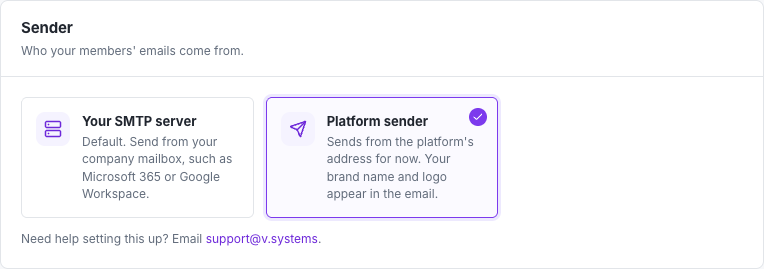
10.3.2 Sender
Choose Your SMTP server or Platform sender. Until one is chosen, nothing is sent: due campaigns fail with the reason, automations wait, and queued emails wait. Choosing the platform sender deletes saved SMTP settings; to switch back, enter them again.
10.3.3 Set Up Your SMTP Server
| Field | Notes |
|---|---|
| Email provider | Microsoft 365, Google Workspace, Zoho Mail or Other. Fills in the server, port and a safe pace, and shows the provider's sending limits. |
| SMTP server, Port | A secure connection is always used (465 SSL/TLS, or STARTTLS on 587, 2525 or 25). |
| Username, Password | Usually the mailbox address. Google Workspace needs an app password. Microsoft 365 needs SMTP AUTH turned on for the mailbox. The password is stored encrypted and never shown again. |
| From name, From address, Reply-to | Empty From name uses the brand name; empty From address uses the username. |
| Emails a minute, Emails a day | The pace your organisation's emails go out at (1–60 a minute, up to 10,000 a day). Leave room for the mailbox's everyday email. |
Sign in and save signs in to the server first; only working settings are saved. Then send yourself a test email. If the server later refuses the sign-in or its certificate, sending is put on hold and the header shows Email on hold; fix the problem and select Sign in again. If the mailbox reports its own sending limit, emails wait for an hour. Company mailboxes aren't made for bulk email: bounces return to the mailbox, so reports can't show delivery.
10.3.4 Sender Reputation
To protect your sender reputation, sending pauses by itself when, of at least 40 real emails in 24 hours, 5% or more unsubscribed, or 10% or more failed or were rejected. While paused, queued emails wait, campaigns can't be sent or approved, automations wait, and a banner shows the reason. After checking the cause, an Admin resumes sending in Settings → Email with a note of what was checked or changed (kept in the audit log).
10.4 WhatsApp
WhatsApp isn't available yet. The business account details are kept for when it is.
10.5 Consent & Preferences
- Email consent basis and WhatsApp consent basis: used only when VIO has no recorded choice for a member (Agreed at registration or Explicit opt-in only).
- Unsubscribes apply immediately (always on).
- Suppression list: email addresses or phone numbers, one per line, that are never contacted.
10.6 Frequency & Quotas
| Setting | Default |
|---|---|
| Tenant timezone | Asia/Kuala_Lumpur |
| Daily limit per member | 1 (at most 2) |
| Weekly limit per member | 3 |
| Quiet hours | 22:00 – 08:00 |
| Monthly Email quota | 50,000 |
| Monthly WhatsApp quota | 10,000 |
Limits count every CRM message to a member (campaigns and automations together). Members over a limit are skipped; automations try them again later.
10.7 AI
Turn AI on or off, choose its capabilities (Summaries & insights, Audience drafts, Copywriting, Translation) and set the Monthly generation quota. Over the quota, AI features fall back to rule-based output. Every flow works without AI, and AI never sends messages, issues vouchers, adds points or changes who is eligible.
10.8 Permissions
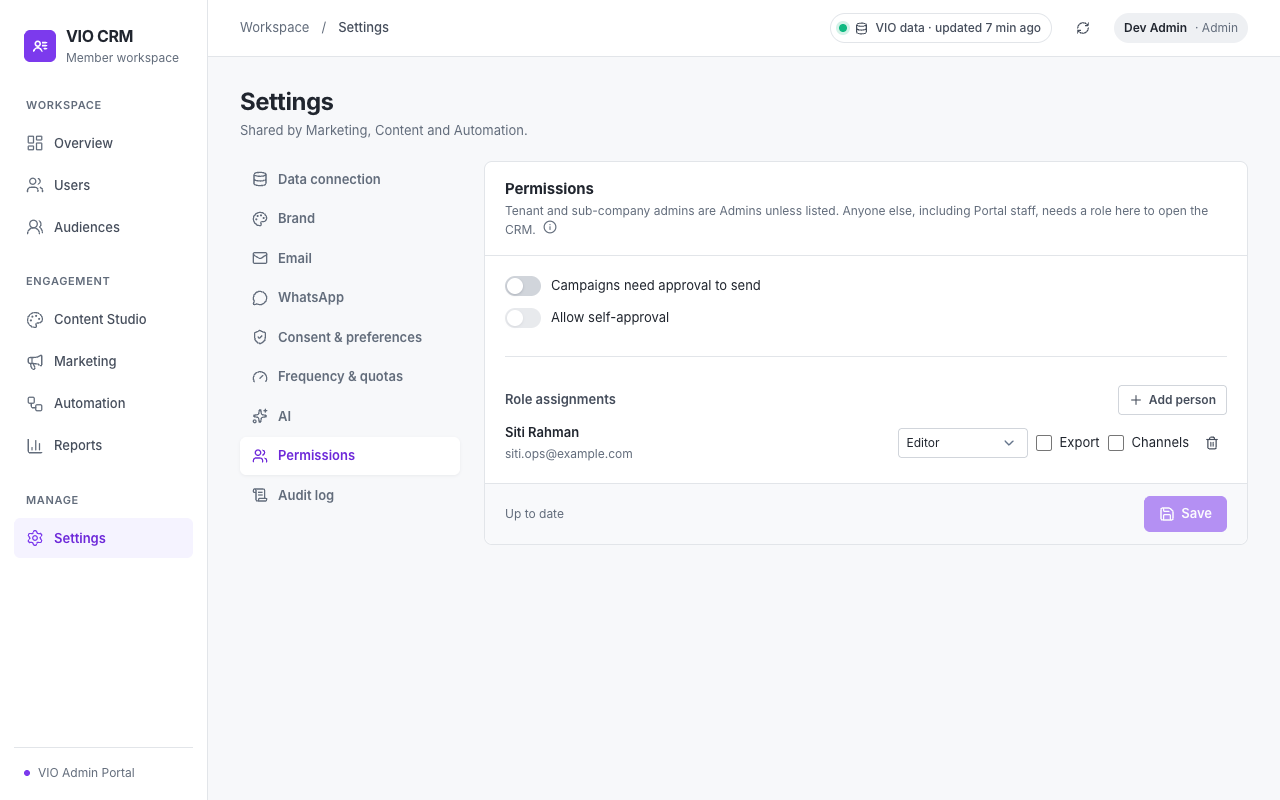
- Campaigns need approval to send and Allow self-approval.
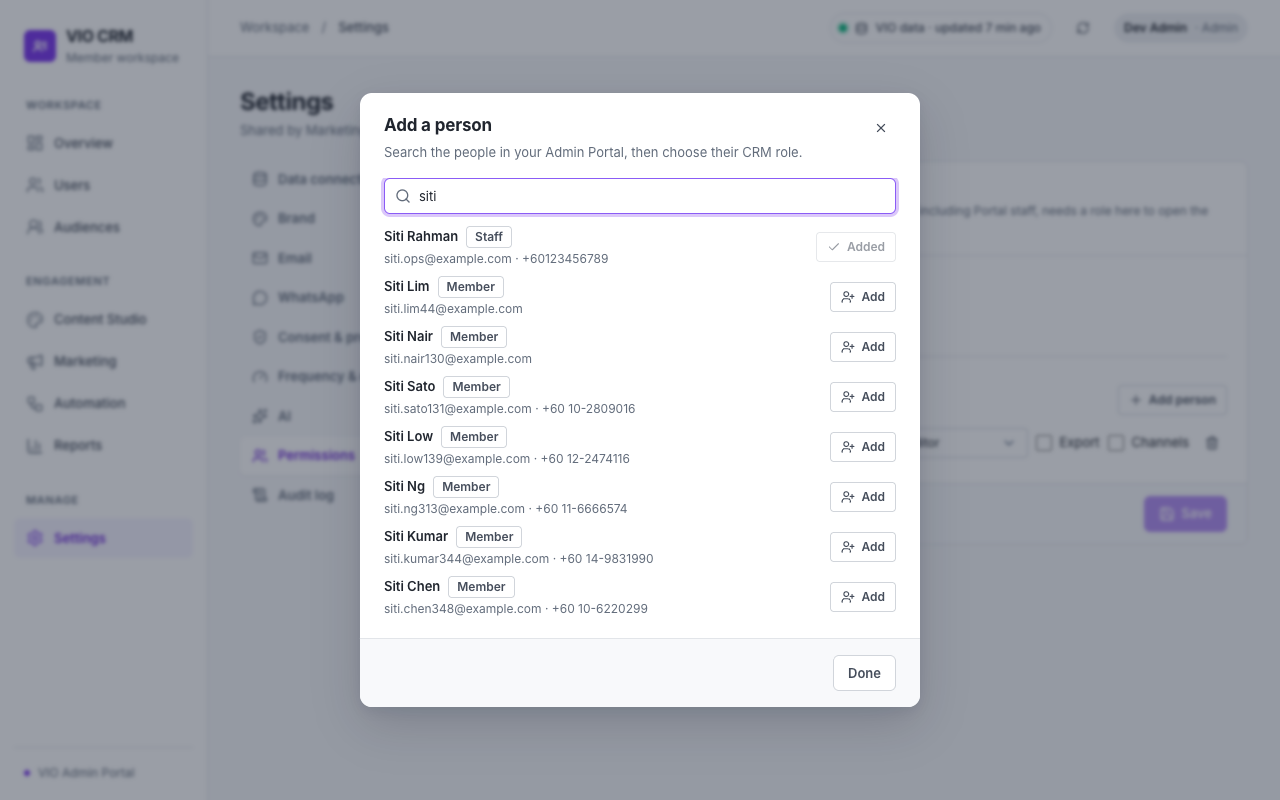
- Role assignments: select Add person, search by name, email, phone or VIO user ID, and add them. Then choose their role and tick Export and Channels as needed. If your Portal account can't search users, enter the person's VIO user ID instead (shown to them on the No access to the CRM screen).
You can't remove Settings access from yourself; ask another Admin to change your role.
10.9 Audit Log
Who did what and when: edits, approvals, sends, exports, consent corrections, settings changes (with what changed) and AI actions. Search by action, user or target, and open View details for an entry.
11. Limits and Rules Reference
| Rule | Value | Who sets it |
|---|---|---|
| Messages per member | Daily limit (default 1, at most 2) and weekly limit (default 3) | Settings → Frequency & quotas (the platform caps the daily limit at 2) |
| Quiet hours | Default 22:00 – 08:00, organisation time zone | Settings → Frequency & quotas |
| Monthly quota | Default 50,000 emails | Settings → Frequency & quotas |
| Typed confirmation | Real sends of 100 or more emails, and automations that email 100 or more members right away | Platform |
| Test emails | Up to 5 addresses per test, 20 test emails a day per organisation | Platform |
| Sender reputation pause | 5% unsubscribes or 10% failures, once at least 40 real emails were sent in 24 hours | Platform |
| SMTP pace | 1–60 emails a minute, up to 10,000 a day | Settings → Email |
| Attribution window | Claims and uses within 7 days of a click; returns to the App within 7 days of sending | Platform |
| Images | PNG, JPG, WebP or GIF, up to 2 MB | Platform |
12. Troubleshooting
| Message or situation | What to do |
|---|---|
| Choose email sender in the header | Set up your SMTP server or choose the platform sender in Settings → Email. |
| Email on hold in the header | Your SMTP server refused the sign-in or certificate. Fix it with your email provider, then Sign in again in Settings → Email. |
| Email sending is paused banner | Too many unsubscribes or failures. Check the list and content you sent, then resume in Settings → Email with a note. |
| VIO data (incomplete) | VIO couldn't return part of the data. Hover for details, or check Settings → Data connection. Use Refresh later. |
| A figure shows Not measured or Not recorded | The data isn't recorded by VIO or the App for your organisation. It is not zero. |
| Far fewer recipients than audience members | Check the reasons under Excluded from sending. "Message type turned off in App" often means the campaign is sent as Promotions; choose the type that fits the message. |
| Fix before confirming | Each line links to the step to fix. |
| A campaign Failed | Read the reason on the campaign page, fix it, then Duplicate the campaign and send the copy. |
| An automation shows Paused · needs fix | Its content or audience can't be used. Choose another, save, and enable it again. |
| An automation shows Active · waiting | Email can't go out right now (sender or pause). It continues by itself once that is fixed. |
| Members reached shows Not recorded | Your sender doesn't report inbox delivery. Use Message attempts and Failed. |
| No access to the CRM | Ask an Admin to add you in Settings → Permissions. |
| AI shows Rule-based | AI is off, over its monthly quota, or temporarily unavailable. Results are still usable; review generated text before use. |
13. Glossary
| Term | Meaning |
|---|---|
| Audience | A saved group of members, auto-updating (rules) or fixed (a list). |
| Campaign | A one-time email send to one or more audiences. |
| Automation | A reminder that sends by itself when a member meets its trigger. |
| Claimed | A voucher added to a member's wallet. |
| Used | A voucher redeemed at a merchant. |
| Message type | Promotions, Vouchers, News, Membership or Transactions; members can turn each off in the App. |
| Ready | Content that passed its checks and can be used by campaigns and automations. |
| Reached | An email confirmed as delivered by the sender. |
| Message attempts | Messages handed to the sender (sent, delivered or failed); counts messages, not members. |
| Not measured / Not recorded | The data isn't available; never the same as 0. |
| Quiet hours | Hours when no email is sent; emails wait until they end. |
| Suppression list | Email addresses and phone numbers that are never contacted. |
| Platform sender | The platform's email address, used instead of your own SMTP server. |