VIO v4 Member App - User Guide
Welcome to the VIO v4 Member App. This guide describes main screens and routes (App.jsx). Screenshots live under guides/member-app/screenshots/ and are copied to the docs site with scripts/sync-guides-to-docs.sh.
Table of Contents
- Login
- Home
- Send Tokens
- Receive Tokens
- News
- Explore
- Vouchers
- Transaction History
- Account
- Profile
- Member Card
- Notifications
- Security
- Linked Accounts
- Settings
- Help & Support
- Logout
- Terms of Service
- Privacy Policy
- Product Detail
- Checkout & Payment
- My Orders
- Paid Membership
1. Login
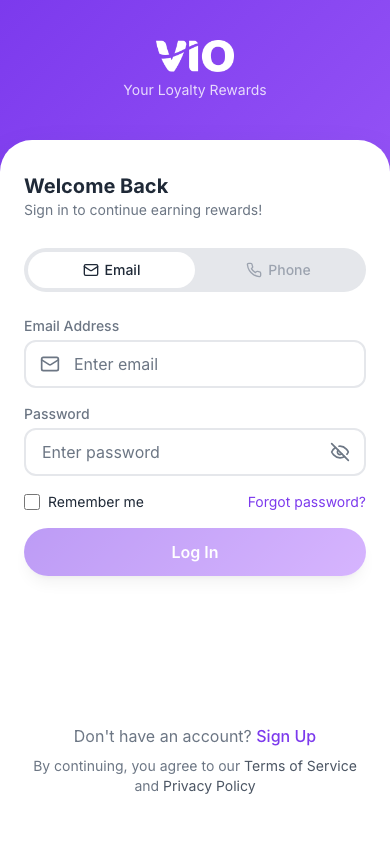
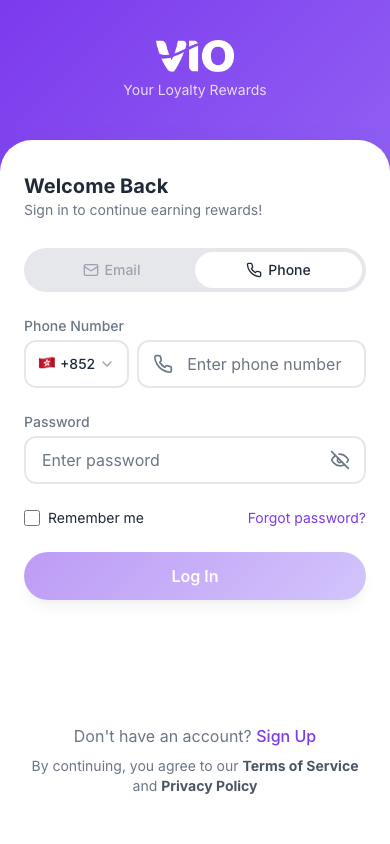
Sign in with Email or Phone (country code + mobile). Links: Create account (/register), Forgot password (/forgot-password), and after sign-up Verify OTP (/verify-otp). The guide includes figures for phone login and the forgot-password flow.
Login with email
Login with phone
Select the Phone tab to choose a country code and enter your mobile number (digits only), then enter your password and sign in.
Forgot password
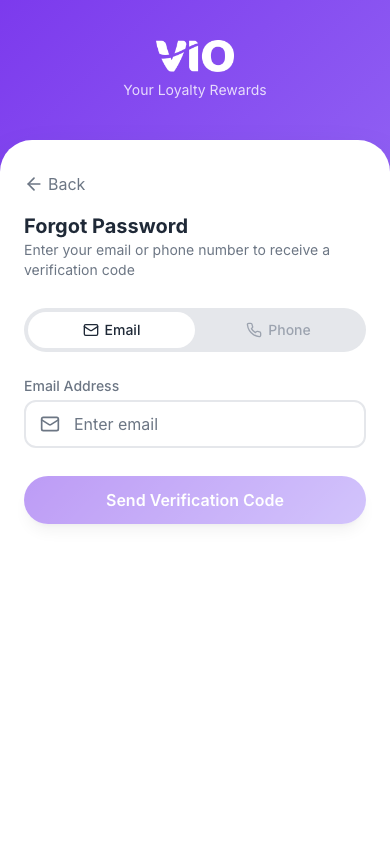
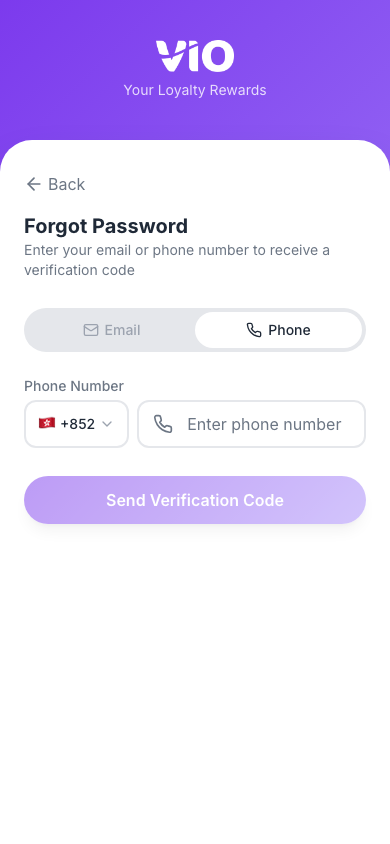
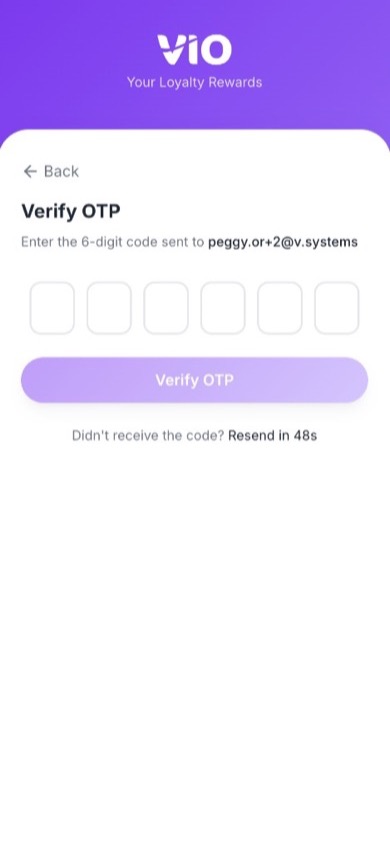
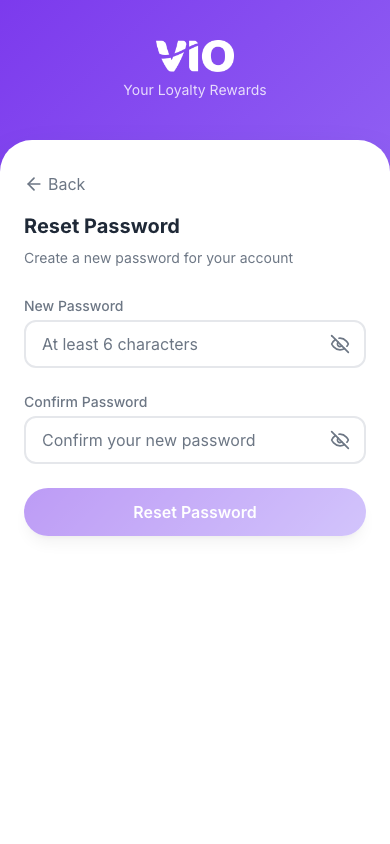
From the login screen, tap Forgot password to open /forgot-password. The flow matches email or phone tabs like sign-in: request a code, enter the 6-digit OTP, set a new password, then return to the login screen.
- Request code — Choose Email or Phone, enter your registered address or number, then tap Send verification code.
- Phone — Same screen with the Phone tab: pick country code and mobile number, then send the code.
- Enter OTP — Enter or paste the 6-digit code (you can use Resend after the timer). The same Verify OTP pattern is used on
/verify-otpafter registration.
- New password — Enter and confirm your new password, then submit. On success, use Back to Sign In.
2. Home
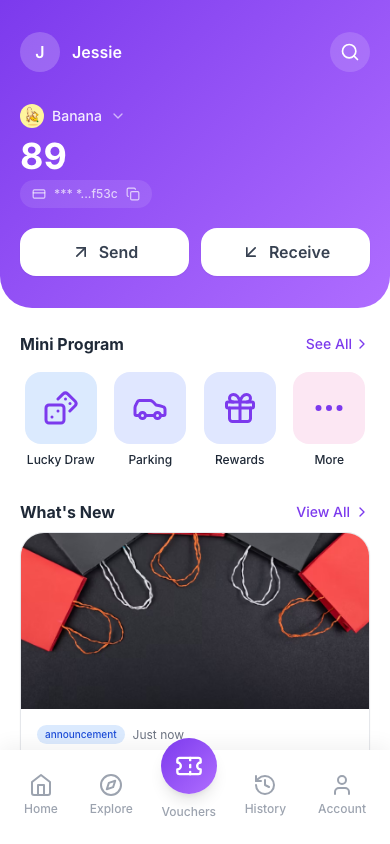
Main dashboard after sign-in at /: wallet address and balance, Send / Receive shortcuts, mini programmes, and scrollable content (vouchers, news, etc.) with bottom navigation.
How to use
- Wallet — Tap the masked address row (copy icon) to copy your full wallet address; a toast confirms.
- Balance — Current balance uses the token symbol dropdown (chevron) to switch tokens when you hold more than one; the receipt icon opens token history (
/token-history). - Actions — Receive and Send open
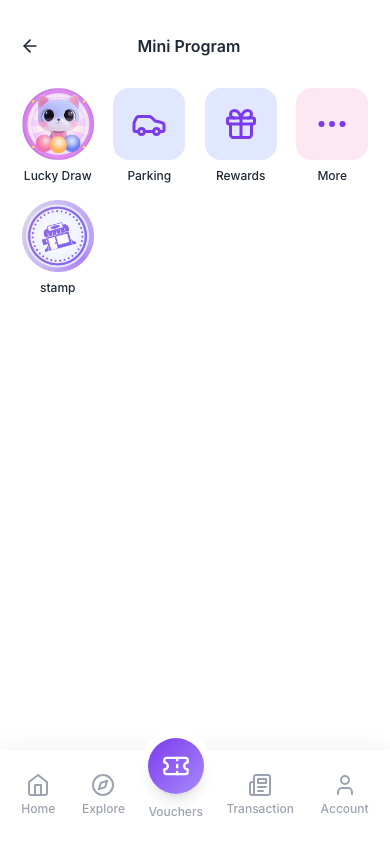
/receiveand/send(same screens as Send Tokens and Receive Tokens below). Under Mini programme, See all opens/mini-appswhen your tenant enables mini apps. - Navigation — Scroll for vouchers, news, and more; use the bottom bar for Explore, Home, Account, and other tabs.
Figures — Home overview (wallet, balance, actions). Mini programmes — full list via See all (/mini-apps). Full Send / Receive UI is documented in Send Tokens and Receive Tokens.
3. Send Tokens
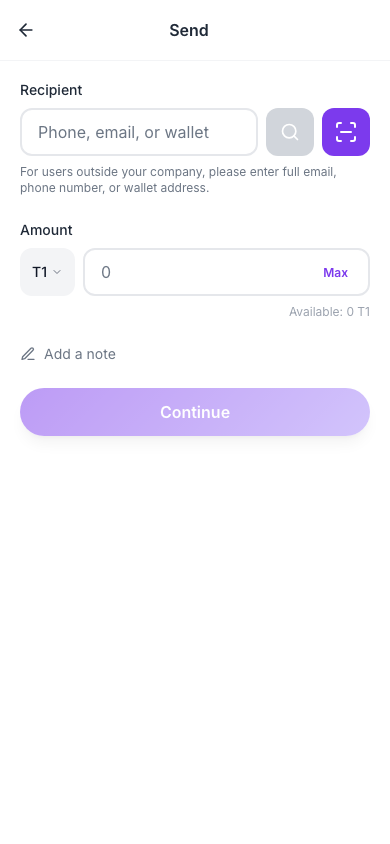
Send tokens at /send: choose recipient (phone or wallet / QR), token, amount, optional memo, then confirm.
How to use
- Recipient — Enter phone number or wallet address, or use scan QR where available.
- Token — Select which token to send from the picker or list.
- Amount — Enter the amount; review fees, limits, or balance hints if shown.
- Memo — Add an optional note for the transfer when the field is available.
- Confirm — Review the summary and submit; wait for success or error feedback.
Figures — Send Tokens compose / confirm screen (/send).
4. Receive Tokens
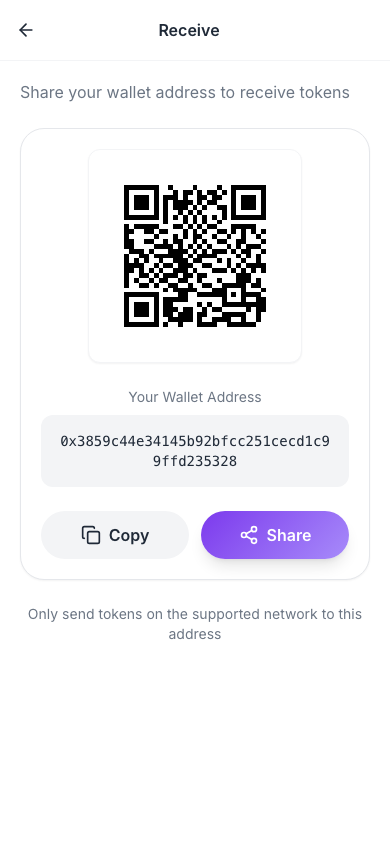
Receive tokens at /receive: show your QR code and wallet address so others can send to you; pick token context when you hold multiple.
How to use
- QR — Display your receive QR for others to scan.
- Address — Copy or share your wallet address if the screen offers it.
- Token — Choose which token you are receiving when multiple tokens exist.
- Activity — After a transfer, check balance or Transaction History for the incoming entry.
Figures — Receive Tokens screen (/receive).
5. News
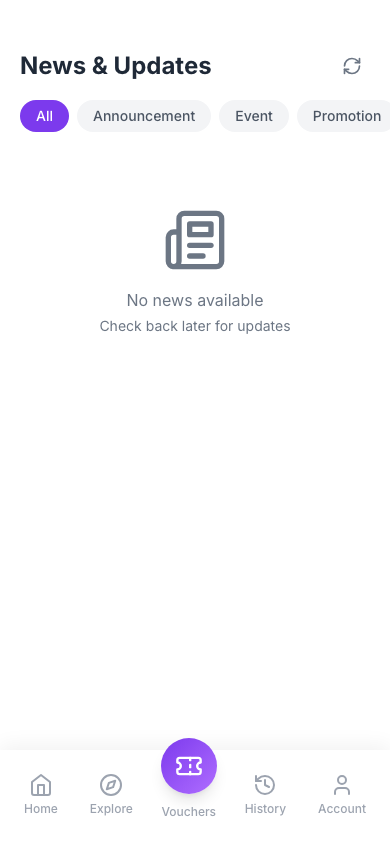
News feed at /news: search and refresh in the header, category pills, infinite scroll, like on each card, and tap-through to article detail at /news/:id.
How to use
- Search — Tap the magnifying glass (top right) to open the inline search field; type to filter articles (debounced ~400 ms). Tap X on the field to clear text, or tap the X in the circle (replacing the magnifying glass) to close search and return to the normal title bar.
- Refresh — With search closed, tap the circular arrows next to the search control to reload the list from page 1 (same category and current search query). The icon spins while the request runs.
- Categories — Use the horizontal pills (All, Announcement, Event, Promotion, Update, Other) to filter.
- List — Newest first; pinned items show a pin badge. Scroll for infinite loading.
- Like — Tap the heart on a card (does not open the article).
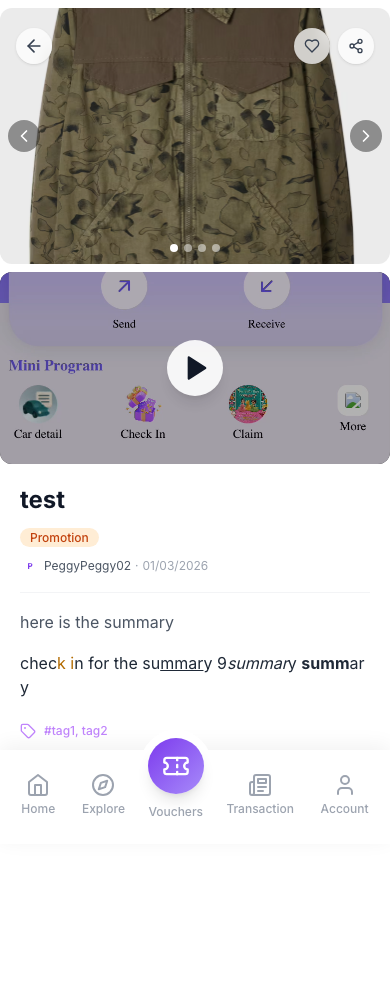
- Open article — Tap the card (title, image, summary) to open full article detail (
/news/:id) — see screenshot below.
Figures — News list (/news). Article — detail after tapping a card (/news/:id).
6. Explore
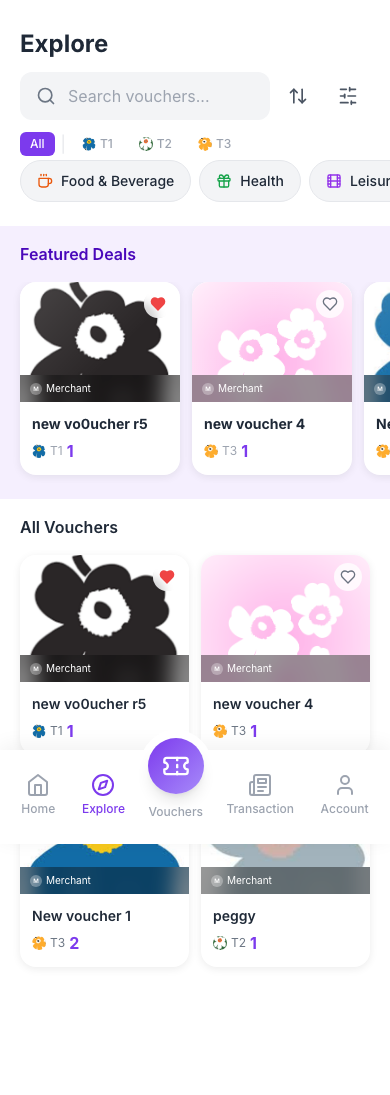
Browse tenant vouchers and (when the E-Commerce module is enabled) shop products, at /explore. A segmented control at the top switches between the Vouchers tab (?tab=vouchers, default) and the Products tab (?tab=products); the Vouchers tab offers token chips (All or a specific token), search, sort, a filter sheet, category pills, a featured strip, and infinite scroll.
How to use
- Token chips — Tap All to list every voucher, or tap a token (icons/symbols from redeem-cost tokens and your balances) to show only vouchers priced in that token.
- Search & refine — Use the search field, sort (e.g. newest, expiring, value), and filters (expiry, token price range, merchants, countries). Select a category pill to narrow by category.
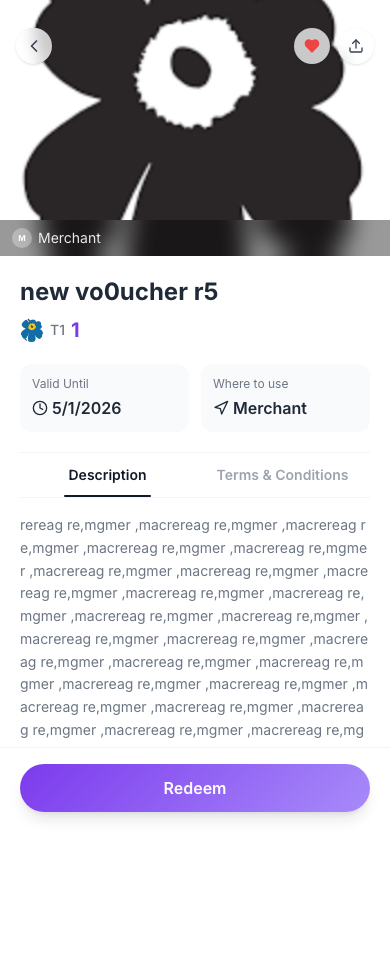
- Open a voucher — Tap a card to open voucher redeem / detail at
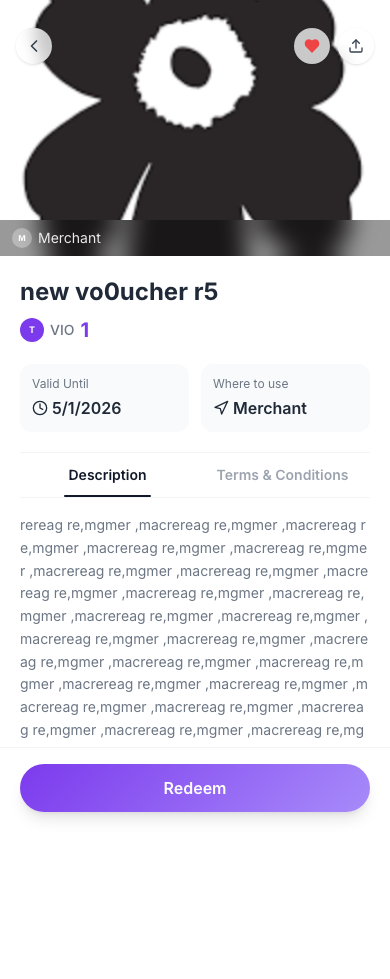
/vouchers/:id(see screenshot below). Review images, description, and token cost. - Share — On the voucher detail page, tap Share in the top bar (next to the heart). Many phones and browsers open the system share dialog with title, text, and link; if not, the page URL is copied to the clipboard and a toast confirms.
- Redeem — Sign in if prompted. Tap Redeem to spend tokens and add the voucher to your wallet; on success you are taken to your redeemed voucher at
/voucher/:userVoucherId. - Favorites — On Explore or the detail header, use the heart to save or remove a favorite (sign in may be required).
Validity on the voucher page — Most vouchers show a fixed expiry date. A voucher with relative validity instead shows “{n} days after redeeming” on the clock line, plus an amber notice: the {n}-day countdown starts when you redeem it, and you must tap Use Now before it runs out — an unused expired voucher can no longer be used. Vouchers with neither show No expiry.
Figures — Explore listing (/explore). Voucher redeem — redeem/detail at /vouchers/:id (Share, favorite, Redeem).
Products tab
Only shown when the tenant's E-Commerce module is enabled. A horizontal category pill bar (global categories, shared across tenants) plus a 2-column product grid with search and infinite scroll (20 per page). Each card shows the cover image, name, starting price (From <price> when variants have different prices), a Sold out badge (grayscale image) when total inventory is 0, and a small badge when the product allows points deduction at checkout.
- Tap All or a category pill to filter the grid; use Search to filter by name (debounced)
- Tap a card to open Product Detail at
/product/:id(see § 20)
7. Vouchers
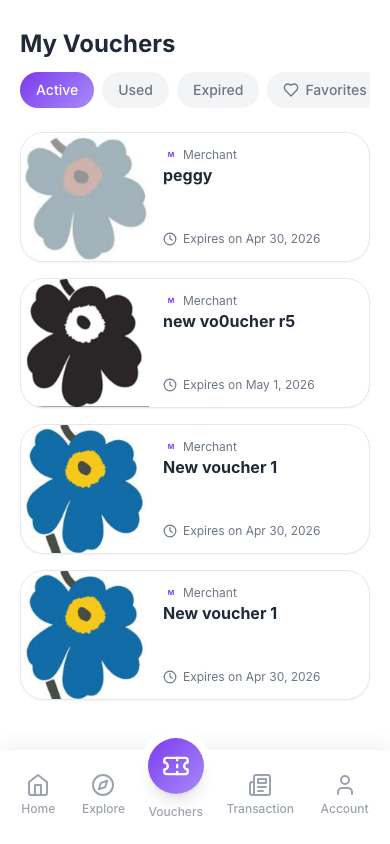
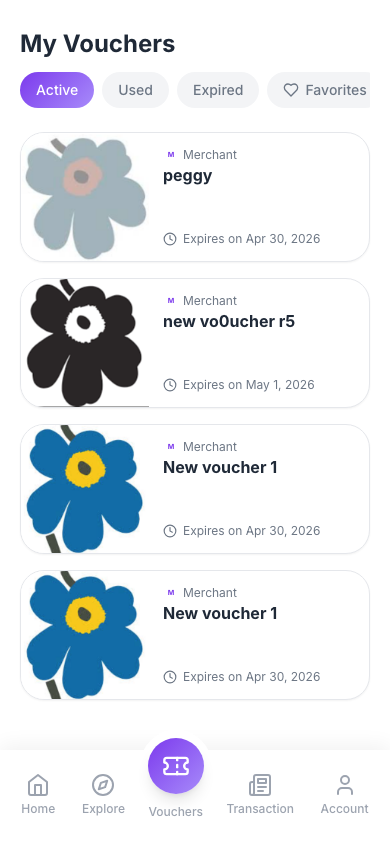
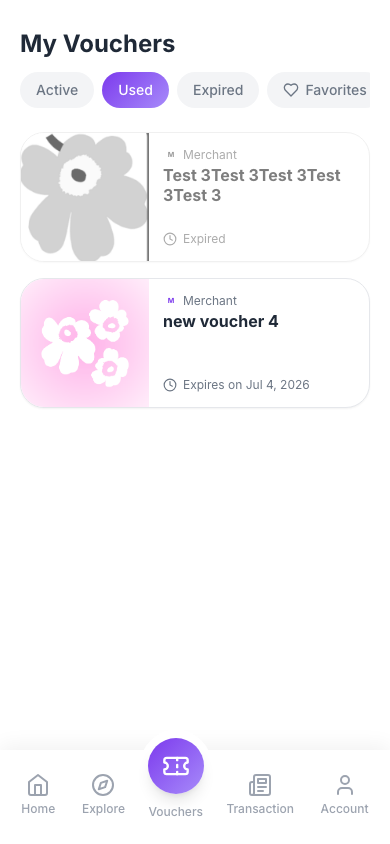
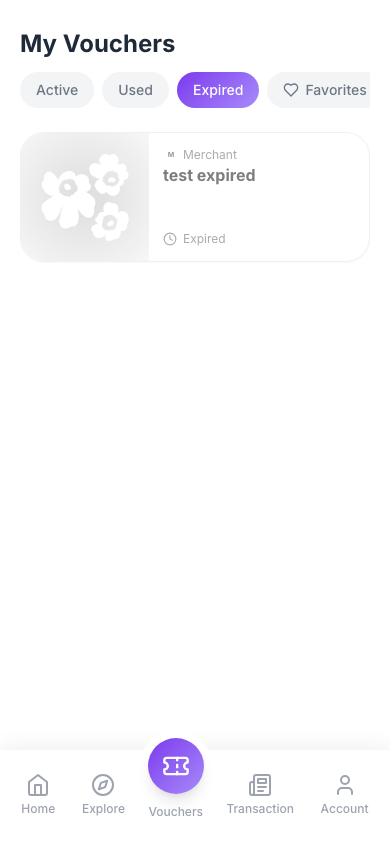
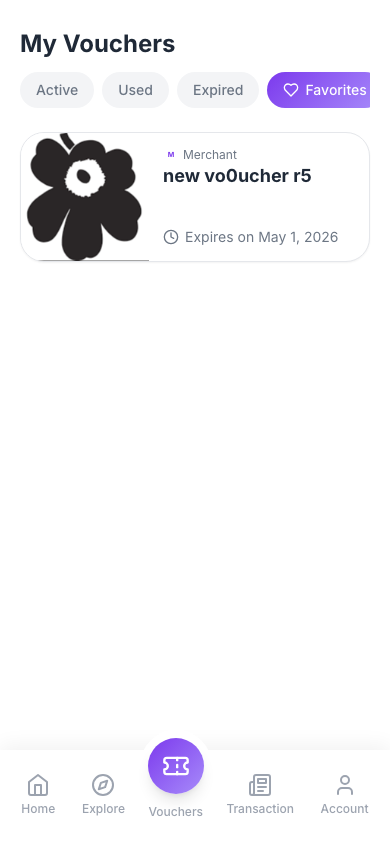
Your redeemed vouchers at /vouchers (guests see a sign-in prompt). Four tabs: Active, Used, Expired, and Favorites (heart-saved from Explore). Each row shows merchant, title, and a clock expiry line. Optional deep link: ?tab=active|redeemed|expired|favorites.
How to use
- Tabs — Active: still valid and not yet used. Used: already used at the merchant. Expired: past validity. Favorites: voucher templates you saved; they are not your own copies until you redeem them elsewhere.
- How cards look (My vouchers) — While a voucher is usable, the card is full color. If it is past expiry (including in Expired or still listed under Active/Used with an elapsed date), the card is dimmed with grayscale and reduced opacity. Favorites rows are always full color; only the expiry line reflects urgency or “expired”.
- Expiry line (clock) — More than 24 hours before end → Expires on plus a locale-aware short date (day, short month, year). Within 24 hours but not yet ended → whole line in red with the clock icon: 1–24 h left shows hours remaining; under 1 hour shows a live minutes:seconds countdown (updates every second). After the end time → label Expired (muted gray, not red).
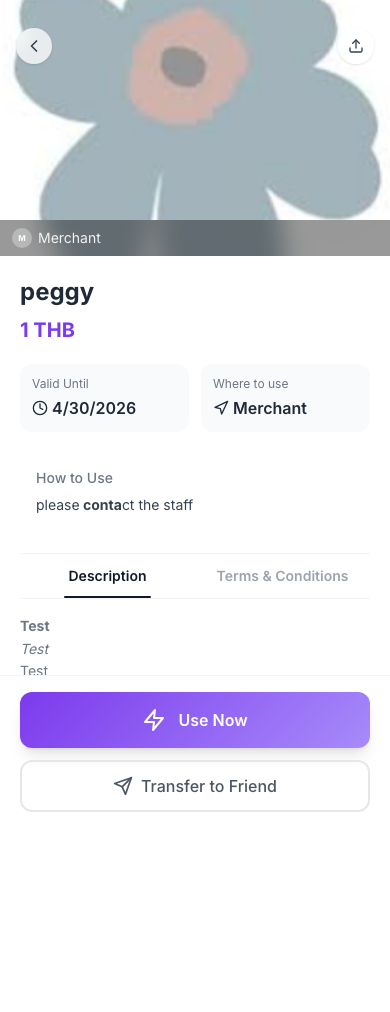
- Tap a redeemed row (Active / Used / Expired) to open your voucher at
/voucher/:id. In Favorites, tap to open the public voucher / redeem screen at/vouchers/:id(same as from Explore). - Relative-validity vouchers — Once a voucher sold as “{n} days after redeeming” is in your wallet, its clock line behaves like any other: it shows your expiry (the day you redeemed it plus n days) with the same red 24-hour countdown, and it moves to Expired when that day passes. In Favorites you do not own a copy yet and such a voucher has no fixed end date, so the row shows no expiry line — open it to see the “{n} days after redeeming” wording.
Use types on your voucher (redeemed copy)
- Redeem vs Use — Redeem (tapping Redeem on Explore) only adds the voucher to your wallet in exchange for tokens. It does not by itself move the row to Used. Use means the voucher instance was consumed in VIO (e.g. staff scan, Get Code flow below, or the API
redeem-by-code/ PIN endpoints) — that is what sets the status to Used. - VIO Code — After you redeem, the app may show a VIO use code or QR for staff to scan (your
/redeem/...link). That is not the supplier’s secret code; it is your instance identifier for in-store use. The voucher stays on Active until the use is recorded. - QR Code (CSV supplier pool) — The QR encodes the supplier’s code from the CSV pool. You only see that code/QR after you tap Get Code (which assigns the next free code and marks the voucher Used). Until then, no supplier QR is shown (the app does not show the VIO use code in that block — it is not a substitute for the supplier code).
- Coupon Code (CSV supplier pool) — Same as QR Code for assignment: tap Get Code to reveal barcode + copyable supplier code. Until then, none is shown.
- URL / Manual / External (VouChain) — Follow the on-screen instructions; external vouchers may show extra steps (e.g. generate code) per provider.
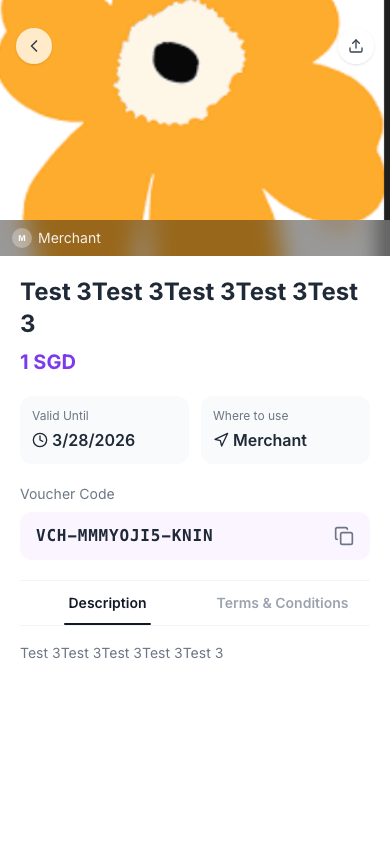
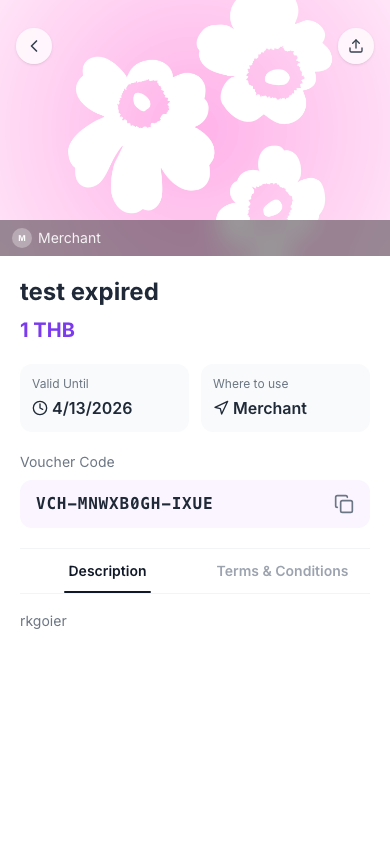
Figures — List (default capture = first load, same as Active tab). Tabs — Active, Used, Expired, Favorites (vouchers-tab-*.png). Detail — owned voucher vs Favorites public voucher (voucher-detail-*.png).
8. Transaction History
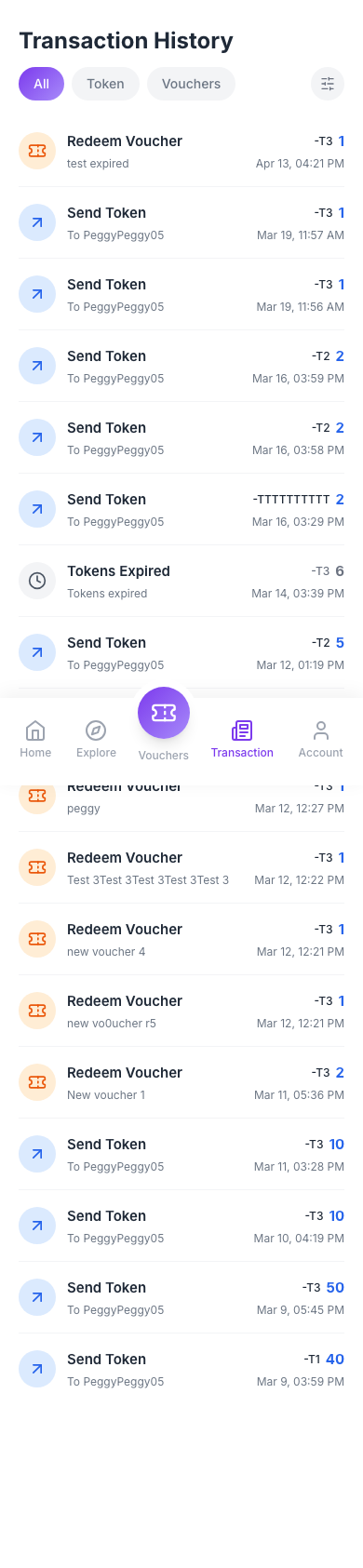
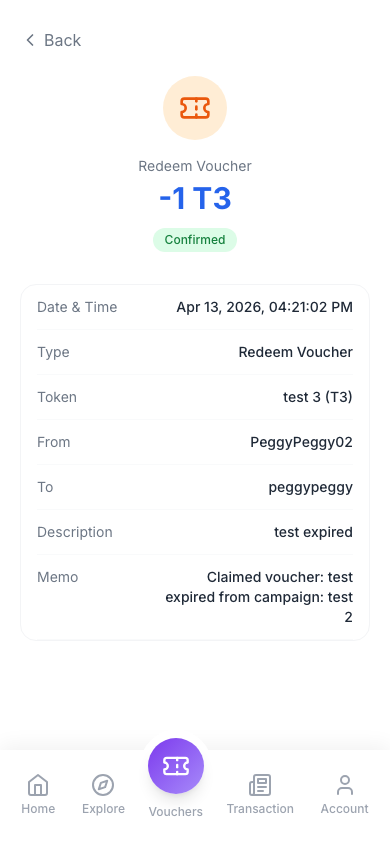
Unified ledger at /history: tabs All, Token, and Voucher; filters (date range, direction: all / sent / received); Load more; tap any row to open transaction detail at /transaction (passes the entry in navigation state — not a deep link by URL alone).
How to use
- Tabs — Switch All, Token, or Voucher to focus the list.
- Filters — Open the filter panel; set date range and direction (all / sent / received), then apply or clear.
- Pagination — Use Load more when more rows exist.
- Detail — Tap a row to open transaction detail (
/transaction): type, amounts, parties, memo, status, timestamps, copy actions as available.
Figures — History list (/history). Detail — transaction breakdown (transaction-detail.png).
9. Account
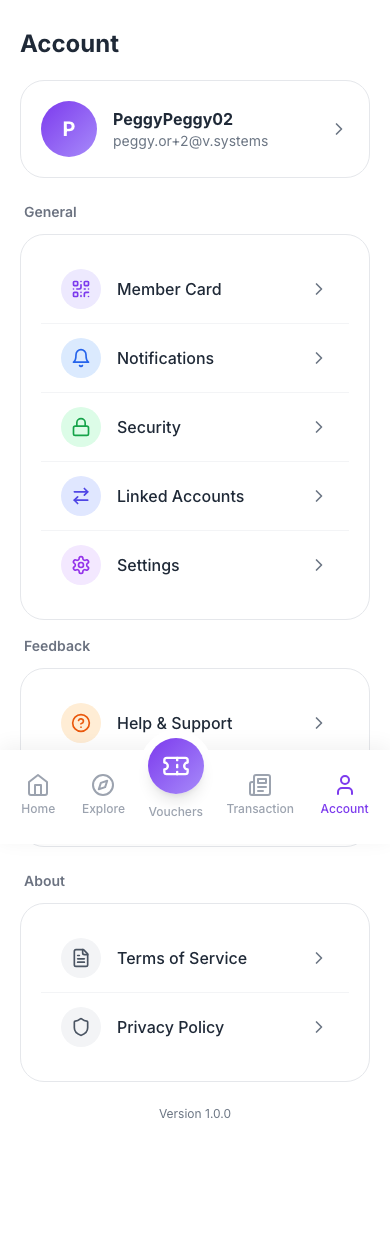
Hub for profile, Member Card (wallet QR modal), notifications, Security, Linked accounts, Settings, Help & support, Logout, and Terms / Privacy links. The items Member Card through Help & Support each have a dedicated section (with screenshot) later in this guide; Logout (section 17), Terms of Service (section 18), and Privacy Policy (section 19) each have their own section at the end of this guide.
How to use
- Open Account from the bottom navigation
- Tap the profile card to edit Profile (
/account/profile) — see Profile section - Under General: Member Card (QR modal), Notifications, Security, Linked accounts, Settings — each is documented in its own subsection below. When your organisation offers it, Paid Membership also appears here — see Paid Membership
- Under Feedback: Help & support — see Help & Support section
- Under About: Terms and Privacy open in-app routes (
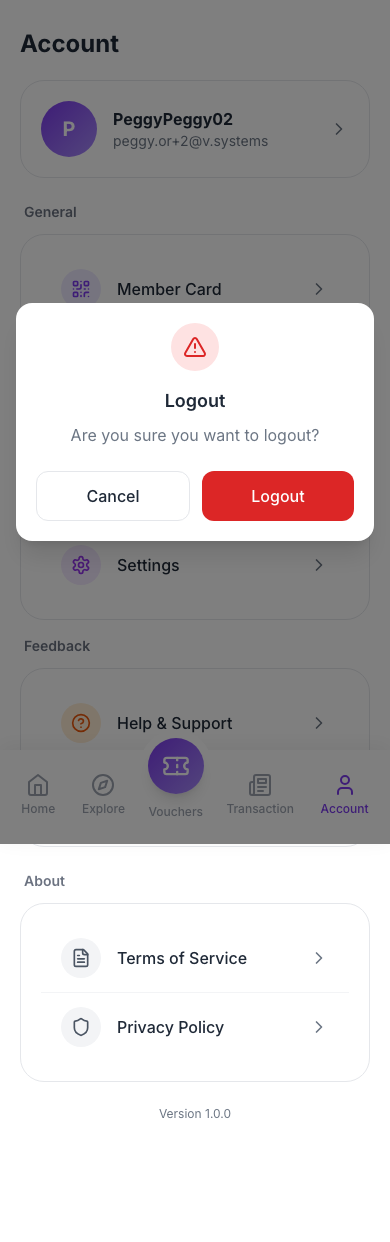
/terms,/privacy) - Logout — In the Feedback card, bottom row Logout (red). Cancel closes the dialog; confirm ends the session and goes to home (
/) with history replace.
Figures — Account hub. Logout — confirmation dialog (account-logout-confirm.png); Cancel stays signed in.
10. Profile
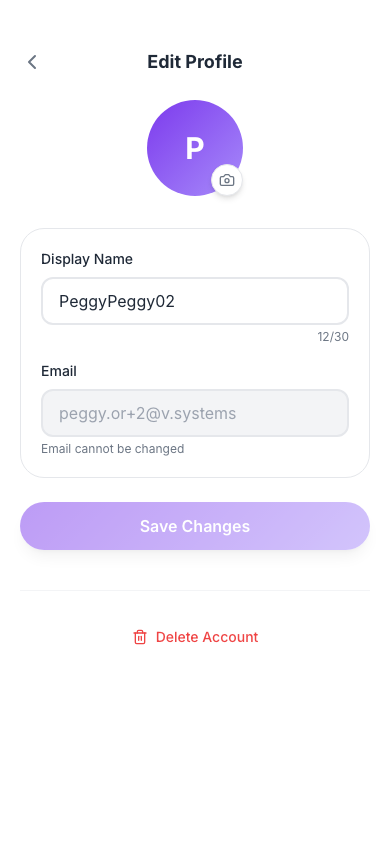
Edit display name (max 30 characters) and profile photo on /account/profile. Email and phone are shown read-only and cannot be edited in this screen (each field includes a short note that it cannot be changed).
How to use
- Display name — Editable text field with a character counter (max 30).
- Email / phone — Shown only when your account has them; fields are disabled (read-only). They cannot be edited on this screen — helper text under each field states they cannot be changed.
- Profile photo — Tap the camera control on the bottom-right of the avatar. Choose from gallery or take a photo (device camera where supported). If a photo is already set, Remove photo clears your pending choice until you save. Files must be 2 MB or smaller (otherwise an error toast appears). The new photo is applied when you tap Save changes together with your name.
- Save changes — Full-width button below the form; disabled until display name or avatar changes. Shows a loading state while saving.
- Delete account — Below a separator at the bottom, tap Delete Account (red, trash icon). A dialog shows the title, warning (permanent loss of data, vouchers, tokens), Cancel, and Delete to confirm. Confirming deletes the account, logs you out, and navigates to login.
Figures — Profile editor (/account/profile): avatar, display name, read-only email/phone, Save changes, Delete account.
11. Member Card
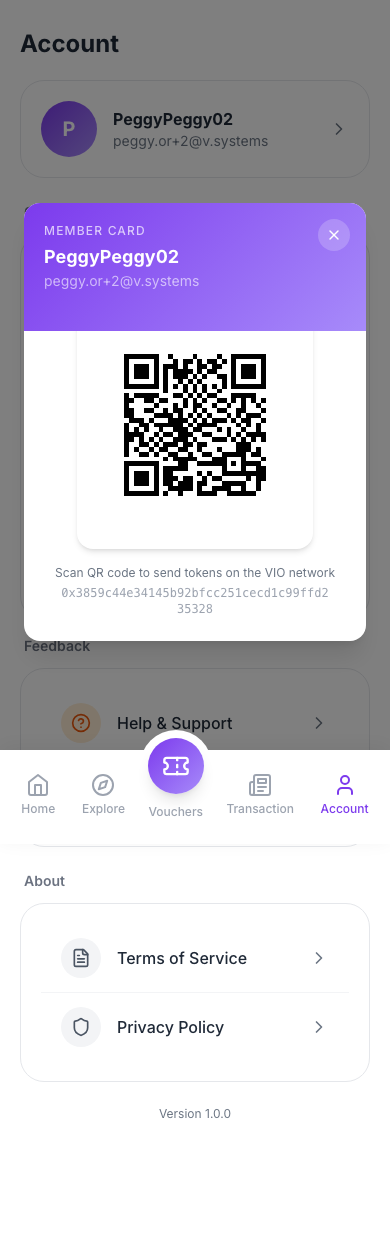
Opened from Account → Member Card (not a separate URL): a modal with gradient header, your name, email or phone, and a QR code encoding your wallet address so others can send you tokens. If there is no wallet address yet, the QR area shows a short empty state.
How to use
- On Account, under General, tap Member Card
- Review the modal: close with X top-right or tap the dimmed backdrop
- The QR scans to your wallet address; a monospace line may repeat the address below the code
Figures — Member Card modal (QR and wallet address) opened from Account.
12. Notifications
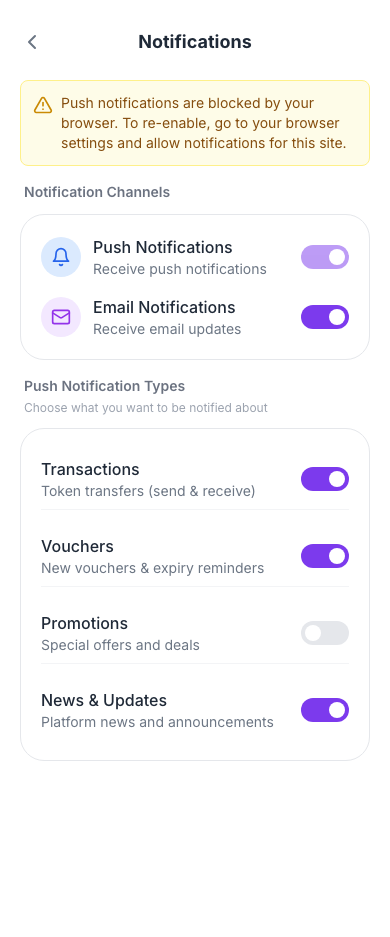
Notification preferences at /account/notifications: push (when the browser supports Web Push), email, and category toggles (Transactions, Vouchers, Promotions, News). A banner can warn if push is blocked or unsupported.
How to use
- Toggle push on or off — may request browser notification permission; if denied, the app may revert the toggle and show a message
- Toggle email notifications
- Enable or disable each category row (transactions, vouchers, promotions, news)
- Changes are saved via the API when you toggle (watch for loading or toast feedback)
Figures — Notifications preferences (/account/notifications).
13. Security
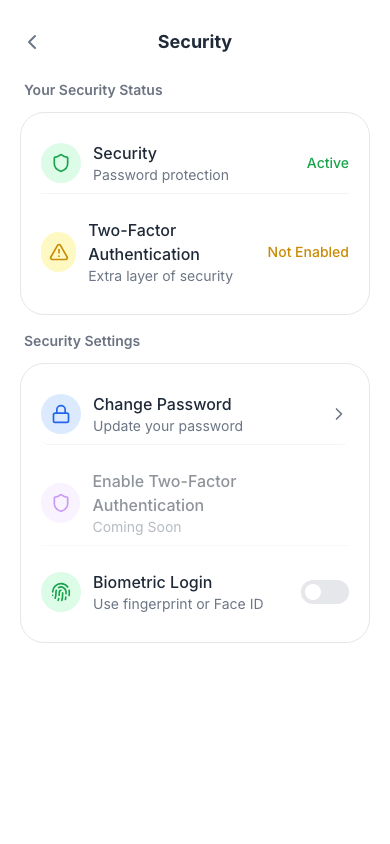
Security at /account/security: Change password (navigates to /account/security/change-password), 2FA status (may show as coming soon), and Biometric login (WebAuthn) on supported browsers/devices.
How to use
- Review the summary card for password / 2FA status
- Tap Change password to open the dedicated flow
- Enable 2FA may be disabled until the feature ships
- Toggle Biometric login where available to register or clear device credentials
Figures — Security (/account/security): password, 2FA, biometrics.
14. Linked Accounts
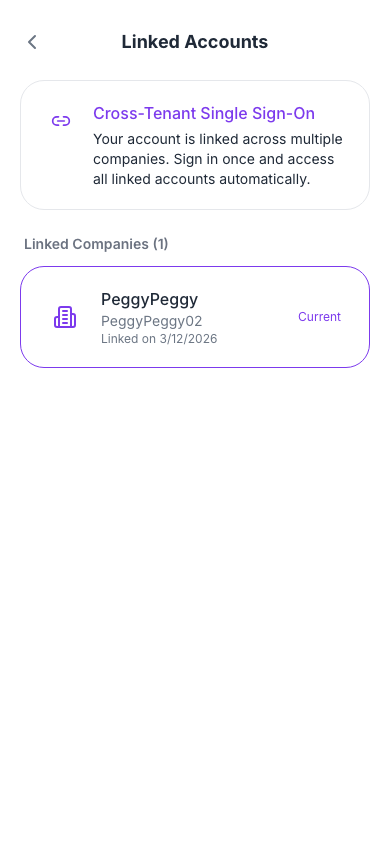
Lists linked portals for your global identity (/account/linked-accounts). If you have no linked identity, you see an empty state. Otherwise each card shows tenant (and sub-company), current badge, linked date, and switch to open another tenant in a full page navigation.
How to use
- Read the info card at the top
- If no global identity, you see a no linked accounts message
- When links exist, use Switch (arrows) on another portal to go to
/{tenantSlug}/or/{tenantSlug}/{subCompanySlug}/ - The current portal is highlighted with a badge
Figures — Linked accounts (/account/linked-accounts): global identity and portal switching.
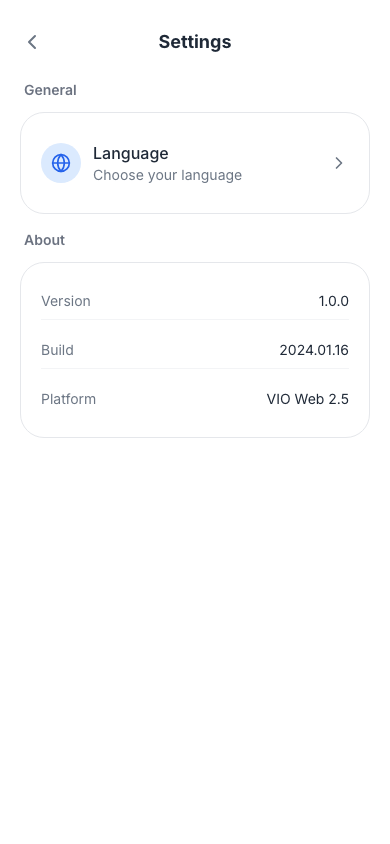
15. Settings
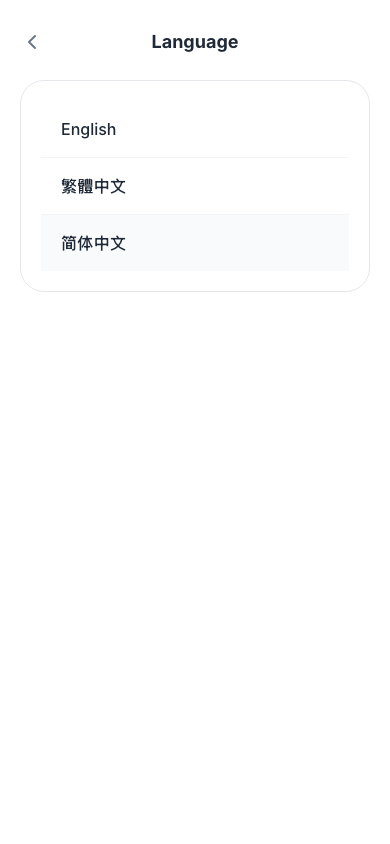
App settings at /account/settings: Language row opens /account/settings/language; About shows version, build, and platform (read-only).
How to use
- Tap Language to change UI locale
- Scroll About for version / build / platform
Figures — Settings main list (/account/settings). Language — locale screen (/account/settings/language, settings-language.png).
16. Help & Support
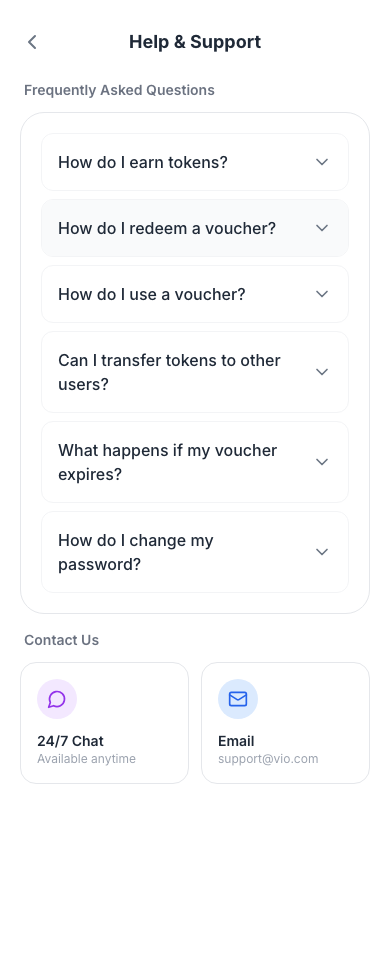
Help center at /account/help: browse topics, search, and access support or report issues (content depends on tenant configuration). Logout lives on Account in the same Feedback card as Help & support (see the Logout confirmation screenshot in this section).
How to use
- Use back to return to Account
- Browse or search help content as implemented for your tenant
- Follow links for contact or issue reporting when shown
Figures — Help & Support (/account/help). Logout — same confirmation dialog as on Account (account-logout-confirm.png); steps in Logout.
17. Logout
From Account → Feedback, tap Logout (red) and confirm or cancel. Confirming ends your session and returns you to home (/); Cancel closes the dialog without signing out.
How to use
- On Account, under Feedback, tap Logout (red)
- Confirm to end your session and return to home (
/), or Cancel to stay signed in
Figures — Logout confirmation (account-logout-confirm.png).
18. Terms of Service
Terms of Service at /terms: scrollable legal content with a header back control (also linked under Account → About and on login/register).
How to use
- Open from Account → About → Terms, or from Terms / Privacy links on the login and register screens
- Scroll to read; use back to return
Figures — Terms of Service (/terms), scrollable legal content.

19. Privacy Policy
Privacy Policy at /privacy: scrollable policy content with a header back control (also linked under Account → About and on login/register).
How to use
- Open from Account → About → Privacy, or from Terms / Privacy links on the login and register screens
- Scroll to read; use back to return
Figures — Privacy Policy (/privacy), scrollable policy content.

20. Product Detail
Product page at /product/:id, reached from the Explore Products tab. Only relevant when the tenant's E-Commerce module is enabled. Image carousel, price (fiat and/or fixed points), variant pickers, quantity stepper, applicable-vouchers hint, and Description/Terms tabs, with a sticky Buy Now bar.
How to use
- Swipe the image carousel; the price shown reflects the currently selected variant (fiat price, points price, or both, joined with “+”)
- If the product has variant groups (e.g. Color, Size — up to 3), tap an option chip per group to select a variant; unavailable combinations are shown struck-through and disabled
- Use the quantity stepper (capped at remaining stock, or 99 for unlimited-inventory products); Low stock / Out of stock hints appear near the stepper
- If the product has more than one variant, tap Add to order to accumulate several variants into one order (each shown as an editable line with its own quantity and a remove button) before buying
- If signed in, an applicable vouchers banner (when any of your redeemed vouchers apply) expands to show each voucher's name and fiat deduction
- Read Description / Terms tabs; if a shipping-scope restriction applies, a Ships to line lists the eligible countries
- Tap Buy Now (bottom bar, shows the running total) to go to Checkout with the selected line(s); guests are prompted to sign in first
21. Checkout & Payment
Checkout at /checkout (reached only from Product Detail's Buy Now — direct navigation without state redirects back to the shop) and payment at /payment/:orderId. Address selection, points/voucher application with a live server-computed price preview, order placement, and Stripe Elements payment.
How to use
- Tap the address block to open the address selector — pick a saved address or + Add new address; addresses outside a product's shipping scope are disabled with a “not available in this region” note
- Adjust line items — change quantity, switch a line's variant (when the product has multiple), or remove a line (at least one must remain); a debounced server preview recomputes the price breakdown after every change
- If the product allows points deduction, use the points slider (or type an amount) to offset part of the fiat price, up to the smaller of the server-side cap and your balance; Use Max applies the full available amount
- If any of your vouchers apply, pick one in the Voucher section (radio list, default “No voucher”) — its fiat deduction is shown per option
- Review Amount Details — product price, fixed points total, points deduction, voucher deduction, and the final fiat payable plus token amount to pay — all values come from the latest server preview, not client-side math
- Tap Confirm & Pay
<amount>— this calls the place-order endpoint; if the order is fully covered by points/voucher (zero fiat due), it settles immediately and you land on Order Detail; otherwise you are taken to Payment with a StripeclientSecret - On Payment, a countdown shows the time left to complete payment (from
paymentExpiresAt); enter card details in the Stripe Payment Element and tap Pay<amount>, or tap Cancel order to release the reservation - After Stripe confirms, the app polls the order briefly until its status leaves Pending Payment before showing success and navigating to Order Detail — this covers the gap before the payment webhook lands
- If the price changed since the last preview (HTTP 409), the app re-previews and asks you to confirm again before retrying payment
Note: The order's price breakdown (fiat subtotal, fixed points, points deduction, voucher deduction, fiat payable) is always authoritative from the server preview — the UI never computes totals locally, so it always matches what the API will charge.
22. My Orders
Order history at /orders, and order detail at /order/:id. Status-tab list with infinite scroll, and a detail page with items, shipping address, payment breakdown, timeline, and buyer actions (cancel, confirm receipt, request refund).
How to use
- Use the status tabs (All, Pending Payment, Pending Shipment, Shipped, Completed) to filter your order list; scroll to load more
- Each order card shows its order number, placed date, status tag, item thumbnails (name, variant label, quantity), and the order total (fiat and/or points)
- On a Pending Payment order, tap Cancel to release its inventory/points/voucher hold, or Pay Now to resume payment
- On a Shipped order, tap Confirm Receipt once you've received the goods — this moves the order to Completed
- Tap a card to open Order Detail — full item list, shipping address, payment breakdown, carrier/tracking (once shipped), and a chronological timeline of order events (placed, paid, shipped, refund requested/rejected, refunded, cancelled, completed)
- On a Shipped or Completed order, tap Request Refund, optionally add a reason, and submit — this moves the order to Refunding until the merchant approves or rejects it; a rejected request returns the order to its prior status
23. Paid Membership
When your organisation offers Paid Membership, you can pay for a membership plan and get member-only benefits. These can include a discount on campaign vouchers, a welcome pack of vouchers, regular vouchers or points, a birthday pack, member-only campaigns and extra claims per voucher. Open it from Account → Paid Membership (/paid-membership). If your organisation also has growth tiers, you can open it from the Paid Membership card on the membership tier page too.
If your organisation does not offer it, the page shows Paid membership isn't available here yet. If no plan is on sale, it shows There are no membership plans on sale right now.
Note: If you also have a growth tier, the two sets of benefits are not added together. For each benefit you always get the better one. For example, you get the larger voucher discount, not both discounts.
Join a plan
- Open Paid Membership. Under Become a member you see either one plan with What you get, or, when there are several plans, a comparison table with one column per plan. The Recommended plan is marked
- Tap a plan's column to select it, then read its benefits
- Under Choose your period, pick how long you want to join for, for example 1 year. Each option shows its card price, and or n points when you can also pay with points
- Tap Join for amount
- On the Join membership screen, check the Summary: Period, Total and Your membership will be valid until date
- If the plan can be paid either way, choose Pay with Card or Points
- Read the Membership terms and tick I have read and agree to the membership terms. You cannot pay without ticking it
- Paying by card: you can tick Renew automatically with this card. The text under the box explains exactly when you will be charged, how much, and how often. See Auto-renew
- Tap Continue to pay amount and enter your card details, or tap Pay amount to pay with points. Points are taken from your balance straight away
After a successful payment you land on a welcome screen, Welcome to plan!, showing your member number and end date. If the plan has a welcome pack, it "arrives" on this screen: the vouchers now in your wallet, what they are worth in total, and what share of the price that is. Tap View my vouchers or Go to my membership.
Note: Your membership ends at 23:59:59 on the end date shown, in your organisation's time zone. If a payment is still being processed, the page tells you, and your membership appears shortly. If your connection drops while you are paying, tap the button again: you will not be charged twice.
Your membership page
Once you are a member, Paid Membership shows:
- Member card: plan name, status (Active, or Renewal overdue during a grace period), Member No., Valid until date, and the number of days left
- Renew membership: see below
- Your benefits: everything your plan includes
- What membership has given you: how much the vouchers you used were worth, and the counts of Vouchers received, Member-price claims, Points received and Points saved on claims, plus a list of recently received items marked Used or Not used yet
- Auto-renew: your automatic renewal switch and saved card (when your organisation allows auto-renew)
- Upgrade your plan: the higher plans you can move to
- Payment history: your membership payments (purchase, renewal, upgrade), with refunded payments crossed out
- Membership terms: the terms of your plan, to read again at any time
Benefits arrive automatically. The welcome pack arrives when you join. Regular vouchers and points arrive on joining and then every cycle shown in Your benefits. The birthday pack arrives once a year on your birthday. Vouchers you have received stay valid until their own expiry date, even after your membership ends.
Renew early
- Renew membership becomes available 30 days before your membership ends. Until then the page shows Renewal opens on date
- Tap Renew membership, choose a period if there is more than one, accept the terms, and pay. The summary shows Your membership will be extended to date. If your plan has a renewal discount, it is shown as Renewal discount
- Renewing early never loses days: the new period starts when your current one ends
Upgrade
- Under Upgrade your plan, tap Upgrade next to a higher plan. You can only move up. You cannot move to a lower plan partway through your membership
- The Upgrade membership screen shows How your upgrade is priced: Days left in your membership, New plan for n days, Credit for your current plan, and Pay today. You pay only the difference for the days you have left. If the difference is below the card minimum, you pay the minimum (the screen tells you)
- Accept the terms and pay. Your end date stays date
- Any extra welcome-pack vouchers of the higher plan arrive as an Upgrade bonus
Auto-renew
- In Auto-renew, tap the switch to turn it on. If you have no card saved, you are first asked to add one (Save a card for renewals). The card is only charged for membership renewals while auto-renew is on
- Read the charging rule in Turn on auto-renew: the date of the first charge, the amount, and that it repeats each period until you turn it off. Tick I agree to automatic renewal on these terms. and tap Turn on auto-renew
- While auto-renew is on, the same rule is shown under the switch. You are reminded a few days before each renewal charge, and the charge is attempted about a day before your membership ends
- Turn the switch off at any time. This takes effect straight away and your membership stays active until it ends
- Use Replace to change the card, or Remove to delete it. Removing the card also turns auto-renew off
Note: Auto-renew is only available for periods that have a card price. Otherwise the section shows Auto-renew isn't available for your current plan period. If auto-renew is off, you are reminded 7, 3 and 1 days before your membership ends.
If a renewal fails
- Automatic renewal didn't go through: the charge failed but your membership has not ended yet. It is retried (the date of the next try is shown). Tap Update card to use a different card
- Renewal failed — update your card before date: your membership has passed its end date and is in a grace period (3 days unless your organisation sets another length). Your benefits continue until that date and the card is retried each day. Tap Update card or Renew now to keep your membership. If nothing is paid by then, the membership ends
- Confirm your renewal: your bank wants you to approve the renewal payment (for example with a one-time code). Tap Confirm renewal and follow your bank's steps. During a grace period, confirm before the date shown to keep your benefits
Note: Refunds are handled by your organisation's administrators, not in the app. A refund is only possible if you have not used anything from the membership. If you are refunded, your membership ends immediately and the unused membership vouchers are removed from your wallet.
Need Help?
If you encounter any issues or have questions, please visit the Help & Support section in the app or contact your administrator.
Guide generated by npm run generate:member on 2026-04-13. Set MEMBER_CAPTURE_FORGOT_PASSWORD_OTP in scripts/config.js to also capture forgot-password-2-otp.png (sends a real reset code). Set MEMBER_VOUCHER_CAPTURE_IDS if a vouchers tab is empty but you still need detail screenshots.