VIO v4 Admin Portal - User Guide
Welcome to the VIO v4 Admin Portal! This comprehensive guide covers all administrative features for managing your tenant, users, tokens, vouchers, and more.
Table of Contents
- Login
- Forgot Password
- Dashboard
- Users
- Tokens
- Token Holders
- Token Analytics
- Vouchers
- Campaigns
- Airdrop
- Transactions
- Settlement
- Sub-Companies
- Branding
- Roles
- Staff
- Store Management
- Notifications
- News
- PIN Access
- API Docs
- Settings
- Products
- Orders
- Paid Membership
1. Login
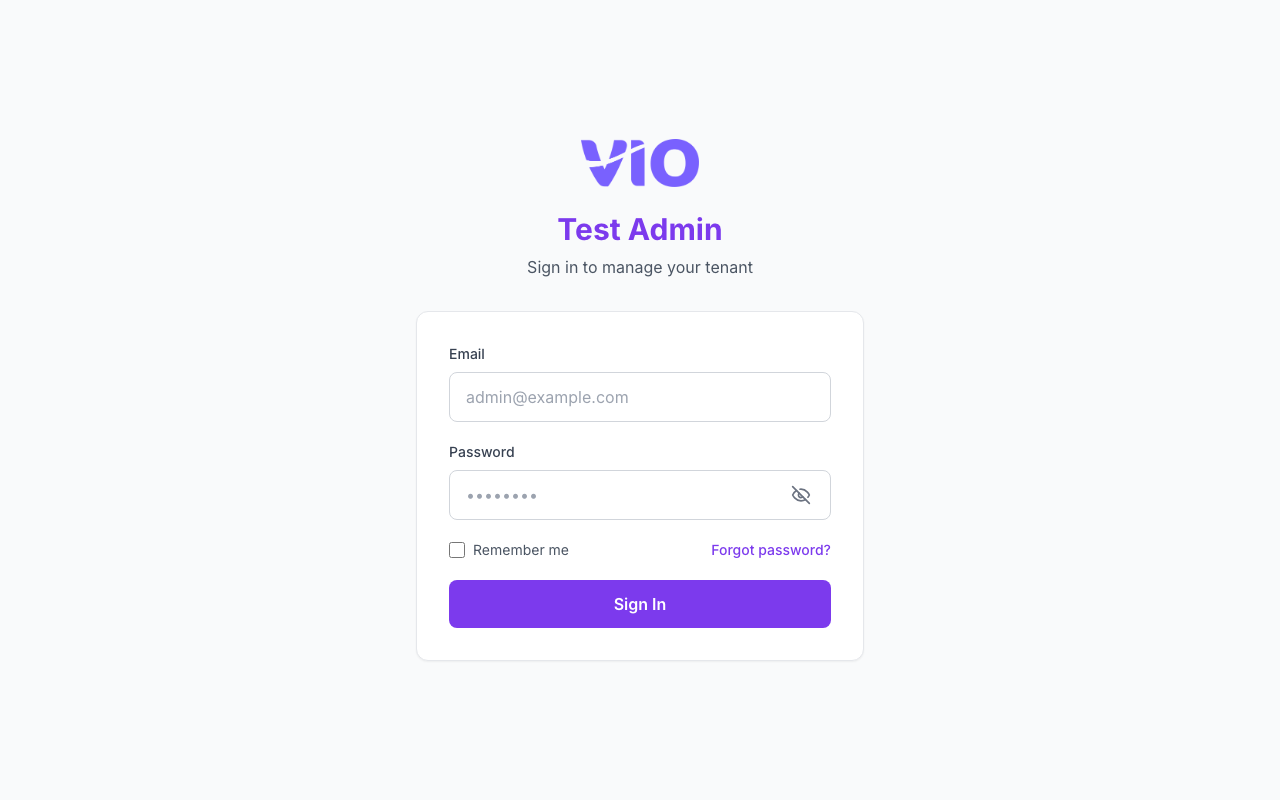
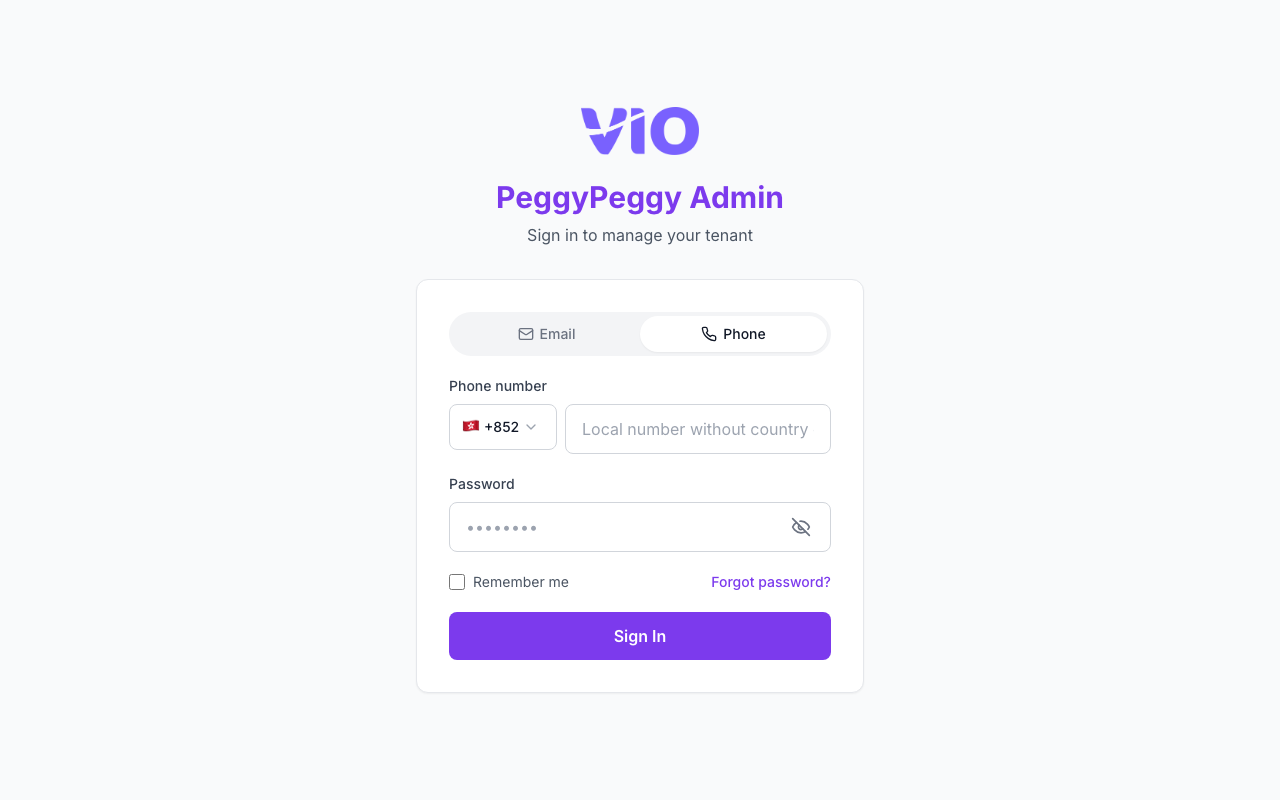
The admin login page for tenant administrators and sub-company admins. You can sign in with a registered email address or phone number, plus your password.
How to use:
- Navigate to the admin portal URL with your tenant slug
- Choose Email or Phone using the tab selector at the top of the form
- For email: enter your admin email. For phone: select the country code, then enter your mobile number (digits only)
- Enter your password
- Optional: enable "Remember me" to stay signed in, or use "Forgot password?" if you need to reset
- Click "Sign In" to access the dashboard
Email tab
Phone tab (country / region code selector, then mobile number)
2. Forgot Password
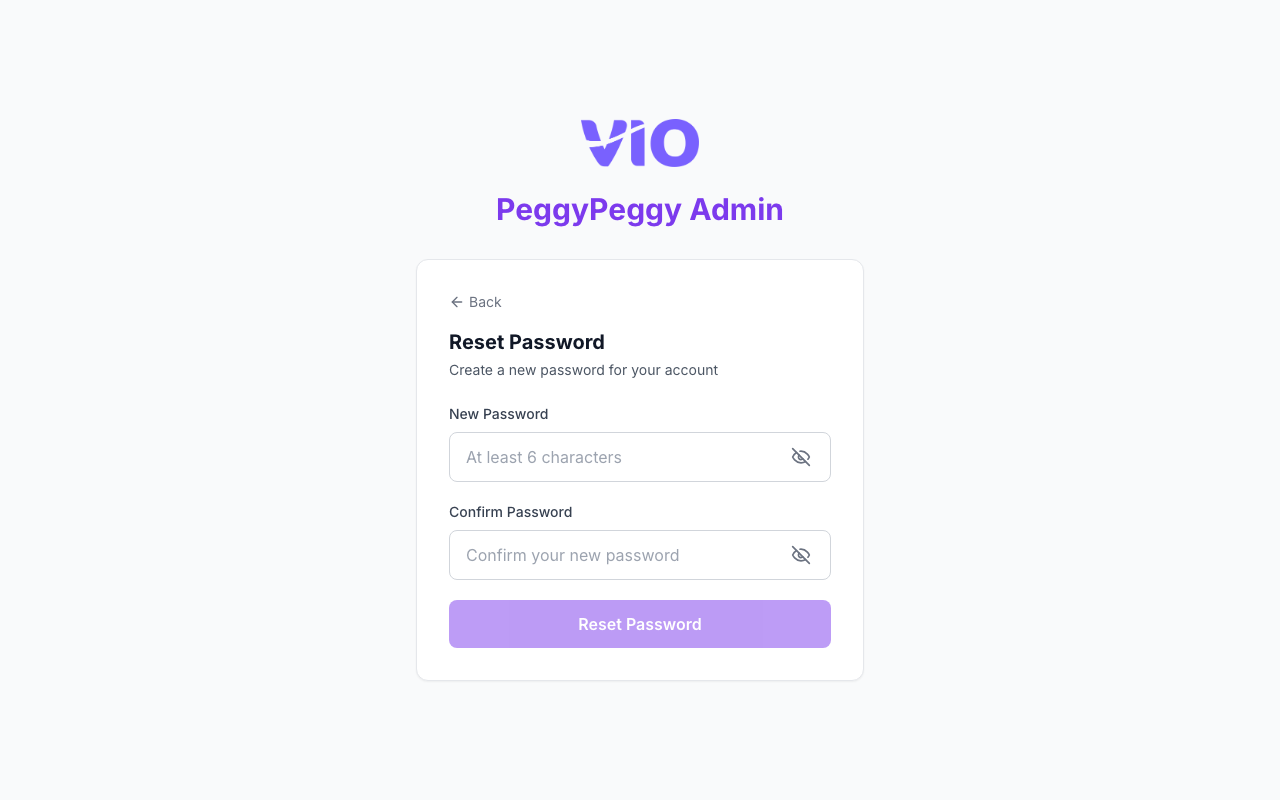
Reset your admin password if you forgot it. The flow supports both email and phone: request a one-time verification code, confirm with a 6-digit OTP, then set a new password (minimum 6 characters).
How to use:
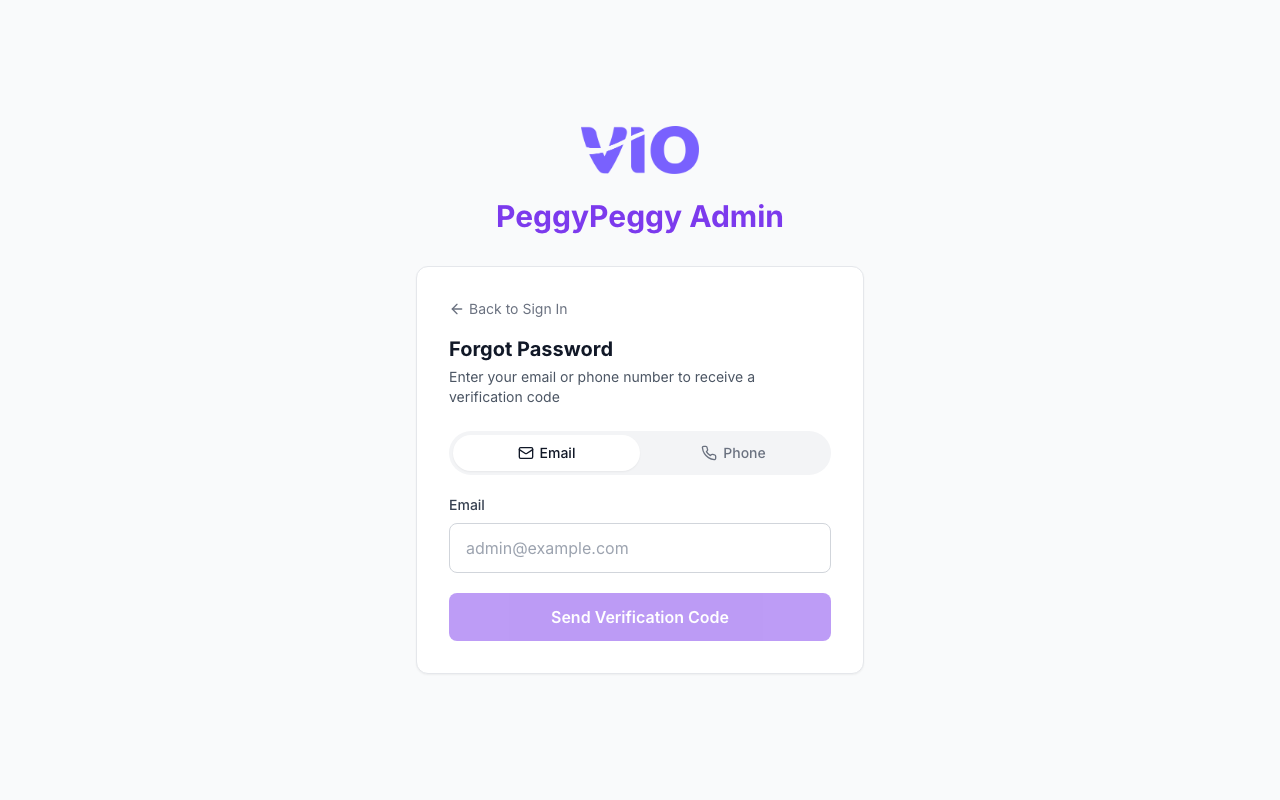
- From the login page, click "Forgot password?" (or open the forgot-password URL for your tenant)
- Choose Email or Phone, then enter your registered email or phone number (with country code for phone)
- Click "Send verification code" and check your email or SMS for the 6-digit code
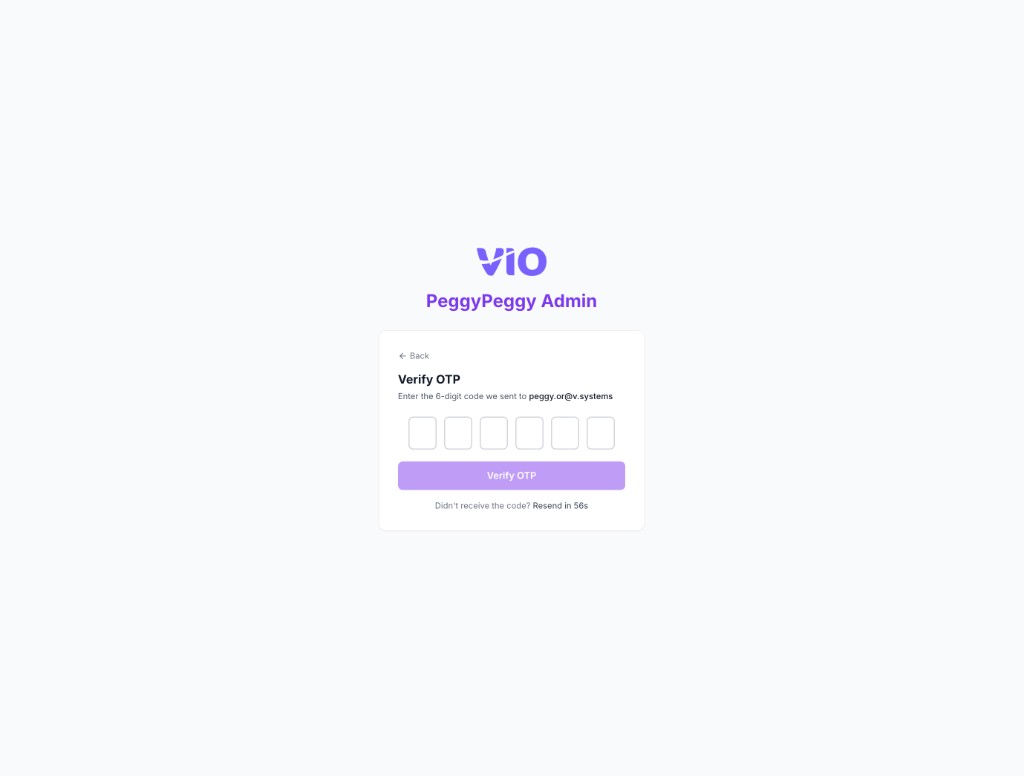
- Enter the OTP in the six boxes (you can paste the full code)
- Enter your new password and confirm it, then submit to complete the reset
- Use "Back to Sign In" on the success screen, then log in with your new password
Request verification code (choose Email or Phone, enter your identifier, then send the code)
Enter verification code (six-digit OTP; paste the full code or type each digit)
Set new password (minimum length as shown; confirm must match)
3. Dashboard
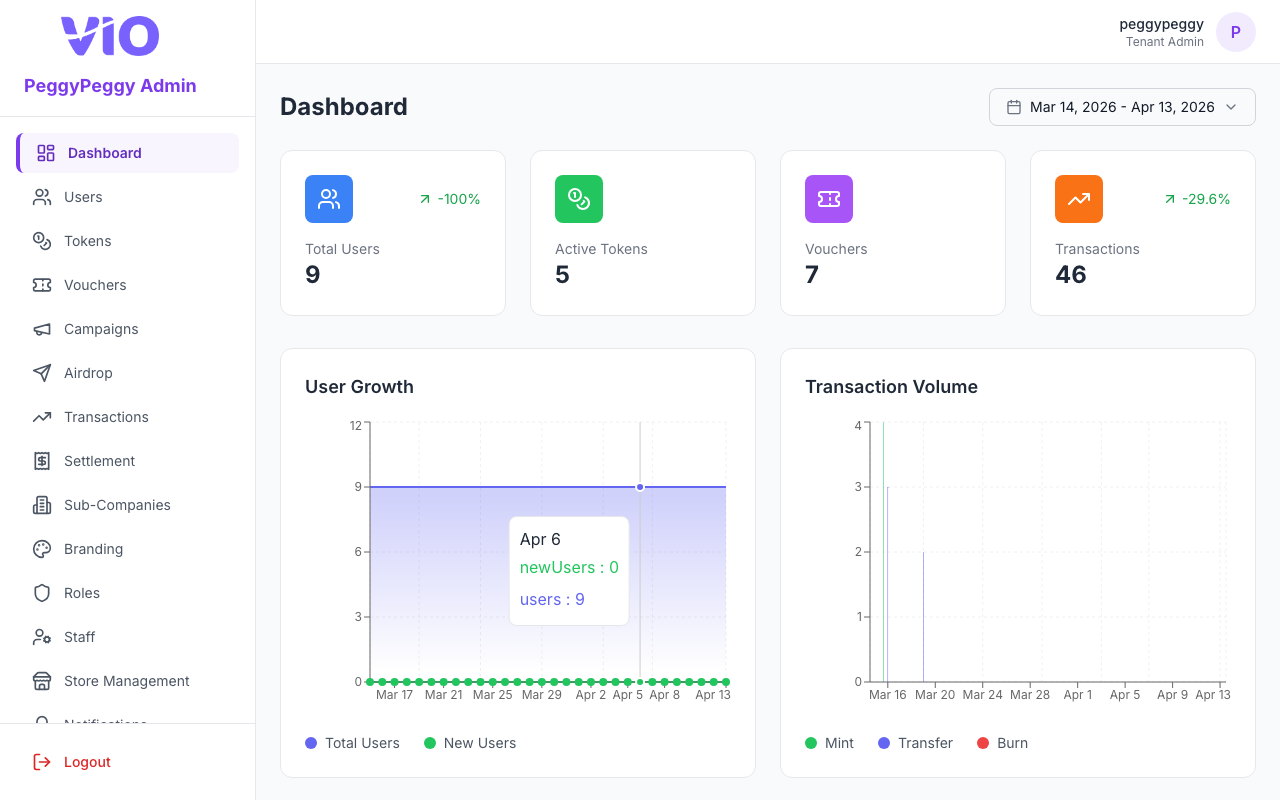
Home overview: KPI stat cards, analytics charts for the selected date range, recent token activity, optional mini-app shortcuts, and quick-action links to Users, Tokens, Vouchers, and Branding.
How to use:
- Use the date range picker (top right) to change the period; figures and charts reload for that window
- Click any of the four stat cards — Total Users, Active Tokens, Vouchers, Transactions — to open that section
- Read the User Growth chart (total vs new users) and Transaction Volume bars (mint, transfer, burn)
- Review the Token Distribution pie chart and the Recent Activity list; use View all to open the full Transactions page
- If your tenant exposes mini apps with an admin URL, open them from the Mini Apps grid
- Use Quick Actions: Manage Users, Manage Tokens, Create Voucher, or Customize Brand to jump straight to those pages
4. Users
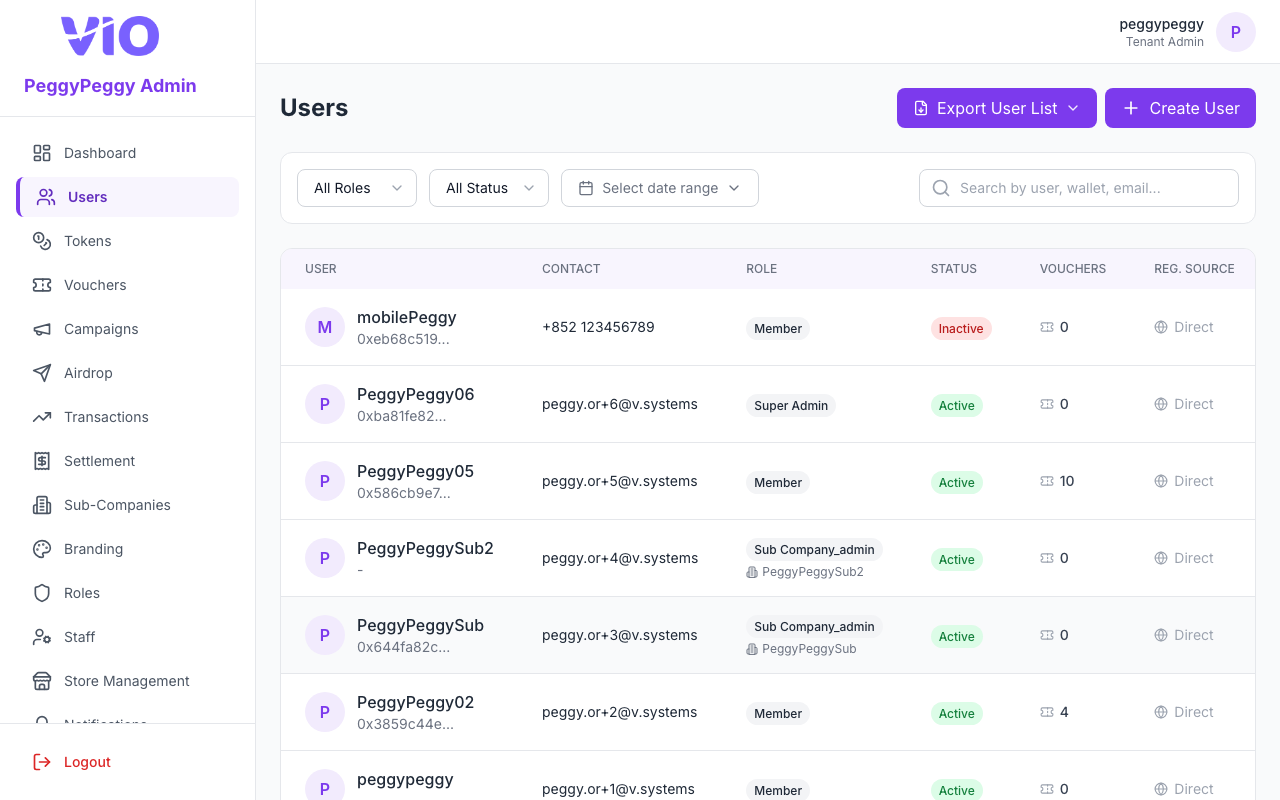
Manage tenant member accounts: browse, search, filter, create users (with Role explained below), export CSV, and row actions.
How to use:
- Use the search field (top right of the filter bar) — search matches display name, email, phone, and wallet address (same scope as the in-app hint: user, wallet, email, etc.)
- Use the Role and Status dropdowns to narrow the list; use the date range picker to filter users by account creation date; click Clear to reset filters
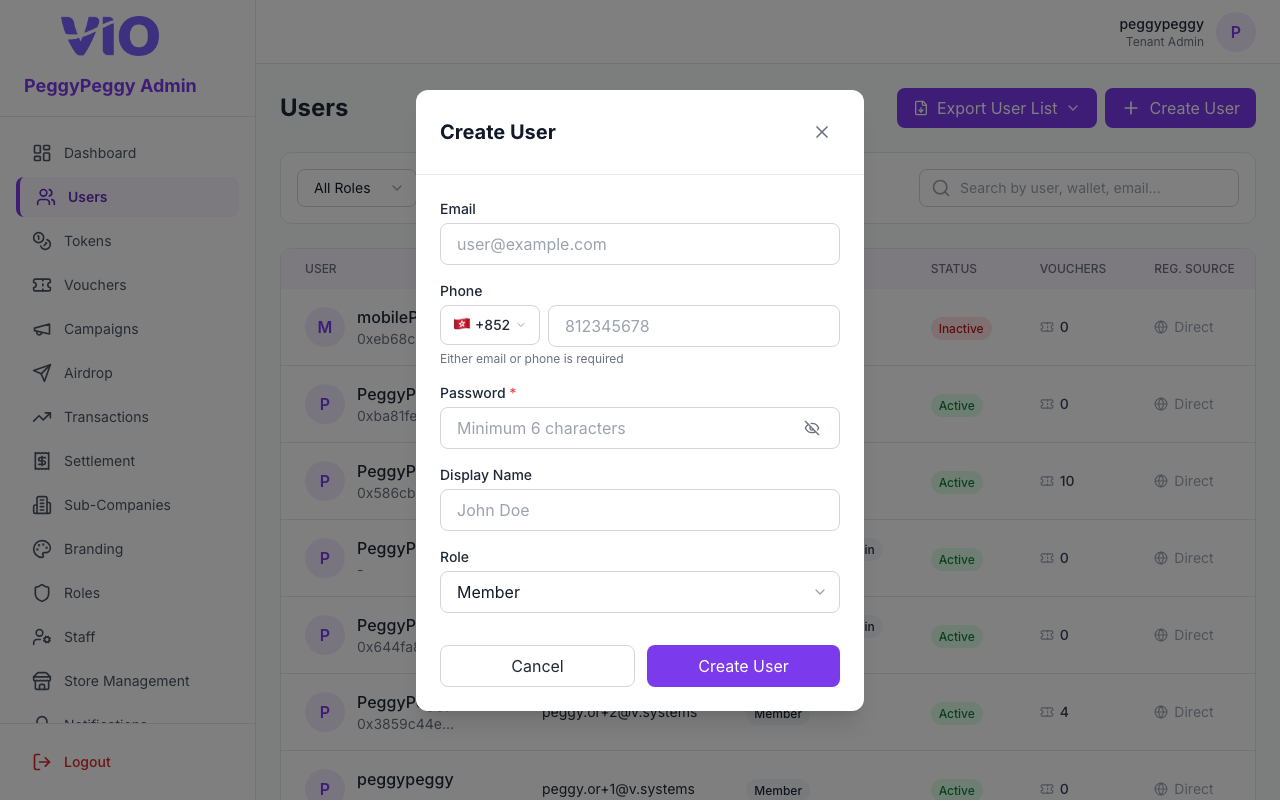
- Click Create user (top right, next to export) when permitted. Enter email or phone, password, and display name.
- Role (required): Member — standard member-app user; you may assign an optional sub-company if your tenant uses branches. Sub-company admin — administers one branch; you must select which sub-company (required for this role). Tenant admin — can administer the whole tenant; only tenant-level admins can assign this when creating users (sub-company admins cannot create another tenant admin).
- Click Export User List to open export modes: User Summary (CSV) or Token Expiry Detail (CSV) with token and period options — then click Export to download
- For each row, use the ⋮ (three-dot) button on the far right — View opens details (contact, wallet, balances, vouchers), Edit changes profile and role, Deactivate or Activate controls account status
- Optional: use sidebar or bookmarks to Subscribed users or Active members (
/users/subscribed,/users/active-members) for pre-filtered lists when your navigation exposes them
Registration source
The Registration source column shows how each user account entered the system. Use it to distinguish admin-created accounts from self-registered members and to track acquisition by store or campaign.
| Display | Meaning |
|---|---|
| Created by system | The account was created through an admin or system path, not self-service registration. Examples: users created via Create user in this portal, staff accounts, sub-company admins, SSO provisioning, or users synced through the External API. |
| Direct registration | The user registered themselves through the Member App or public registration page, without a linked store or campaign. |
| Store name | The user registered through a store-specific registration URL or QR code. The column shows the store name. |
| Campaign name | The user registered through a marketing campaign link or landing page. The column shows the campaign name. |
If both a store and a campaign could apply, the system records store over campaign over direct registration.
The registration source is included in Export User List → User Summary (CSV).
Users list
Create user (modal — credentials, display name, Role, optional sub-company)
5. Tokens
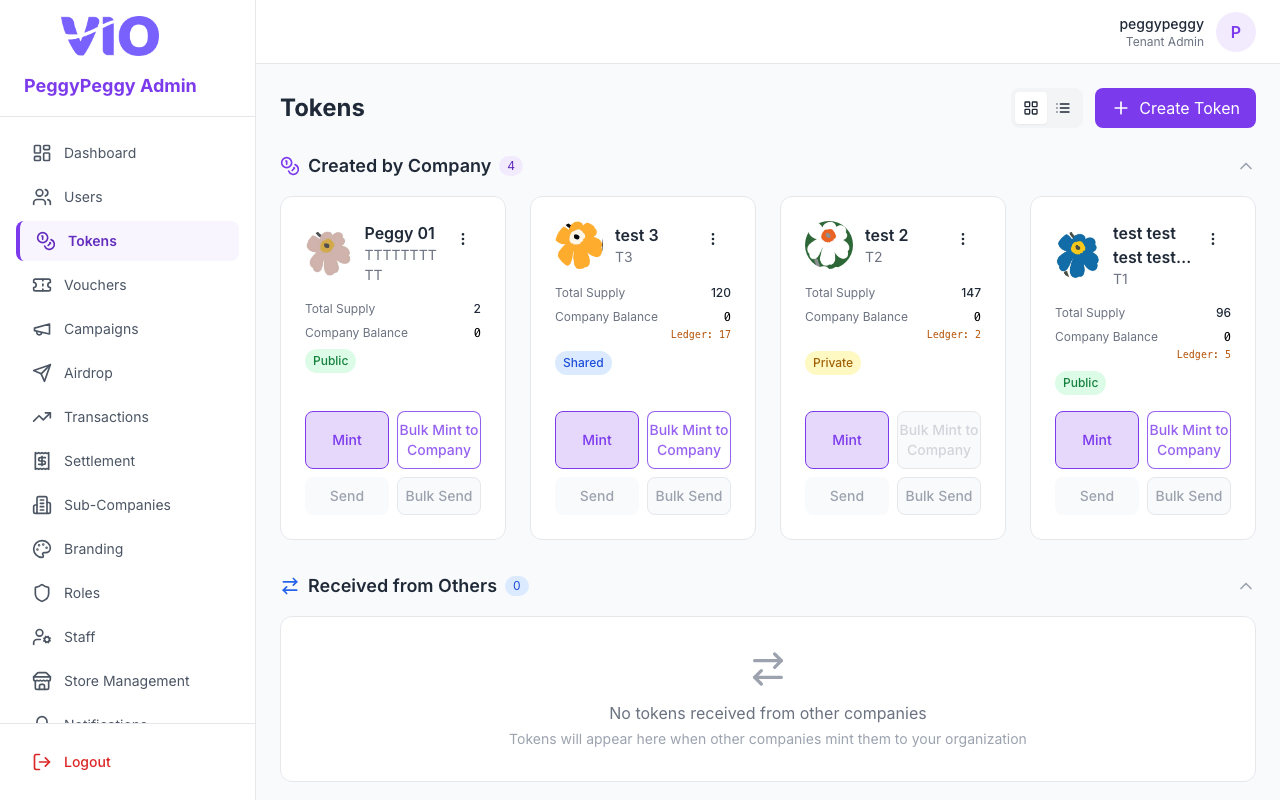
Manage token types, supply, company balance, minting, and sharing. Toggle grid or list view, search tokens, and use each row’s ⋮ menu for View details, Edit (created tokens), View analytics, View holders, Set as default, and Burn tokens.
Note: Token creation is managed by Super Admins in the Super Admin Portal. If you need a new token, please contact your Super Admin or platform support. Once a token is created, it will appear in your Tokens list for management.
How to use:
- Switch between grid and list layout and use the search field to find a token by name or symbol
- For tokens you issue, use mint / batch tools in the token flow as shown in the UI to allocate supply to users (including CSV or pasted lists where available)
- Click ⋮ on a row — View details for full info; on created tokens use Edit, View analytics, or View holders
- Set as Default (star) sets the tenant default token for members; the current default row cannot be chosen again until another token is default
- Burn tokens opens a modal: pick a holder, amount, optional memo, confirm — or use other row actions as your permissions allow
Tokens list
6. Token Holders
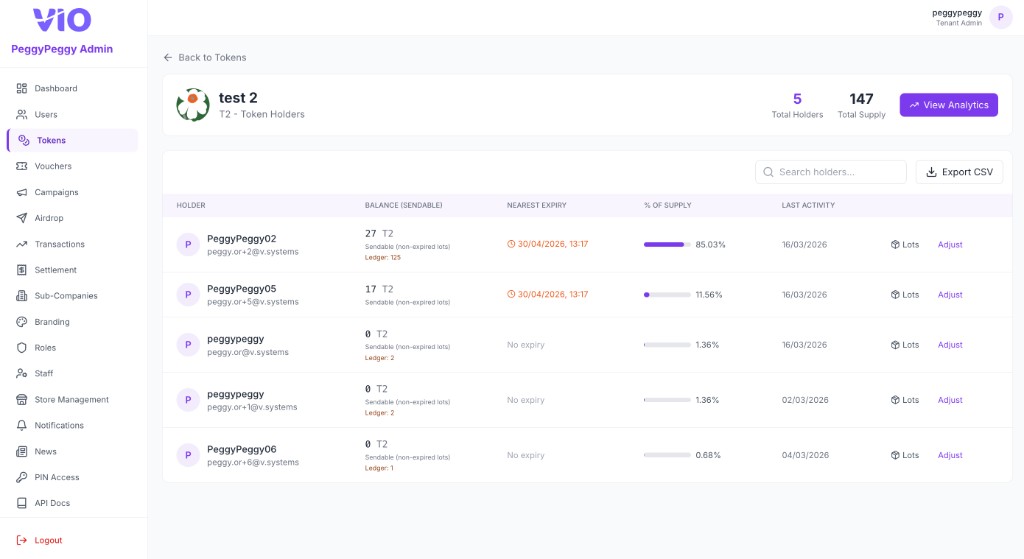
For one token: header with token name/symbol, Total holders and Total supply, and a View analytics button. The table lists each holder with Balance (sendable) (and ledger total), Nearest expiry, % of supply, Last activity, plus Lots and Adjust actions. Includes search, Export CSV, and Back to Tokens.
How to use:
- Open from Tokens → ⋮ → View holders, or go to
/tokens/{tokenId}/holders. Use Back to Tokens to return to the token list - Read the summary: Total holders and Total supply; click View analytics (top right) to open analytics for this token
- Use Search holders… to filter the table; use pagination at the bottom when there are many rows
- Review columns: Holder (name and email), Balance (sendable) with sendable amount and ledger total, Nearest expiry (date/time or “No expiry”), % of supply with progress bar, Last activity
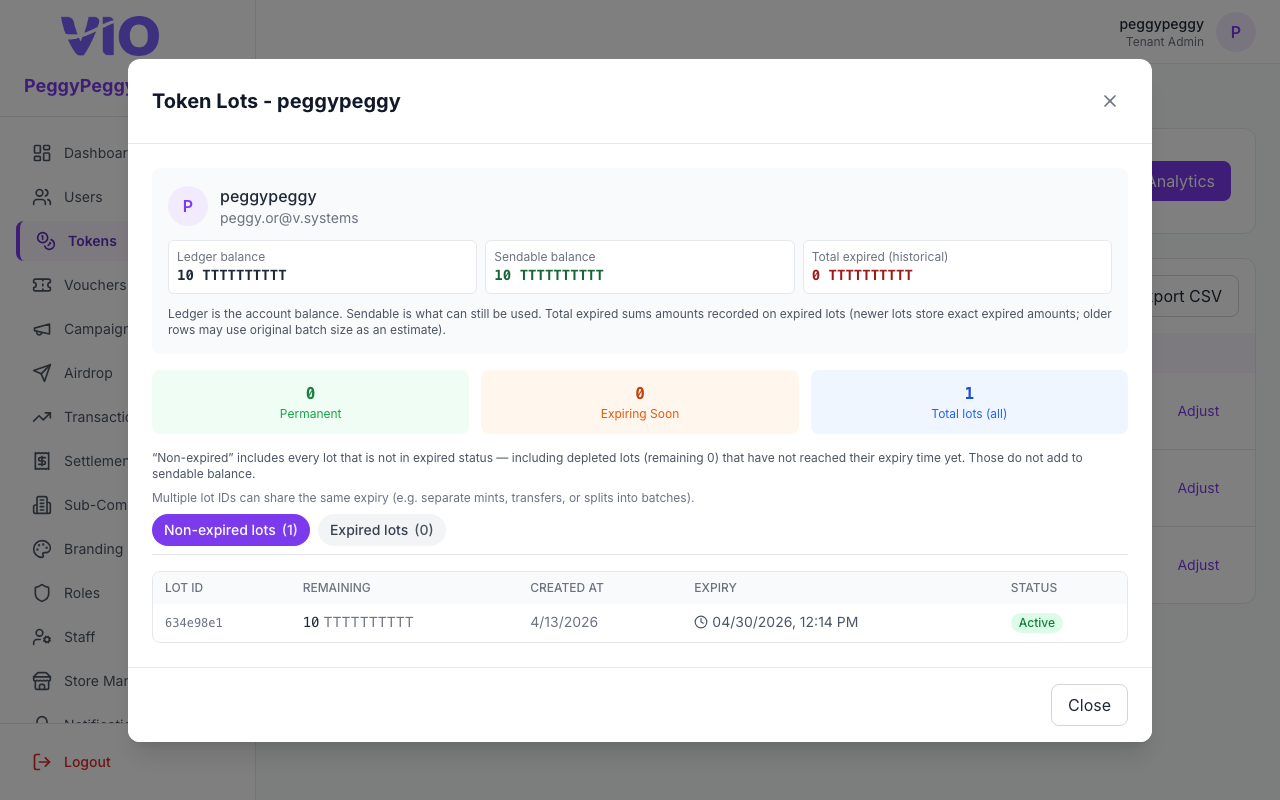
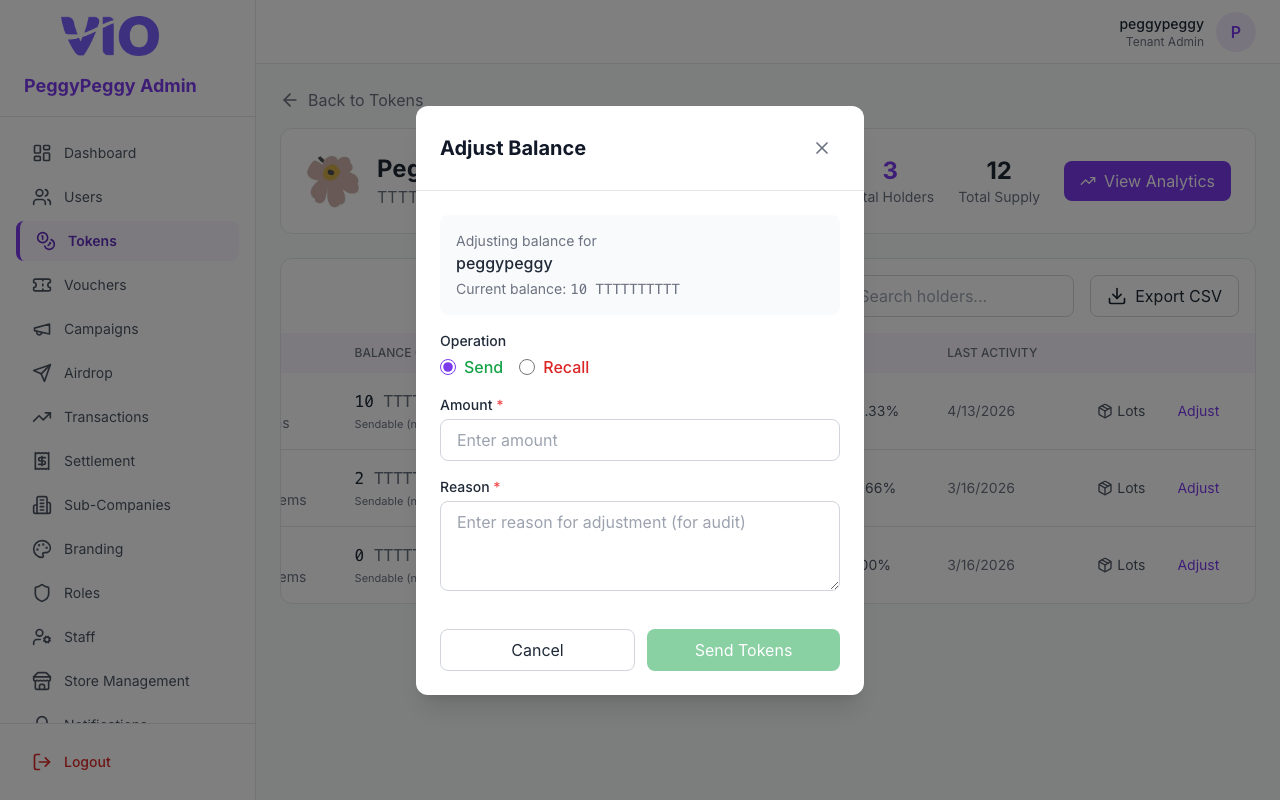
- Per row: click Lots to open lot detail (batches, expiry); click Adjust to change balance when your role allows
- Click Export CSV to download the holder list for reporting
Holders table
Lots (modal — per-holder lot breakdown, active vs expired tabs, balance reconciliation)
Adjust balance (modal — Send or Recall, amount, reason)
7. Token Analytics
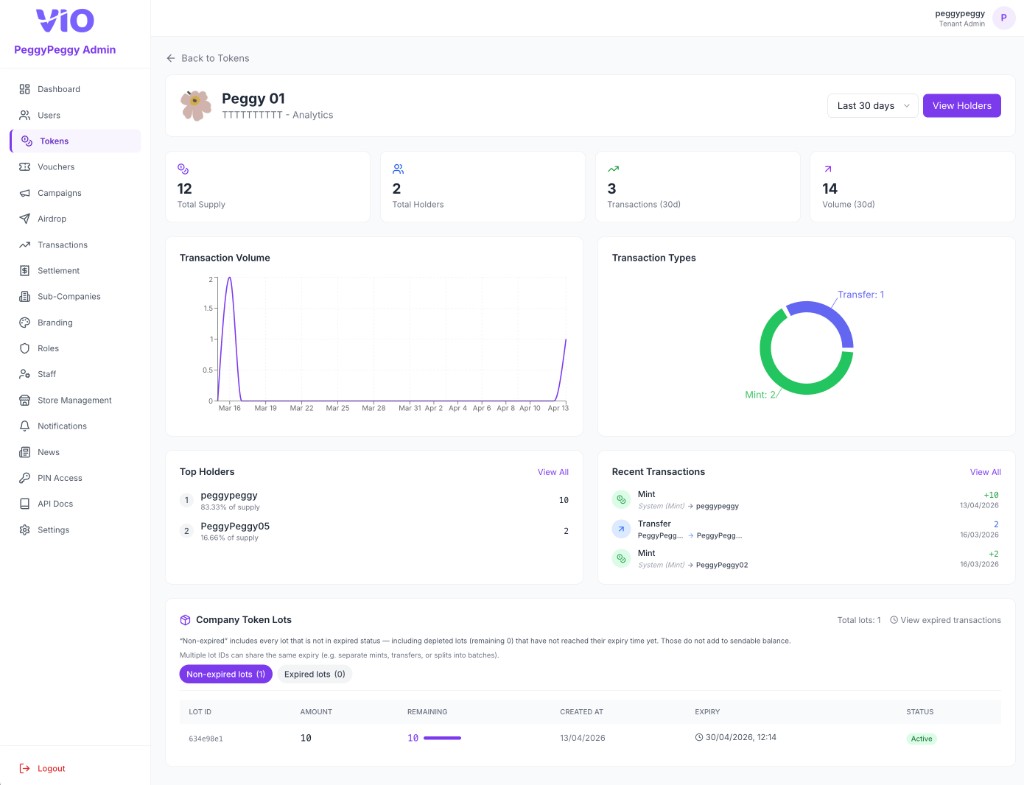
Per-token analytics: Back to Tokens, date range (e.g. Last 30 days), View holders button, summary cards (Total supply, Total holders, Transactions and Volume for the period), Transaction volume chart, Transaction types donut, Top holders and Recent transactions (each with View all), and Company token lots with Non-expired / Expired tabs and a lots table.
How to use:
- Open from Tokens → ⋮ → View analytics, or go to
/tokens/{tokenId}/analytics. Use Back to Tokens to return to the list - Set the date range — summary tiles and charts refresh for that window. Click View holders to open the Token holders page for this token
- Read the four summary tiles: Total supply, Total holders, Transactions (count in the selected period), Volume (total amount in that period)
- Review Transaction volume (line chart) and Transaction types (donut: mint, transfer, etc.). Use Top holders and Recent transactions; follow View all for full lists when shown
- In Company token lots, check the total lot count and View expired transactions if present. Use Non-expired lots vs Expired lots tabs; the table shows lot ID, amount, remaining, created at, expiry, and status
- Read the note under the tabs: non-expired includes depleted lots that have not reached their expiry time yet
8. Vouchers
Full voucher lifecycle: four top-level areas (catalog, redeems & uses, analytics, brand tags), status filters, grid/list view, search, bulk actions on your own vouchers, Use by Code in the page header, charts on Analytics, and a multi-step create/edit wizard.
The English UI uses four main tabs at the top of the page:
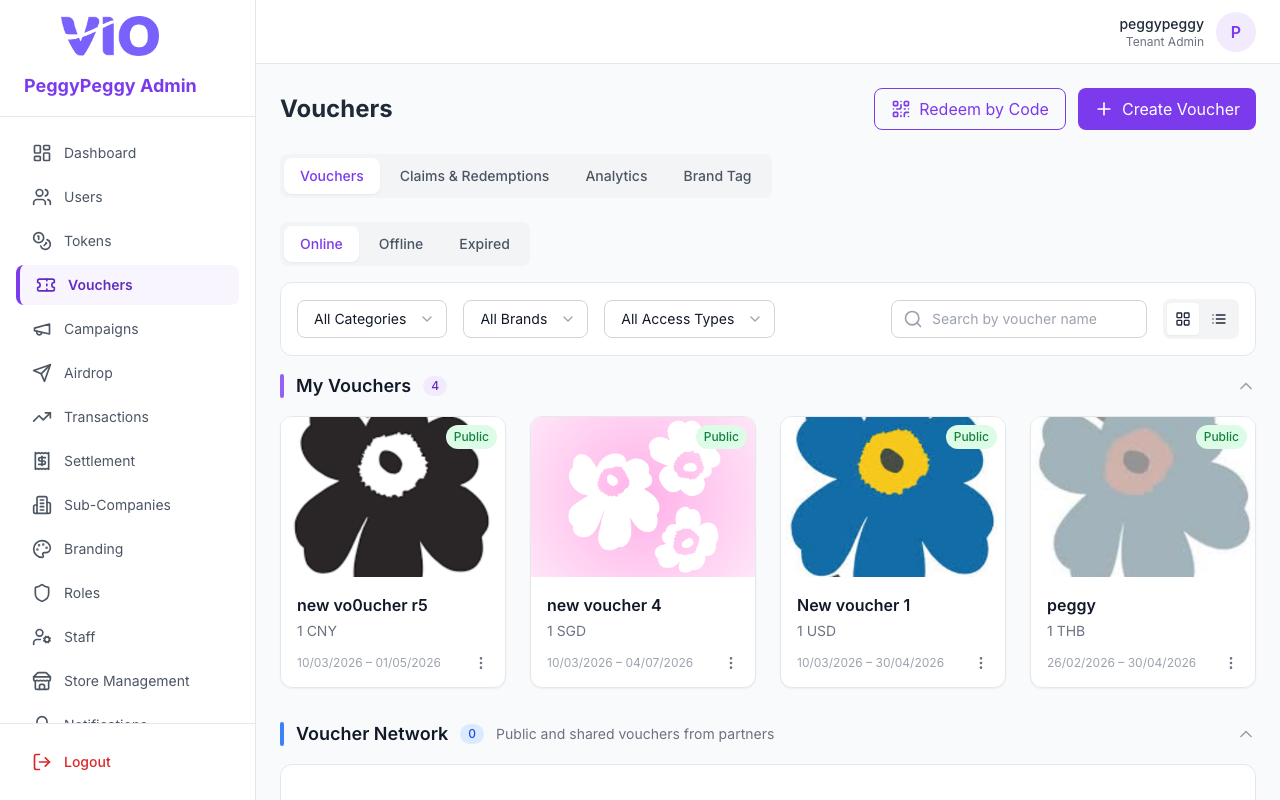
- Vouchers — Your tenant’s catalog. It is split into My Vouchers (vouchers you created) and Voucher Network (see below). Below that, Online, Offline, and Expired narrow which vouchers appear (by active/offline state and whether the offer has passed its end date). You can filter by category, brand tag, and access type (public / private / shared), search by voucher name, and switch grid vs list view. In list view, selecting rows can show a bulk bar with Activate / Deactivate (when your role allows).
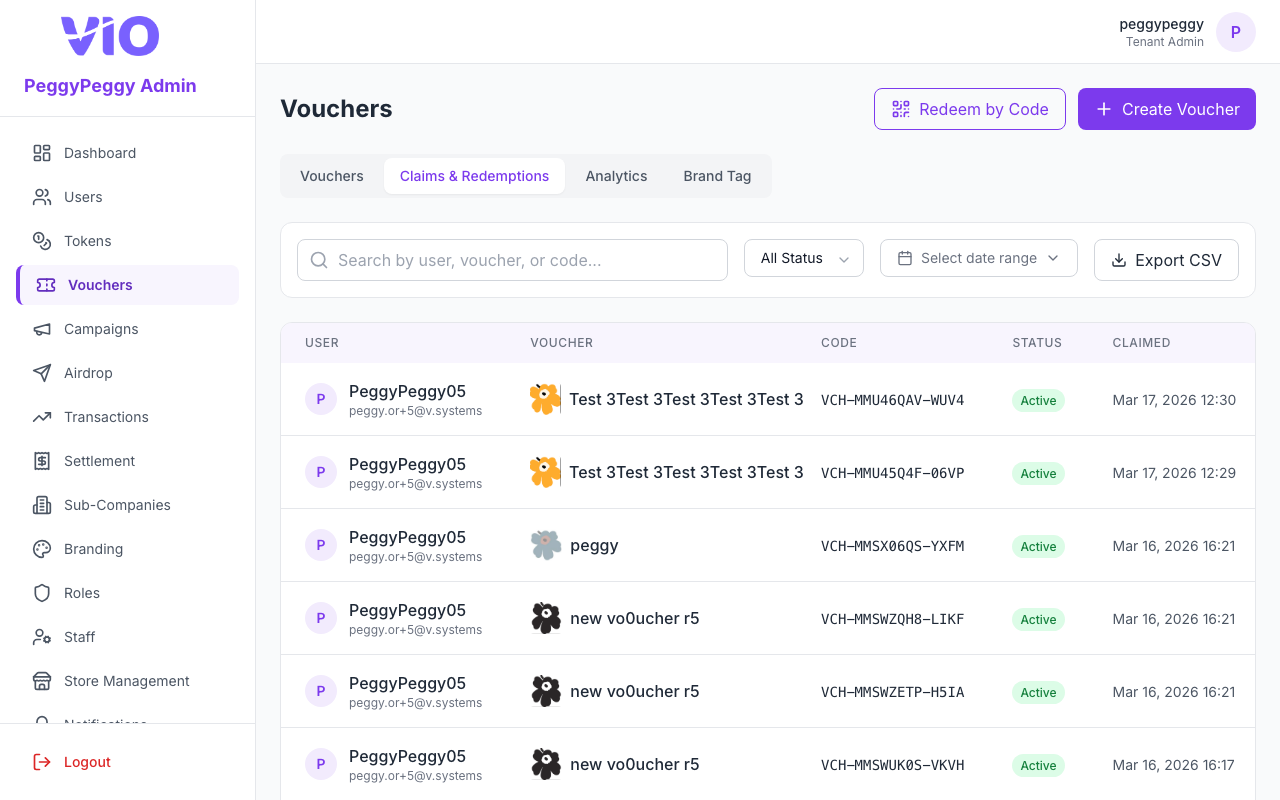
- Redeems & Uses — Lists of voucher redeems (a member spent tokens to put the voucher in their wallet) and the use records for those vouchers (search and export where the UI offers it).
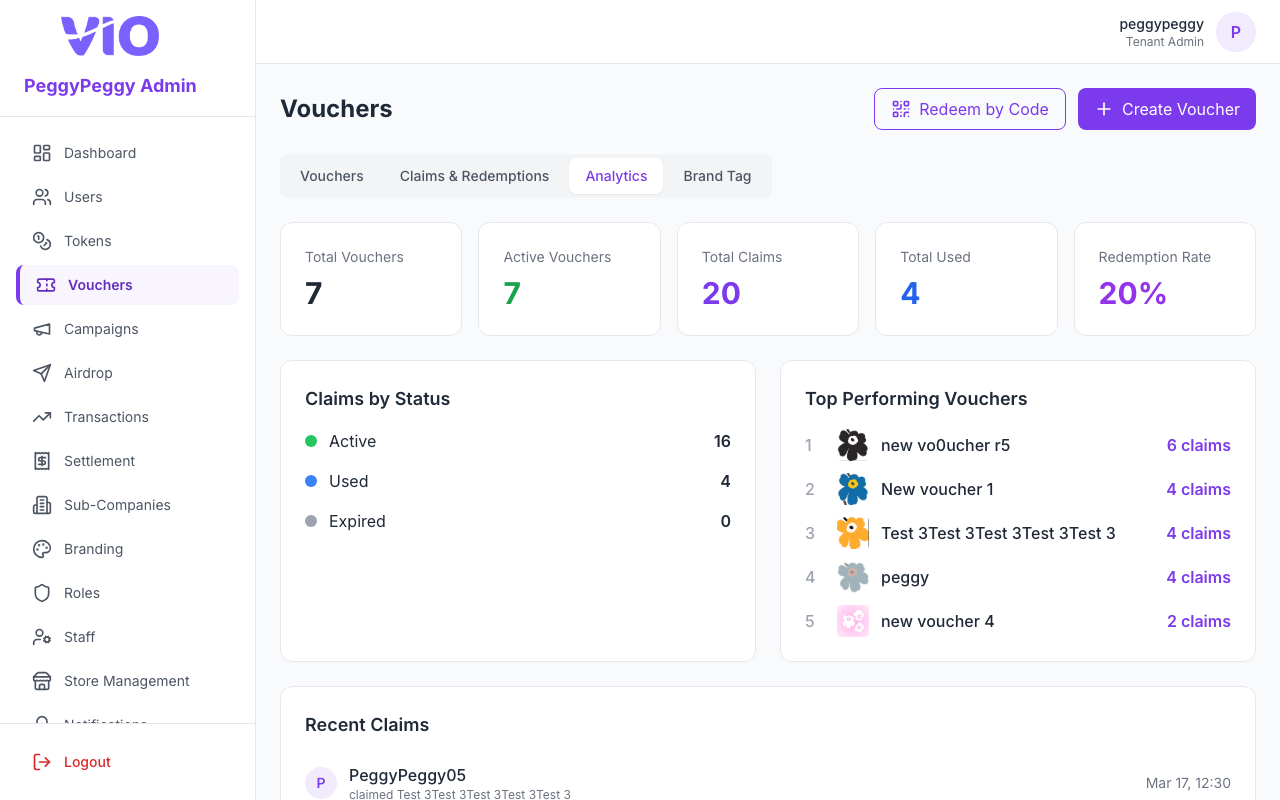
- Analytics — Summary metrics and charts for voucher performance.
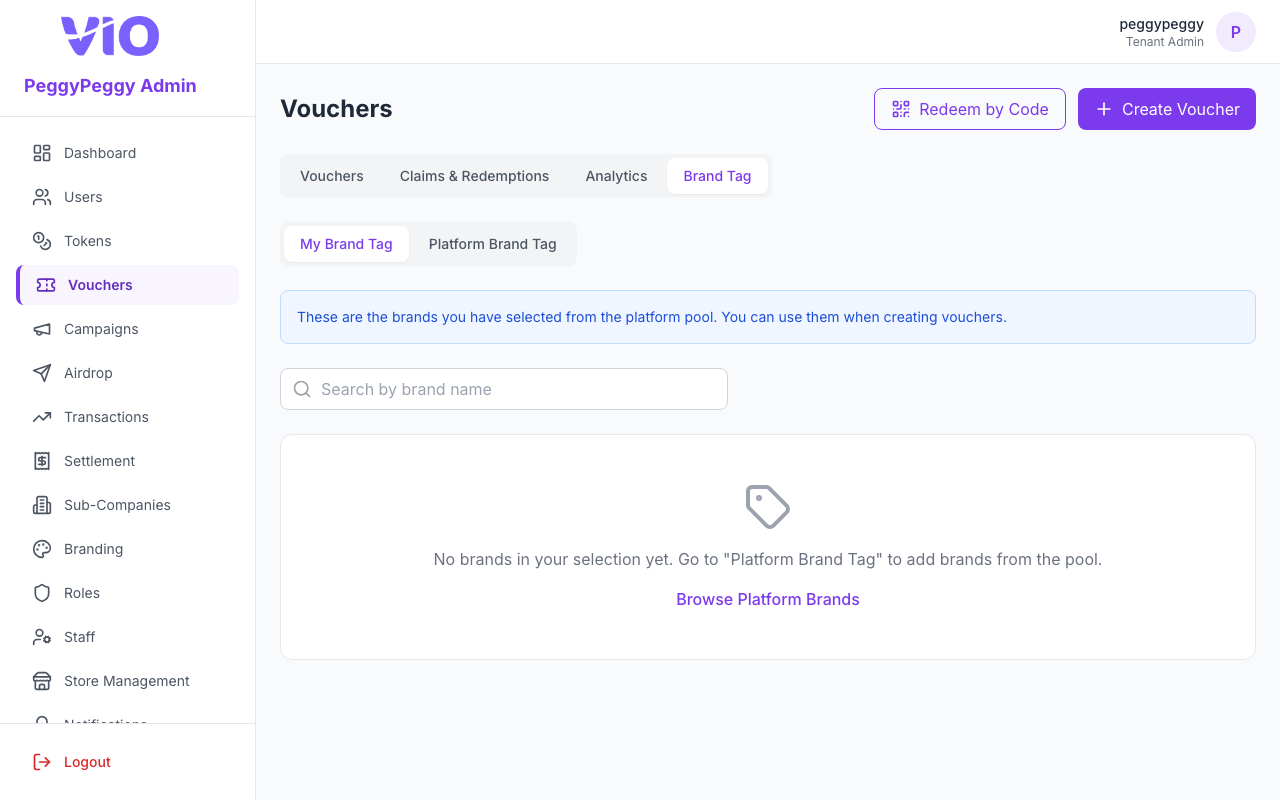
- Brand Tag — Manage My Brand Tag (brands you have added from the platform for use on vouchers) vs Platform Brand Tag (browse the platform pool and add brands to your selection).
At the top right of the page (on the main voucher flows), Use by Code opens the staff use flow in a modal — it is not an item inside a voucher row’s ⋮ menu. Create Voucher opens the creation wizard when your role permits.
Voucher Network (under My Vouchers on the Vouchers tab)
Voucher Network is not a separate route — it is the second block on the same catalog tab, below My Vouchers. In the English UI, the line under the Voucher Network heading matches the product copy: “Public and shared vouchers from partners.” That pool shows vouchers that originate from other tenants or the platform catalogue so members can discover and redeem them where your configuration allows. You do not create those vouchers here; you mainly inspect them. Row ⋮ on network vouchers only offers View Details — not Edit Voucher, Duplicate, or Set Offline / Set Online, which apply to My Vouchers only.
How to use:
- Use the four main tabs above to move between catalog (Vouchers), Redeems & Uses, Analytics, and Brand Tag (with My Brand Tag / Platform Brand Tag under the last).
- On Vouchers, work in My Vouchers vs Voucher Network, then use Online / Offline / Expired plus category, brand, access type, and search; toggle grid or list view and use bulk activate/deactivate in list view when rows are selected and your role allows.
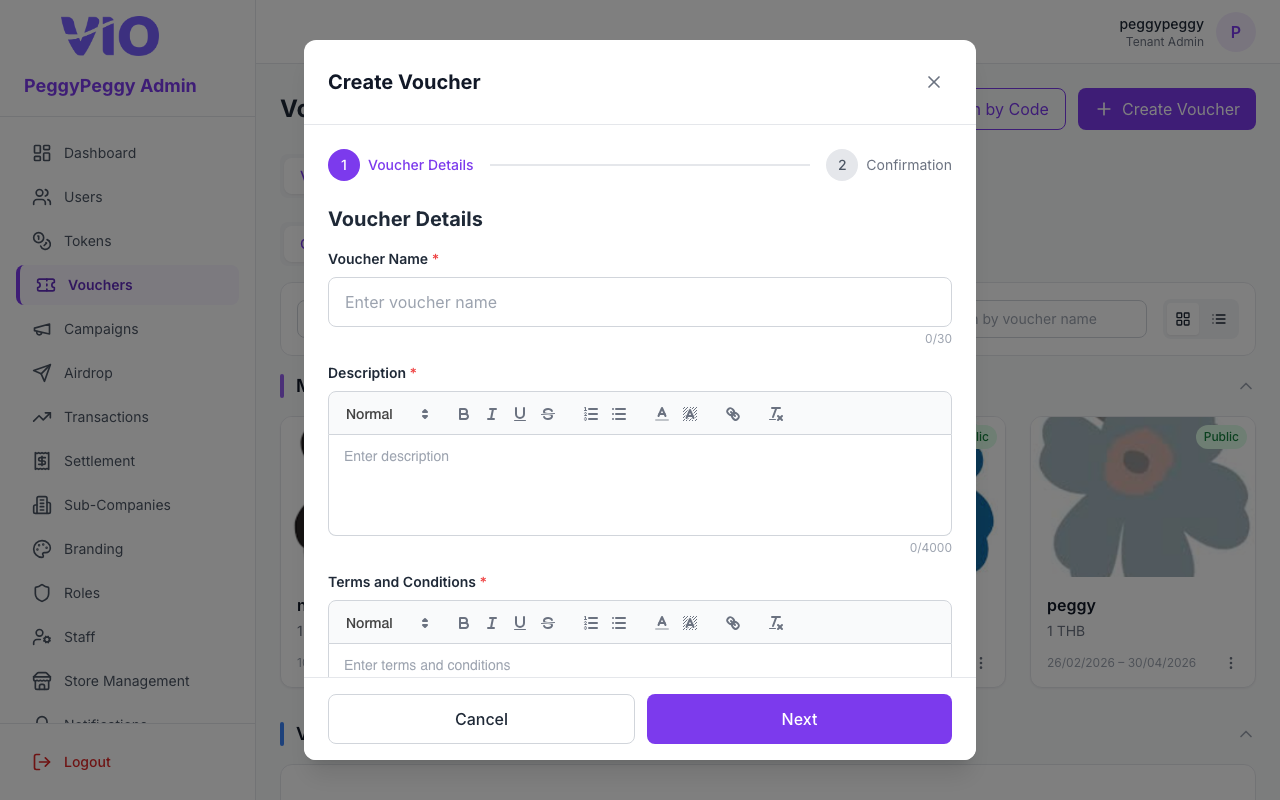
- Click Create Voucher (when permitted) to open the wizard — name, type, value, dates, visibility, outlets, use method, images, terms, and sharing options — then save or publish.
- ⋮ on a row: For My Vouchers, the menu is View Details, Edit Voucher, Duplicate, then Set Offline (when the voucher is currently online) or Set Online (when it is offline) — labels match the English UI. Voucher Network rows only include View Details in ⋮. Use Use by Code in the page header to mark a voucher used from its code; do not expect it under ⋮.
- Open Redeems & Uses for the redeem and use tables; Analytics for dashboards; Brand Tag to curate brands for voucher creation.
Voucher validity: fixed date vs. days after redeeming
The create and edit wizards have a Validity selector directly under Start date & time. It controls how each member's copy of the voucher expires:
- Fixed date (default) — you set End date and End time, and every copy expires at that same moment no matter when the member got it.
- Days after redeeming — you set Valid for (days) instead, and each copy expires that many days after that member redeemed it (Action 1 — the voucher lands in their wallet). Example: 30 → a member who redeems on 10 July can still use it until 9 August, while someone who redeems on 1 August has until 31 August. The deadline is for the use step (Action 2) — an unused copy that passes it can no longer be used.
How the form behaves:
- Picking Days after redeeming hides End date / End time and shows the required Valid for (days) field. Whole days only, 1–3650; anything else is rejected with “Enter a number of days between 1 and 3650”.
- Switching back to Fixed date clears Valid for (days) and asks for End date / End time again. Switching an existing voucher to Days after redeeming clears its end date.
- A Days after redeeming voucher has no end date at all. It stays available until you Set Offline or the stock runs out — so plan to use Voucher quantity or the offline switch to stop distribution.
- The countdown starts at the later of the redeem time and the Start date, so a voucher taken before it opens still gets its full window. For vouchers you push out yourself (direct send or airdrop), the countdown starts the moment you send it.
Where it shows up:
- Voucher cards, the list view, and View Details show “{n} days after redeeming” in place of the usual start–end date range.
- The Expired filter on the catalog is driven by the end date, so these vouchers never appear there — they are Online or Offline only.
- In the member app the same “{n} days after redeeming” line is shown before the member takes the voucher, plus a notice that the countdown starts on redeeming; once it is in their wallet the line becomes a real expiry date and countdown.
Voucher use type: supplier code list (QR Code & Coupon Code)
When Voucher use type is QR Code or Coupon Code, vouchers are fulfilled from a pool of supplier-issued codes that you upload as a CSV — not from a single shared image. VIO stores one row per code and gives each member a different code when they use the voucher in the app (or when the staff/API use flow runs, depending on your process).
Upload Voucher (create wizard)
- A Upload Voucher area appears: drag-and-drop or tap Upload CSV; accepted files are CSV / TXT, up to 5 MB (see on-screen hint).
- Download Template — downloads a sample file with one code per line and no header row (same layout suppliers often use). You can also export your own list in that shape.
- After you select a file, the UI shows the file name and size; you can remove it with X.
- Voucher quantity is filled automatically from the number of unique non-empty lines in the file (header row
code/codes/voucher/idis skipped if present). - When you save the new voucher, the codes are imported to the pool in the background. Ensure unlimited quantity is off if you rely on a fixed cap — the cap should match the CSV for this flow.
Edit voucher
- Upload Voucher appears again for QR Code and Coupon Code: same drag-and-drop, immediate upload to add more codes (duplicates are skipped).
- The screen shows Total / Available / Assigned counts for the pool. If Voucher quantity (redeem cap) is greater than the total number of codes on file, the API rejects the save — upload more codes or lower the cap.
- Legacy note: Older QR Code vouchers may still have a single static image path in data; new configuration uses CSV only in the Admin Portal.
Other use types (VIO Code, URL, Manual, Direct recharge) are unchanged at a high level: no CSV pool is required for those modes.
Screenshots (main tabs — English UI)
Vouchers — catalog tab (My Vouchers above, Voucher Network below when you scroll; Online / Offline / Expired and filters apply to the catalog list)
Redeems & Uses
Analytics
Brand Tag (sub-tabs My Brand Tag / Platform Brand Tag are on this screen)
Create voucher (wizard — details, type, value, dates, visibility, outlets, use type, terms)
9. Campaigns
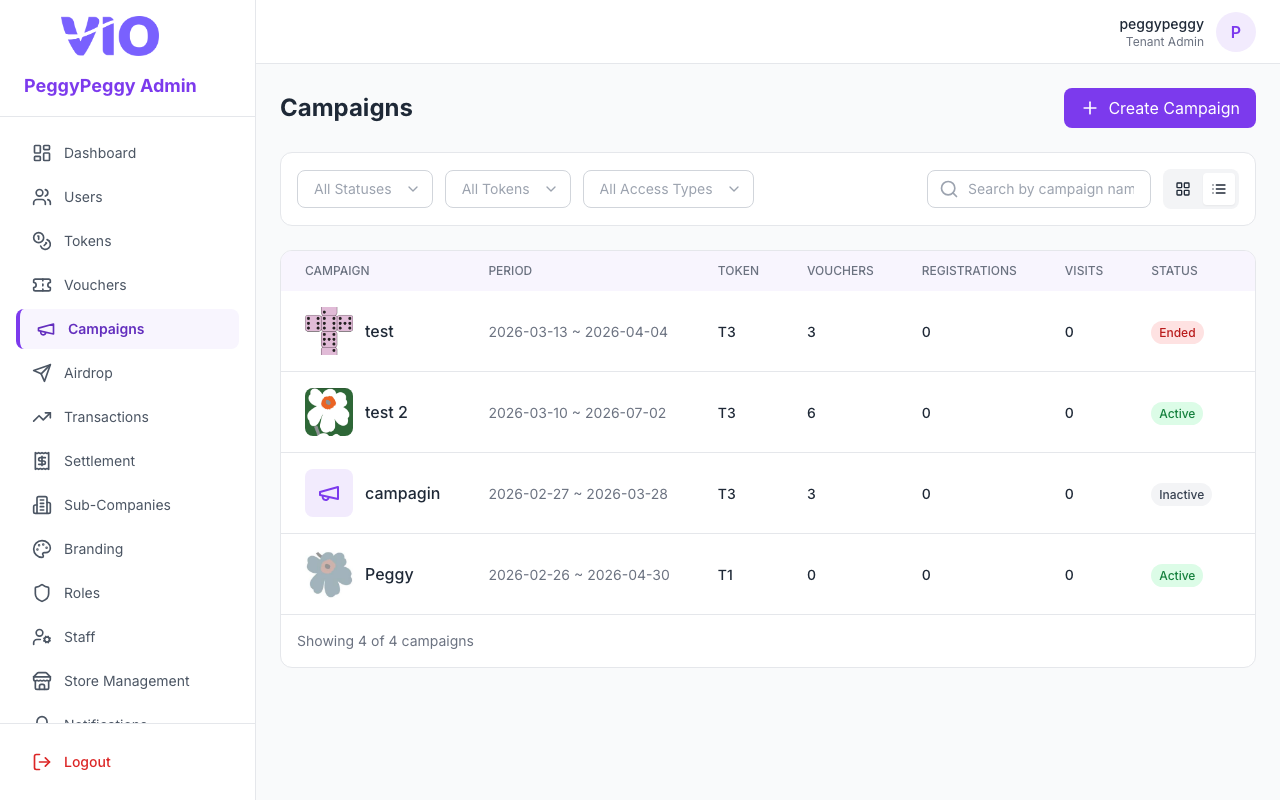
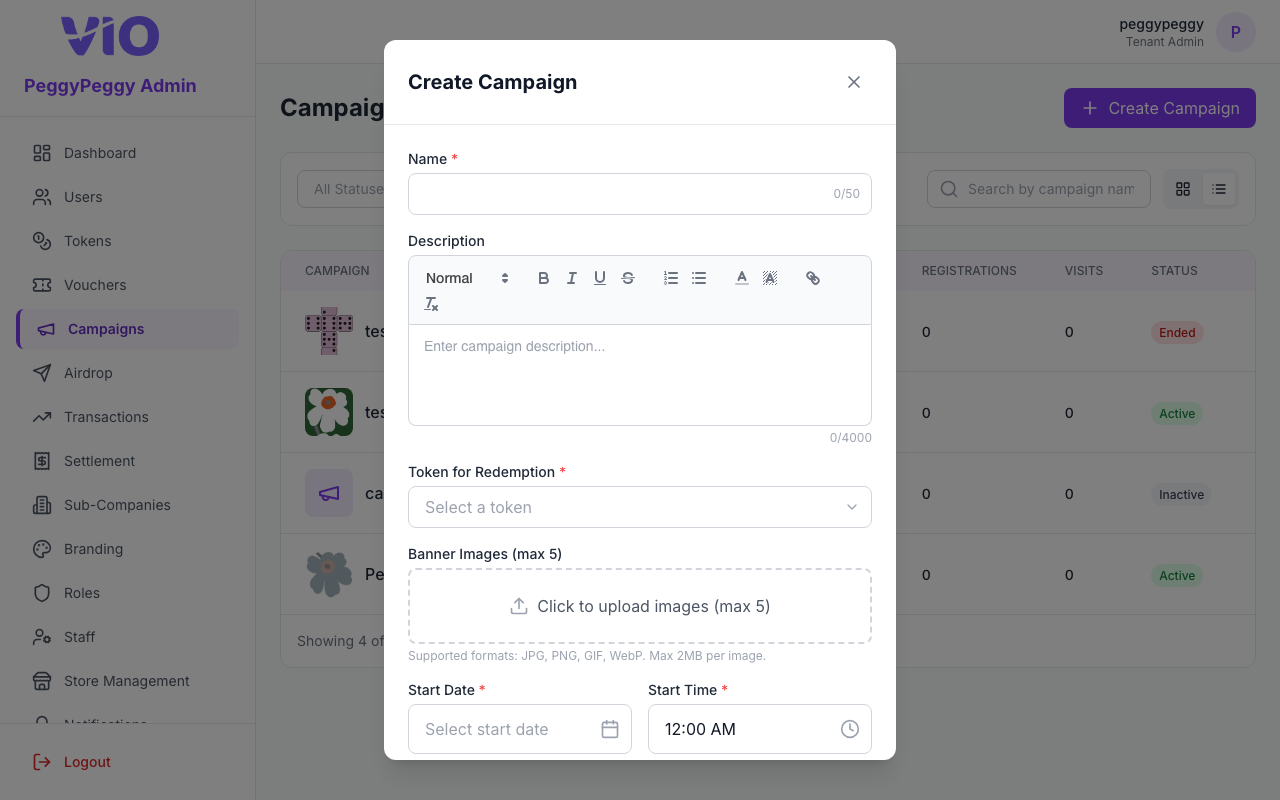
Campaign builder on a single Campaigns screen: list or grid of campaigns, filters (status, token, public vs private), search, Create Campaign, and per-campaign actions. Creating or editing a campaign uses a modal with schedule, linked token, banner images, and two toggles: Active and Public Marketing Page (accessible without login) (exact create label in English; edit uses the shorter Public Marketing Page label for the same setting).
Status badge vs Active toggle: The Active checkbox controls whether the campaign is enabled at all. The coloured status pill on each card/row (Active, Scheduled, Ended, Inactive) is computed: if Active is off → Inactive; if on → Scheduled before the start time, Ended after the end time, otherwise Active. So “Active” in the form is not the same thing as the “Active” status chip when dates put the campaign in Scheduled or Ended.
Public marketing page: When Public Marketing Page (accessible without login) is on, the member-app marketing URL for that campaign can be opened without signing in (see Campaign QR Code instructions in the modal). When off, treat the campaign as not shared via that public page.
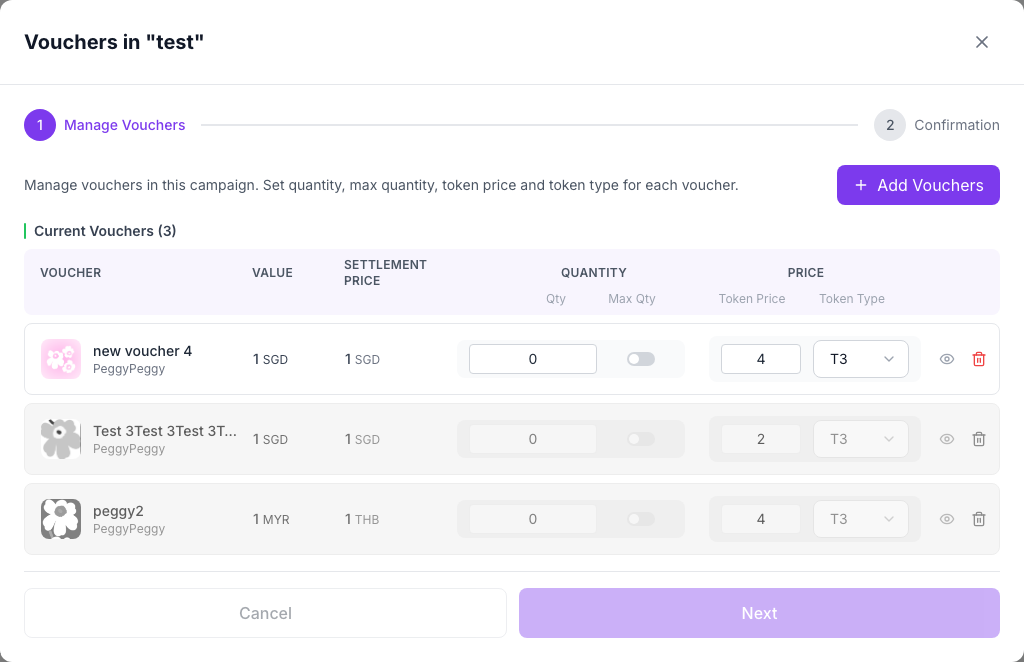
Vouchers on a campaign: There is no separate top-level Campaign Vouchers tab in the current UI — you attach and edit vouchers per campaign via Manage (list view) or Manage Vouchers (grid ⋮ menu). That opens a large modal titled Vouchers in “… ” with step 1 Manage Vouchers (quantities, token price/type, add/remove) and 2 Confirmation before saving.
Qty & Max Qty columns: Each voucher row has a Qty input and a Max Qty toggle. When Max Qty is off, the Qty field is editable and represents a campaign-specific redeem cap. When Max Qty is on and the toggle is first enabled, the Qty field auto-fills with the voucher's current remaining stock (total minus redeemed); once saved, the value is fixed and does not auto-decrease as vouchers are redeemed. If the voucher has unlimited stock, the field displays ∞.
Stock indicators: Each voucher row displays a stock status badge when relevant:
- Out of Stock (red badge) — the voucher's remaining global stock is 0 (fully redeemed across all campaigns/tenants)
- Low Stock (yellow badge) — the voucher's remaining global stock is ≤ 10
These indicators appear in both the Campaign Voucher Management modal (for all companies' vouchers) and the Vouchers page (grid and list views for the creating company's own vouchers).
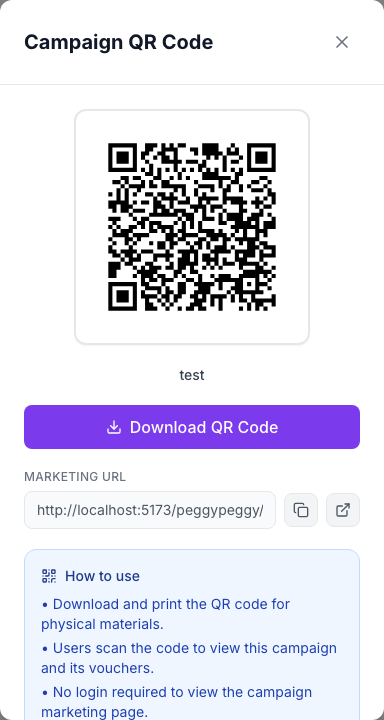
QR and links: The QR icon on a row/card and View QR Code in ⋮ open the Campaign QR Code modal (download PNG, Marketing URL, copy, open in new tab). ⋮ also offers Copy Marketing URL, Open Marketing Page, Edit Campaign, and Delete (when permitted).
How to use:
- Browse the Campaigns list or grid; filter by status (matches the computed chip: Active / Scheduled / Ended / Inactive), token, and public vs private; search by name; switch grid/list if shown.
- Create Campaign (when permitted): name, description, Token for Redeem, banner images (limits shown in-app), start/end date and time. Enable Active so the campaign can run (subject to dates). Enable Public Marketing Page (accessible without login) if you want a shareable member URL without login. Save.
- Edit Campaign from ⋮ to change the same fields. Use Manage / Manage Vouchers to add or remove vouchers and set quantities and token pricing for that campaign; confirm on step 2 when the UI requires it.
- Use the QR icon or View QR Code for the Campaign QR Code popup; use Copy Marketing URL or Open Marketing Page from ⋮ as needed.
- Delete appears in ⋮ when your role allows; it removes the campaign and its voucher links (confirm the on-screen warning).
Note: When your organisation has Paid Membership, Target Membership Tiers also lists your paid plans, and each voucher row in Manage Vouchers has a Member prices (crown) button. See Paid Membership.
Screenshots
Campaigns (list / grid — your data may differ)
Create Campaign (modal — token, schedule, Active, Public Marketing Page (accessible without login))
Campaign QR Code (modal — QR, Download QR Code, Marketing URL, How to use)
Manage Vouchers (modal — title Vouchers in "…", steps Manage Vouchers → Confirmation)
10. Airdrop
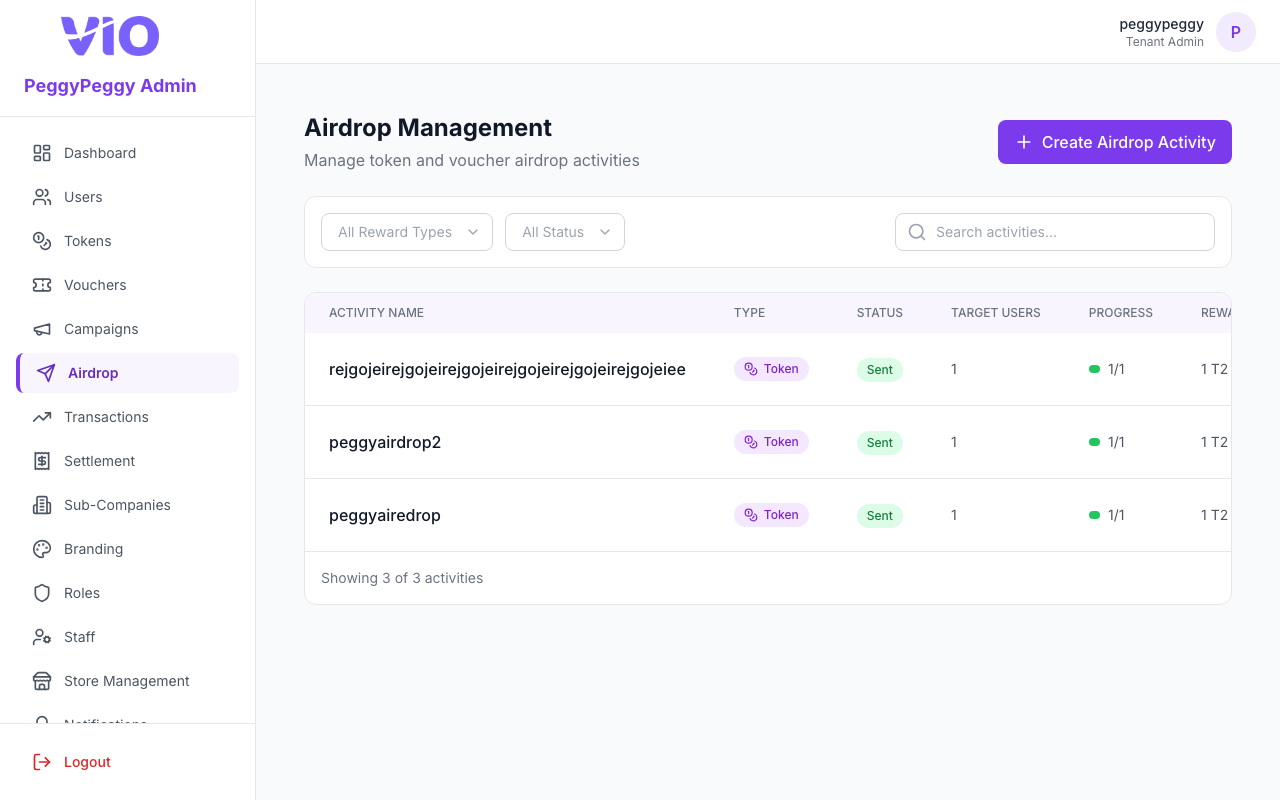
List past and in-progress airdrops (token or voucher distributions). Search and filter by type/status, open details, delete drafts, and create new runs from a large modal wizard — there is no separate /airdrop/create page; creation opens from here.
How to use:
- Browse the table with search and filters (e.g. airdrop type, status: draft, sending, sent, failed)
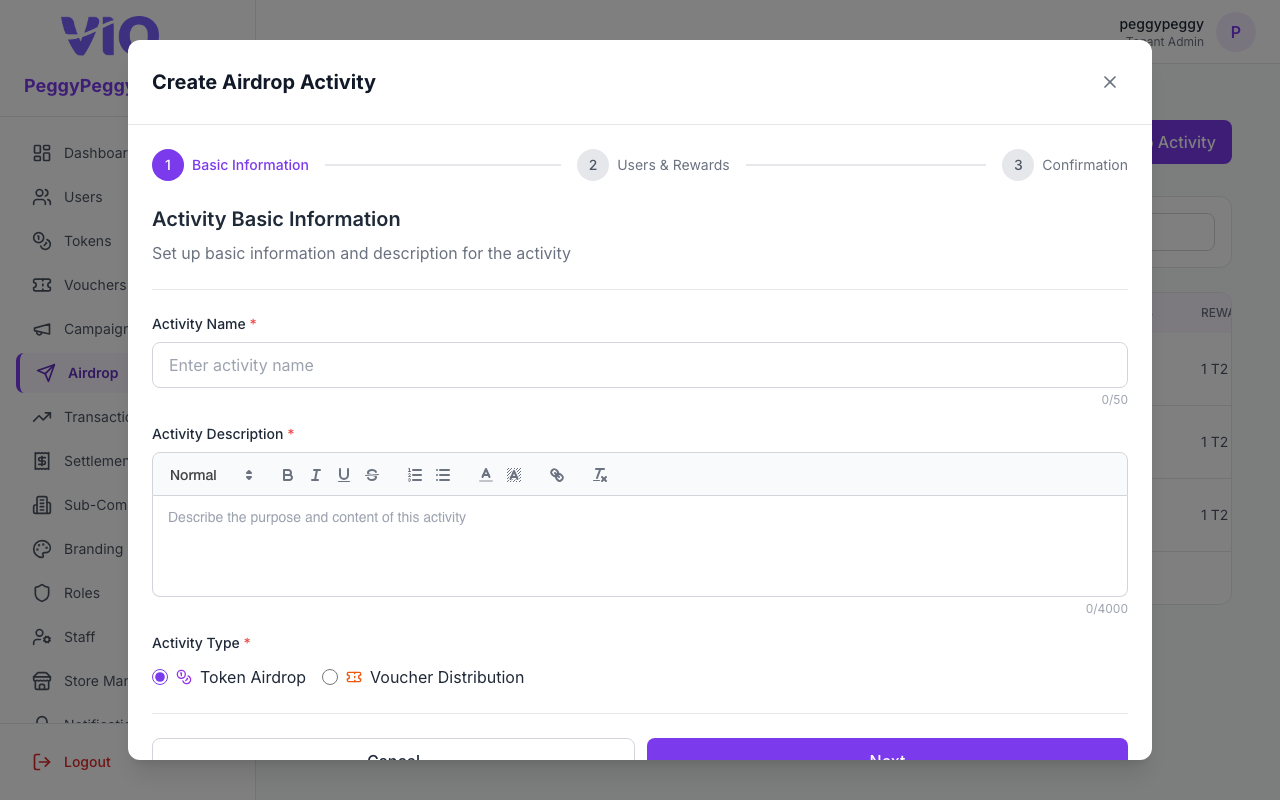
- Click Create Airdrop Activity (when permitted) to open the wizard modal — choose token or voucher mode, recipients (CSV upload and/or user selection), amounts, and messages
- Review the summary and confirm to queue sending; drafts can be removed from the ⋮ menu when allowed
- Click a row or View to open the details modal and watch progress, recipient breakdown, and any failure messages
- Use Delete or other ⋮ actions on eligible rows to clean up failed or draft activities
Airdrop list
Create airdrop (modal wizard — token or voucher, recipients, amounts)
11. Transactions
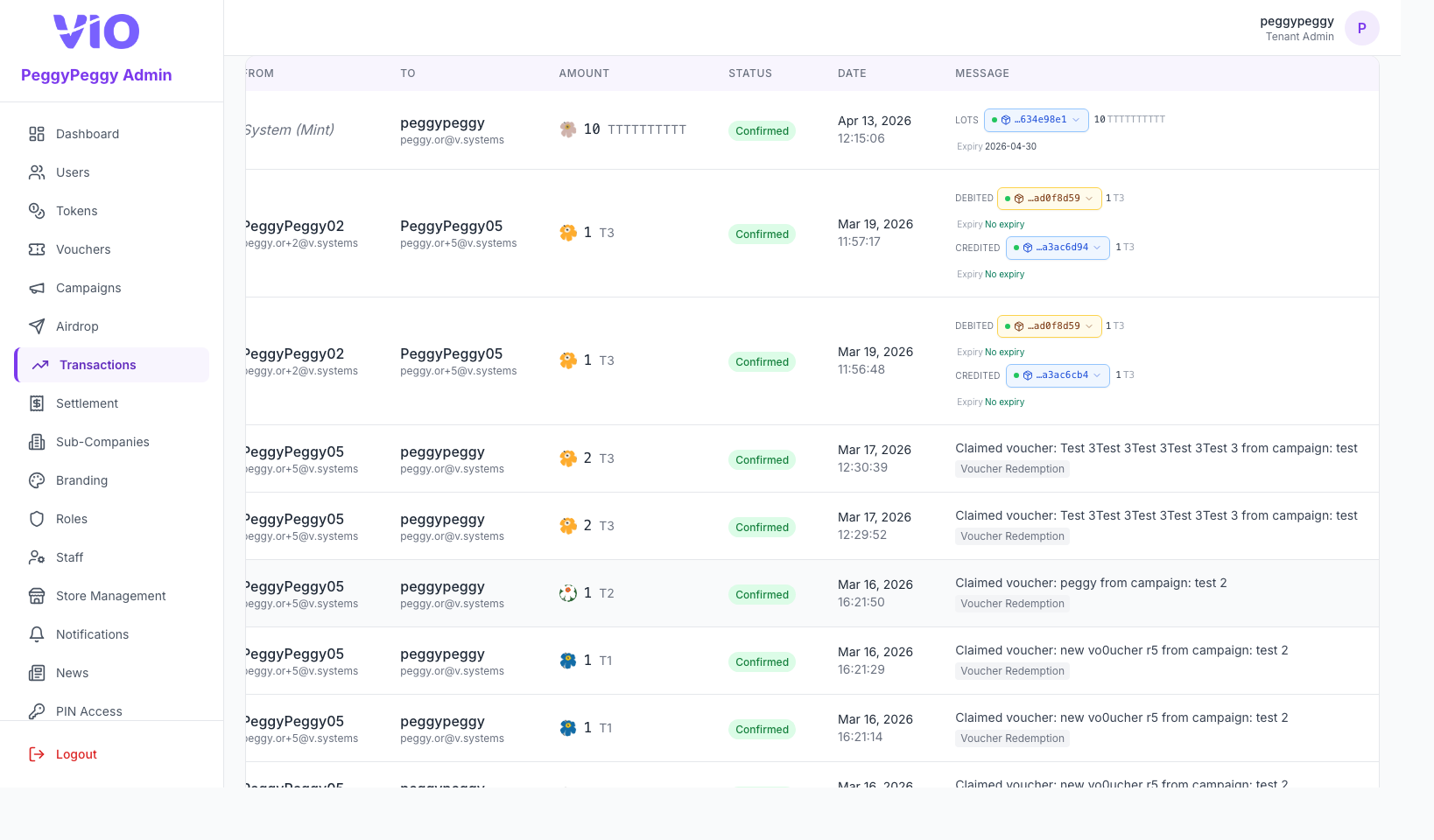
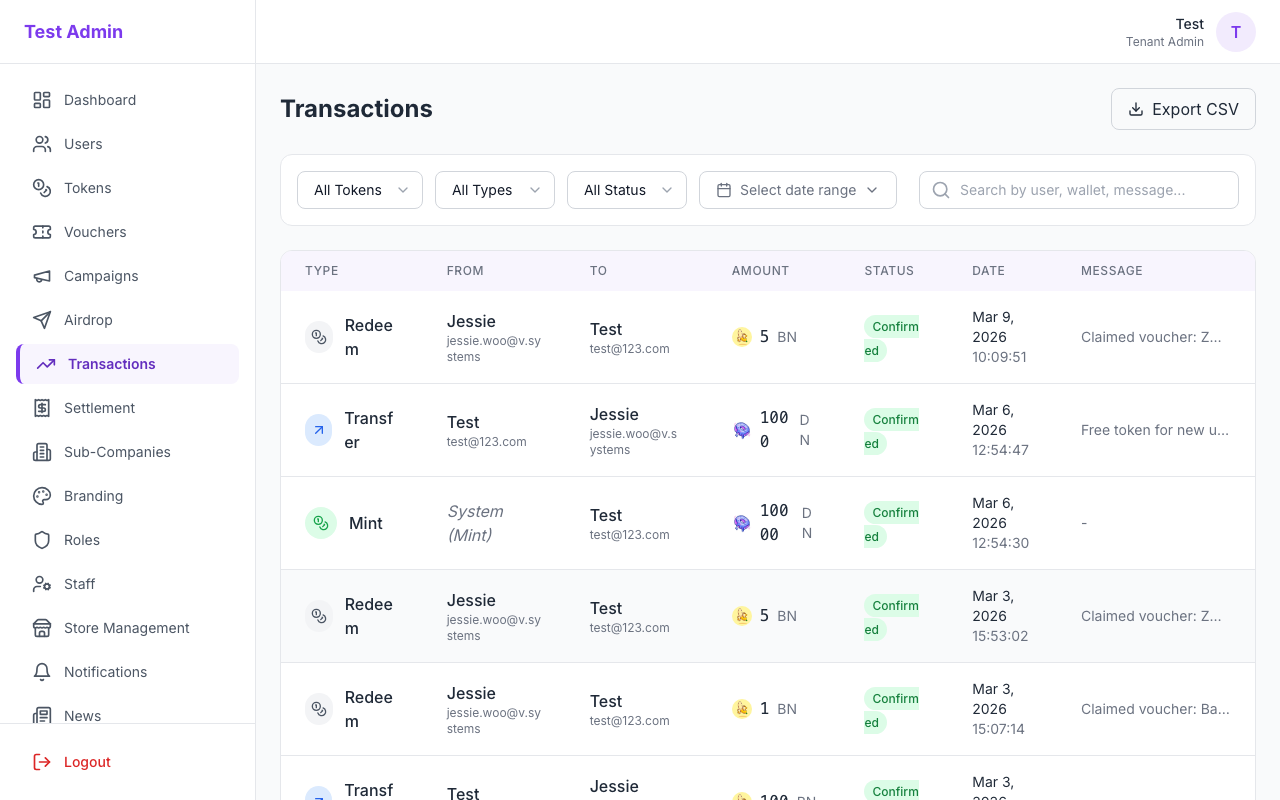
Tenant-wide token transaction ledger with free-text search, token/type/status filters, date range, CSV export, and rich Message rows that can include memos, errors, reference tags, and token lot movements with Expiry hints.
Message column (English UI label: Message) — Each cell can show, from top to bottom: optional memo text; for failed transactions, a red error line; an optional reference chip (type of linked object); and, when the API supplies relatedLots, a Lots block (see below). If nothing applies, the cell shows -.
Lots — Token balances are tracked in lots (batches). Inside Message, lot lines appear for types such as mint, transfer, and reward (the UI only renders the full debit/credit flow for those flows). You may see:
- Debited — The sender’s lot being reduced (with amount in token units). If the API embedded full lot data, a compact Expiry line appears under it; otherwise only a short lot id chip may show.
- Credited or Lots — The new or receiving lot and its amount.
- Split across N lots · total — When one transaction touches more than one lot, this summary line appears with the total amount; each lot is then listed underneath with a left border so you can see how the move was split.
Click a lot chip (package icon and last digits of the lot id) to open a popover with Lot ID (copyable), remaining / original balance, status (Active, Expired, or Depleted), and the same expiry date as in the inline hint.
Expiry — On each lot row, a small Expiry label (English UI) is followed by either a calendar date (yyyy-MM-dd) or No expiry for non-expiring lots. Dates may appear in red when the lot is expired (by status or past date). This is the lot’s own expiry, not the transaction timestamp (use the Date column for when the ledger event occurred).
Message column (screenshot) — Table scrolled horizontally so Message is visible; the automated capture shows at most 10 data rows to keep the image compact (see capture-transactions-message.js). Your tenant may show memos, -, lot lines, or voucher text.
How to use:
- Use search to match users, hashes, or other fields surfaced in the table
- Narrow by token, transaction type (mint, transfer, burn, reward, redeem, expire), and status; set a date range with the picker
- Open the Export or Download control to export the current result set to CSV (the export can append compact debited/credited lot ids and
exp:expiry snippets where available) - Read Message for memos, failures, references, and Lots / Expiry; click lot chips for full lot detail and copy id
- Deep links from other pages may pass
tokenId,type, orstatusquery parameters — filters initialize from the URL
12. Settlement
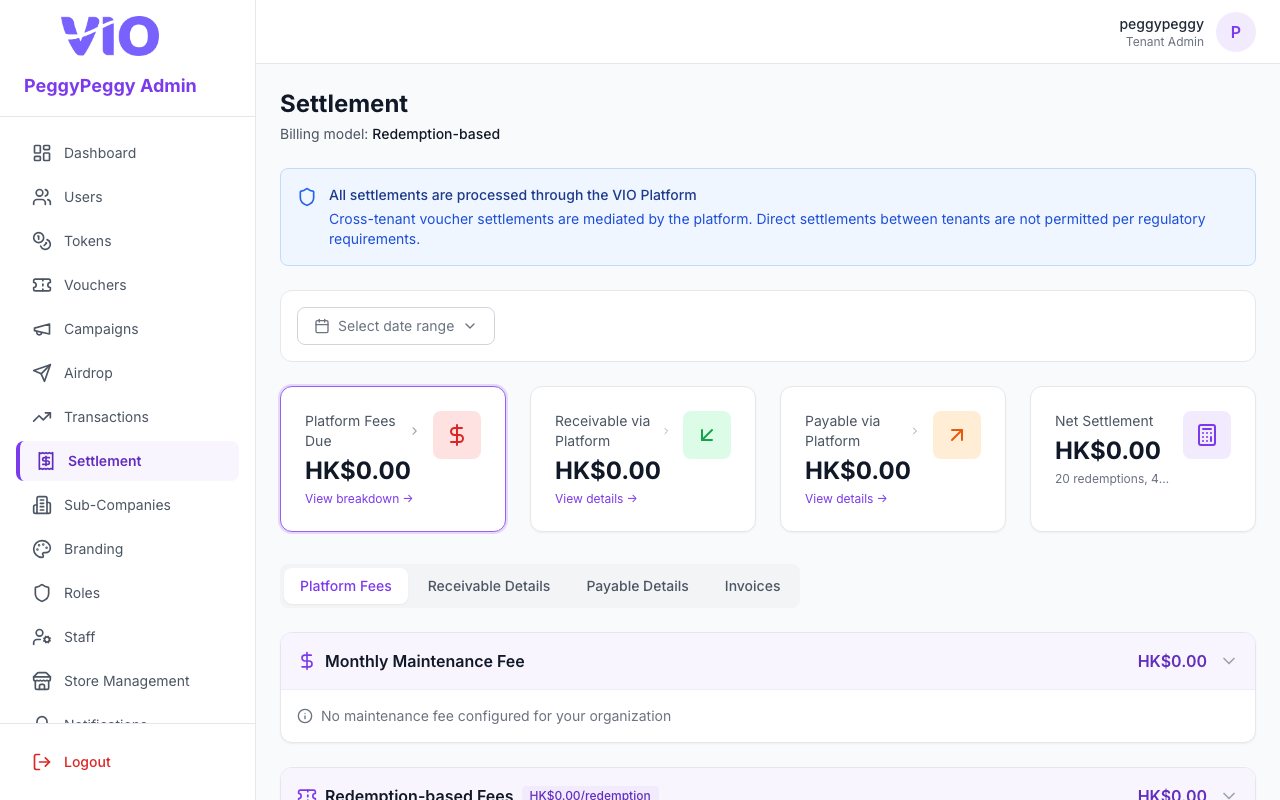
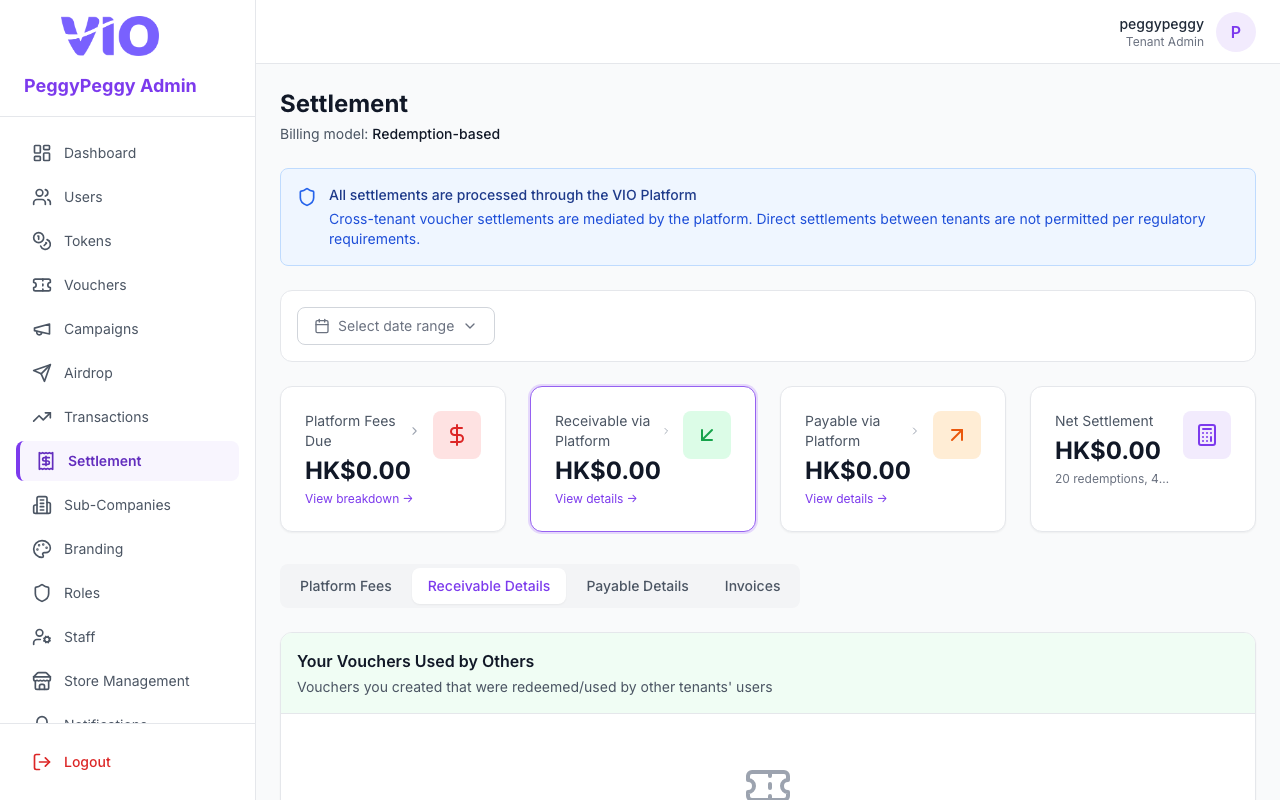
Financial settlement and cross-tenant voucher billing: summary cards at the top, then main tabs (English UI) — Platform Fees, Receivable Details, Payable Details, Invoices, and (when the E-Commerce module is enabled) Product Settlement — plus optional date-range filtering on the summary data.
How to use:
- Pick a date range (when shown) to reload settlement summaries, fees, and cross-tenant voucher lines
- Review platform fees, subscription charges, variable fees, and cross-tenant marketing fees in the Platform Fees tab
- Expand any token or voucher row to see per-transaction detail (date, rate applied, minted/settled amount, and fee)
- Open Receivable Details or Payable Details to see vouchers your users consumed at other tenants (or the reverse)
- Switch to Invoices to list billing documents and download PDFs or review entries your plan exposes
- Use currency labels and totals at the top of each section to reconcile against your finance records
Platform Fees Tab
The Platform Fees tab displays a breakdown of all fees due to the platform for the selected period:
| Section | Description |
|---|---|
| Subscription Fee | Fixed recurring platform fee (per billing cycle). Shows billing cycle, discount, and current period. Displays "Not due this period" when the cycle start date does not fall within the selected date range. |
| Token-Based Fees | Fees per token minted (per unit, percentage of issuance value, or percentage of token fiat value) |
| Redeem-Based Fees | Fees charged each time a member redeems a voucher with tokens |
| Use-Based Fees | Fees charged each time a voucher is used at a store |
| Cross-Tenant Marketing Fees | Fees charged when other tenants' users use your vouchers (grouped by voucher, showing redeem and use event counts) |
Each fee section shows a rate badge indicating the active rate type and value. Token-based, redeem-based, and use-based sections support expandable rows — click any row to reveal individual transaction details including date/time, applied rate, quantity, and computed fee.
Subscription Fee Timing: For billing cycles longer than monthly (quarterly, half-yearly, yearly), the subscription fee is only included in the settlement total when the cycle start date falls within the selected date range. In other periods, it shows as "Not due this period" with a note indicating the next cycle start date.
The Cross-Tenant Marketing Fees section appears only when there are marketing fees in the period. It shows a per-voucher breakdown with event type counts (redeems and uses), total settlement amount, and total marketing fee. Rows are expandable to reveal each transaction's date, event type, settlement amount, and fee.
The Total Platform Fees Due summary at the bottom includes subscription fee (if due) + variable service fees + cross-tenant marketing fees.
Rate Types
The platform supports multiple rate types for variable service fees:
| Rate Type | Badge Display | Calculation |
|---|---|---|
| Per Unit | $X.XX /token or /redeem | Fixed amount per transaction |
| Percentage | X% (issuance value) or X% (settlement price) | Percentage of the transaction's settlement amount |
| Token Value Percentage | X% (token value) | Percentage of (voucher token price × token fiat exchange rate); falls back to minimum charge when no token price exists |
Product Settlement Tab (E-Commerce)
Only shown when the E-Commerce module is enabled. A separate E-commerce Net summary card (green when VIO owes the tenant, red when the tenant owes VIO) opens this tab, which lists every order sale/refund as its own settlement row with a summary strip above the table:
| Summary Field | Meaning |
|---|---|
| Gross Sales | Total order value (fiat paid + points paid at fiat-equivalent + voucher deduction) for the period |
| Commission | Platform commission computed on gross sales, per the tenant's configured commission rate/minimum (see the Super Admin Portal guide) |
| Platform Fiat Collected | Fiat actually collected by the platform's Stripe account (only non-zero under Platform collection mode — see § "Payment Collection Modes" in the Super Admin Portal guide) |
| Net | The tenant's settlement position — VIO remits to tenant (positive) when platform-collected fiat exceeds commission owed, or Tenant pays VIO (negative) when commission exceeds platform-collected fiat |
Each row shows the order date, a clickable order number (opens that order's detail page), product, member, and a per-order breakdown of points paid (with fiat-equivalent), fiat paid, voucher deduction, order gross total, and commission; refund rows are highlighted and shown as negative amounts. Use Search to filter by order number or product name.
Note: The E-commerce Net card is always shown on its own when e-commerce is enabled. When the e-commerce settlement currency matches your primary billing currency, that net amount is also folded into the overall Net Settlement total (labeled "incl. e-commerce"); if the currencies differ, e-commerce is kept out of that total to avoid mixing currencies.
Screenshots (main tabs — English UI)
Platform Fees — subscription fee, token-based fees, redeem/use fees, cross-tenant marketing fees (content depends on your billing model).
Receivable Details — amounts receivable when other tenants’ users use your vouchers (export CSV when rows exist).
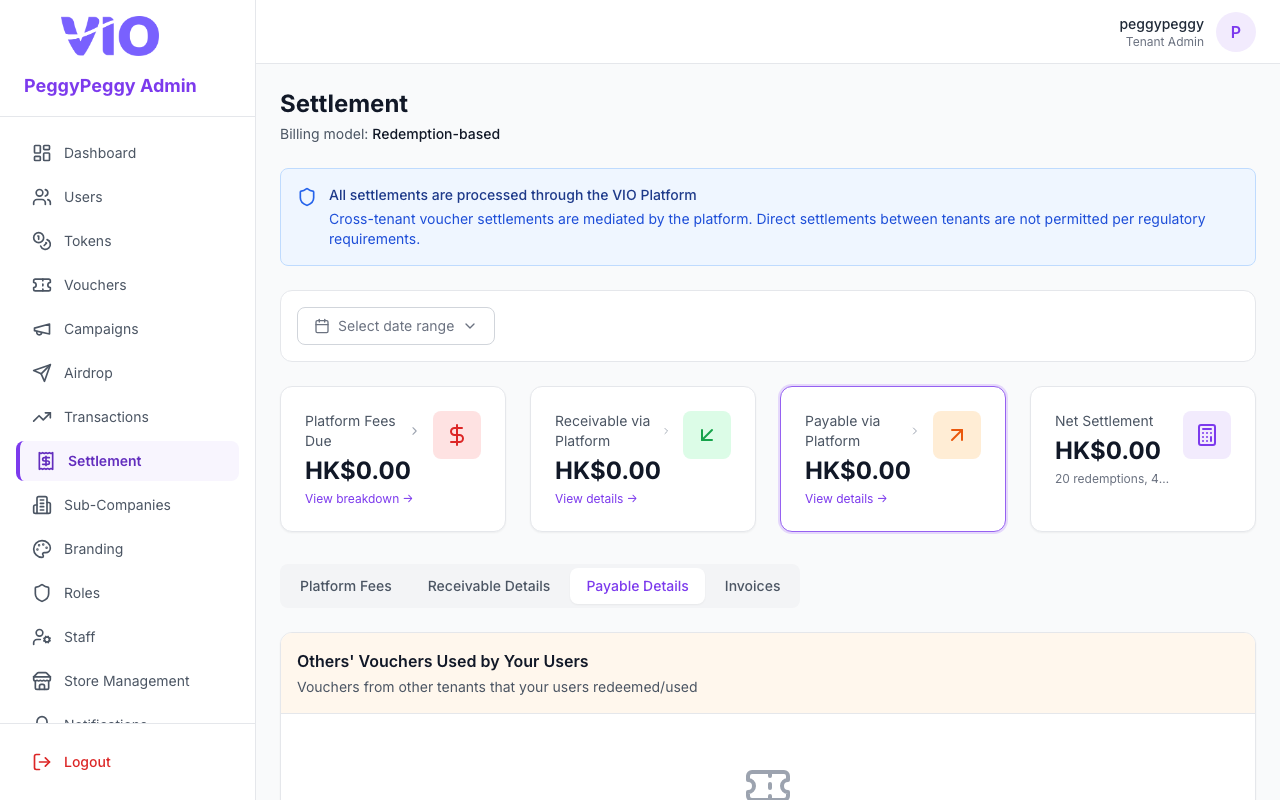
Payable Details — amounts payable for vouchers from other tenants used by your users.
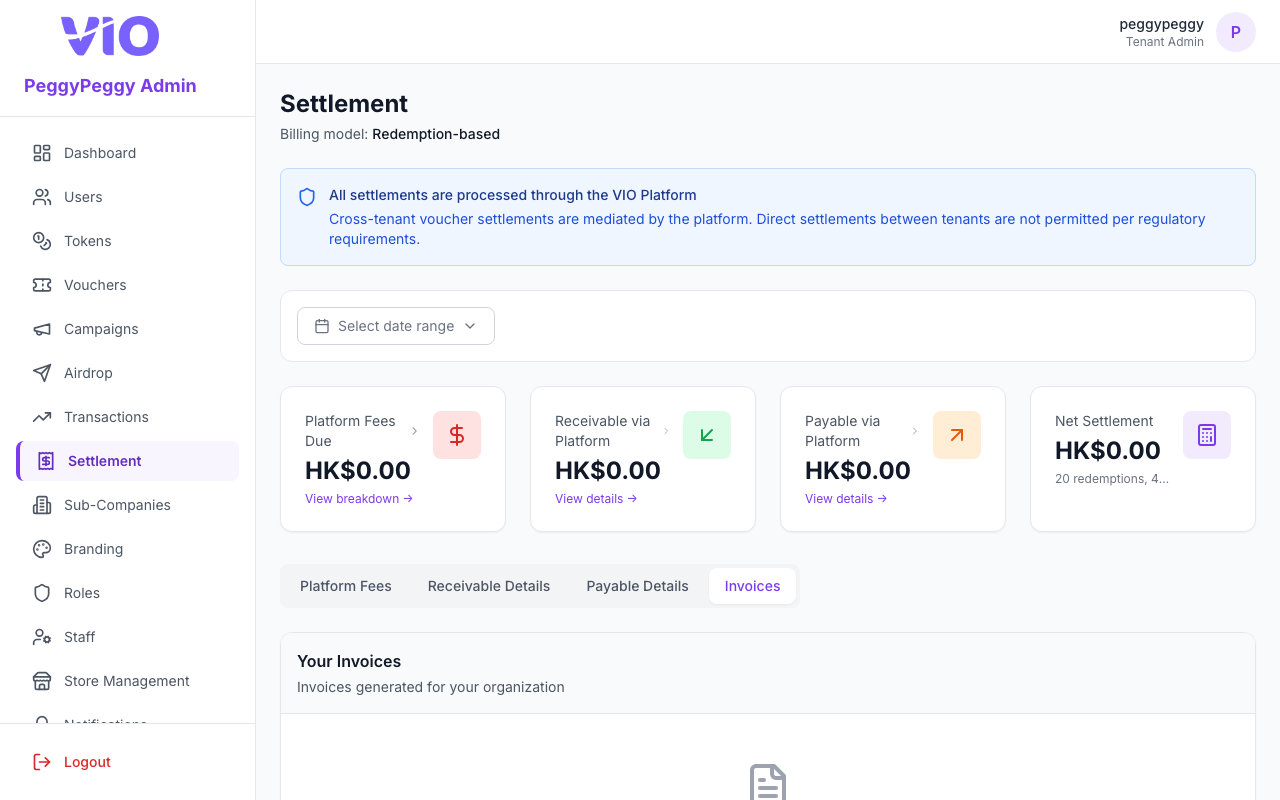
Invoices — issued invoices for your organization (download PDF when available).
13. Sub-Companies
Hierarchy of sub-branches: switch between tree and grid views, create child companies, upload logos, validate slugs, provision optional sub-admin accounts, and manage users per branch.
How to use:
- Toggle Tree vs Grid to explore the org chart or card layout
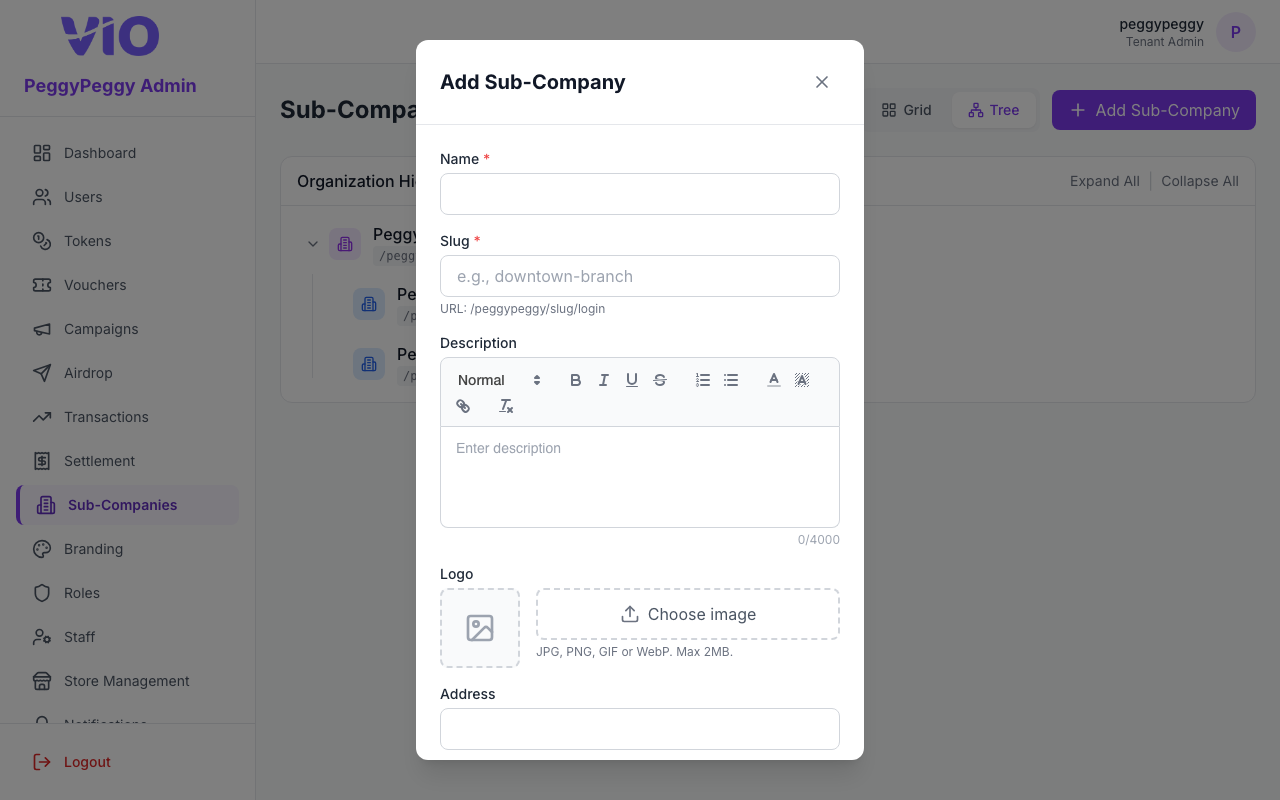
- Click Add or Create sub-company to open the form — name, slug, contact, address, logo, and optional dedicated admin credentials
- Use ⋮ on a row to view, edit, activate/deactivate, delete, or open the member list modal for that branch
- When creating under a parent, confirm the parent/child relationship in the UI before saving
- Copy or note each sub-company slug — it becomes part of member and admin URLs for that branch
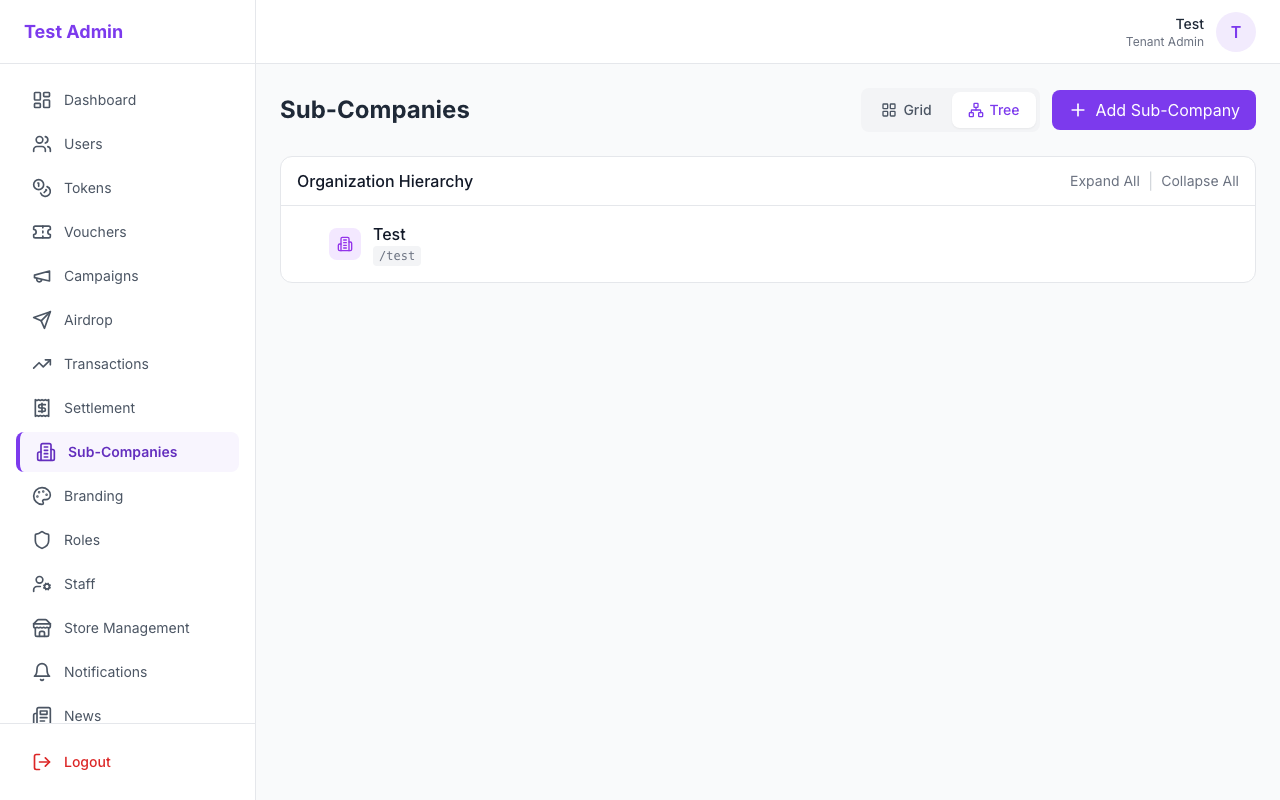
Sub-companies (tree or grid)
Create sub-company (form — name, slug, contact, logo, optional branch admin)
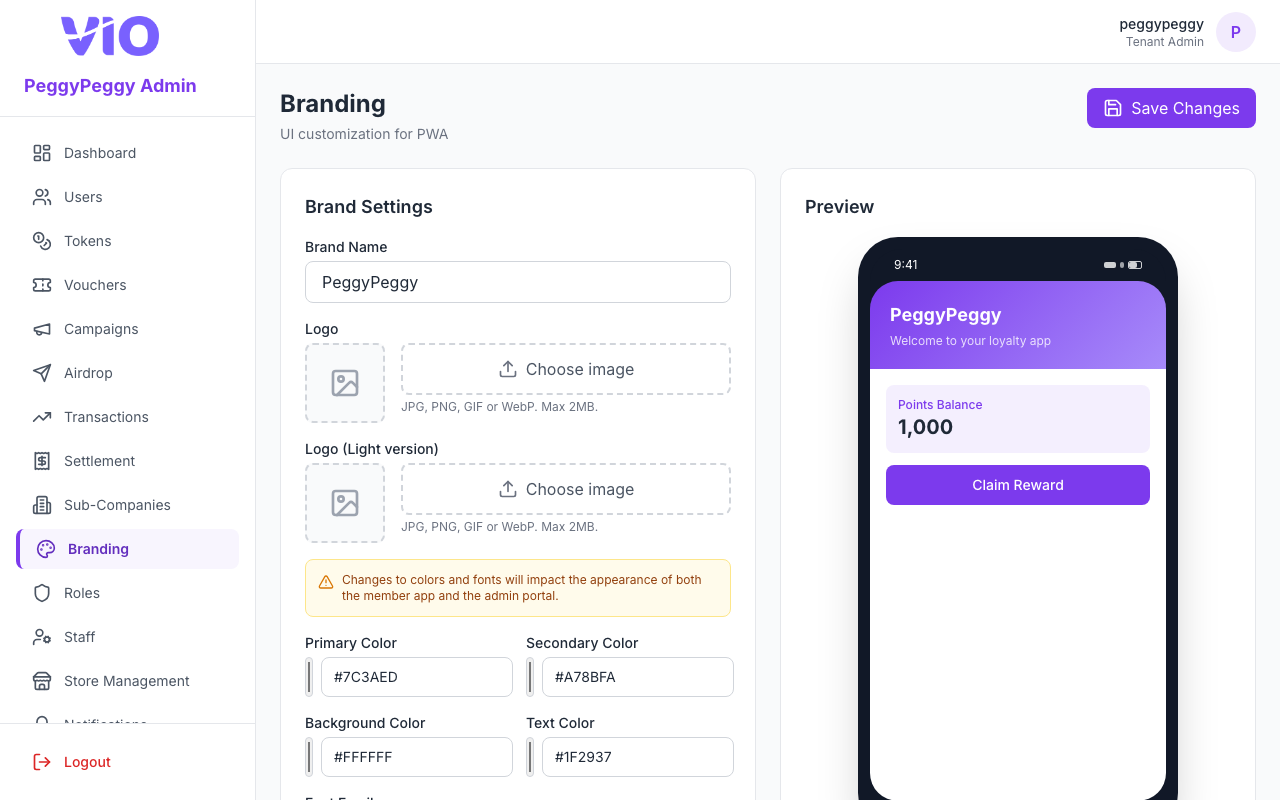
14. Branding
Upload standard and light-theme logos, tune primary/secondary/accent/background/text colors, choose a font family, edit the tenant display name, and save — the live theme can refresh for your session.
How to use:
- Load the page to preview current colors and logos
- Upload new logo files (including light variant for dark backgrounds) using the pickers
- Adjust hex colors and typography to match your brand guidelines
- Update the tenant Name field if your legal/marketing name changed
- Click Save and wait for confirmation; the portal theme may apply new colors immediately
15. Roles
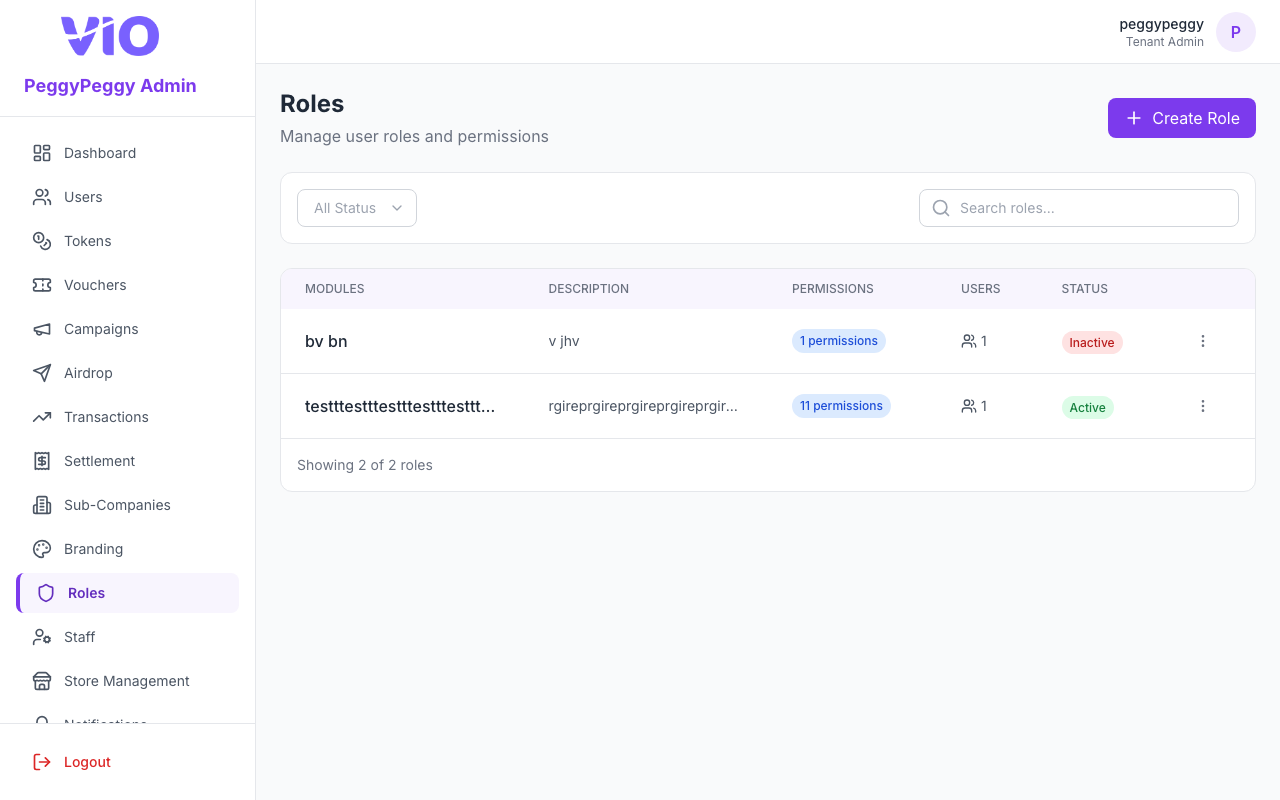
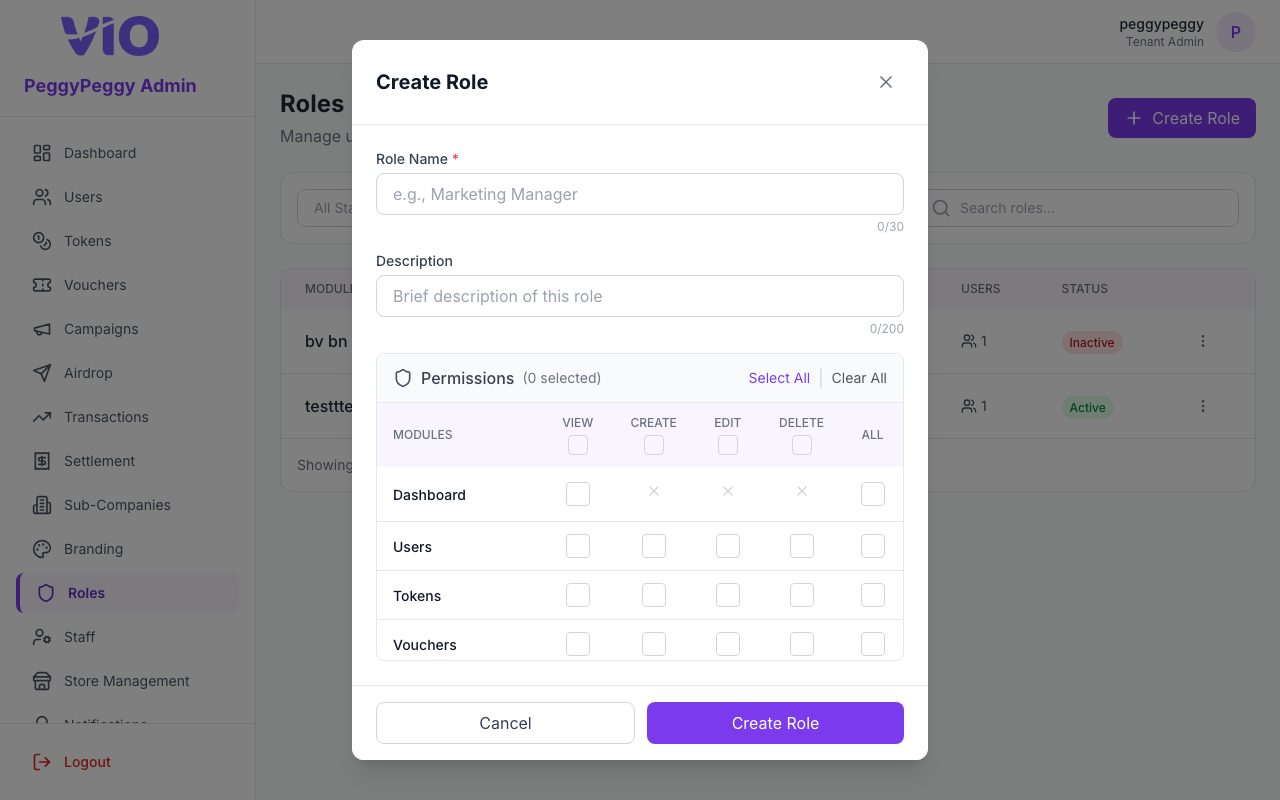
Custom staff roles: search and filter the directory, create or edit permission sets from the modular permission grid, assign users to a role, and deactivate roles you no longer need.
How to use:
- Search by role name and filter by active/inactive status; paginate through results
- Click Create role to name the role and tick fine-grained permissions (resources and actions)
- Use ⋮ → View to inspect a role, Edit to change permissions, Manage users to attach staff, or Delete when allowed
- Clone patterns from an existing role by opening Edit and adjusting only the differences your team needs
- After saving, ask affected staff to re-login if their menu does not update immediately
Roles list
Create role (modal — role name and permission grid)
16. Staff
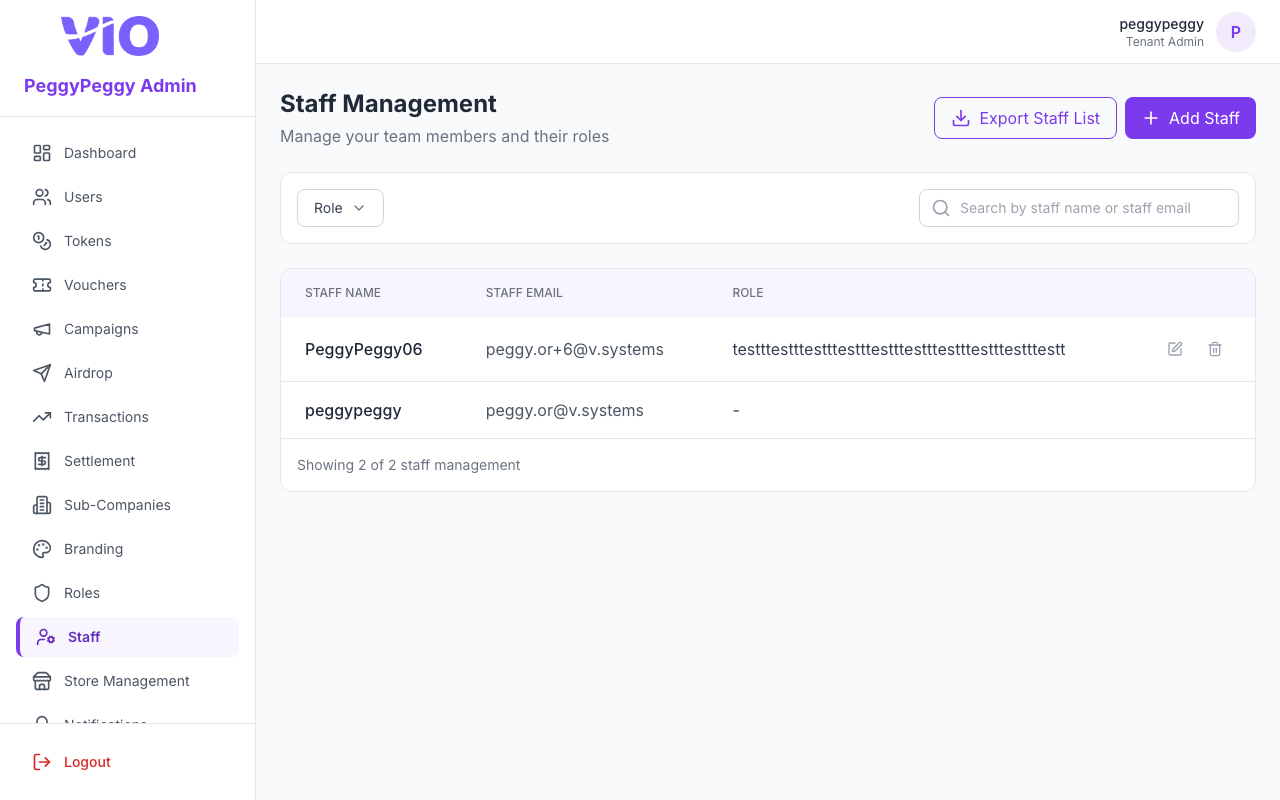
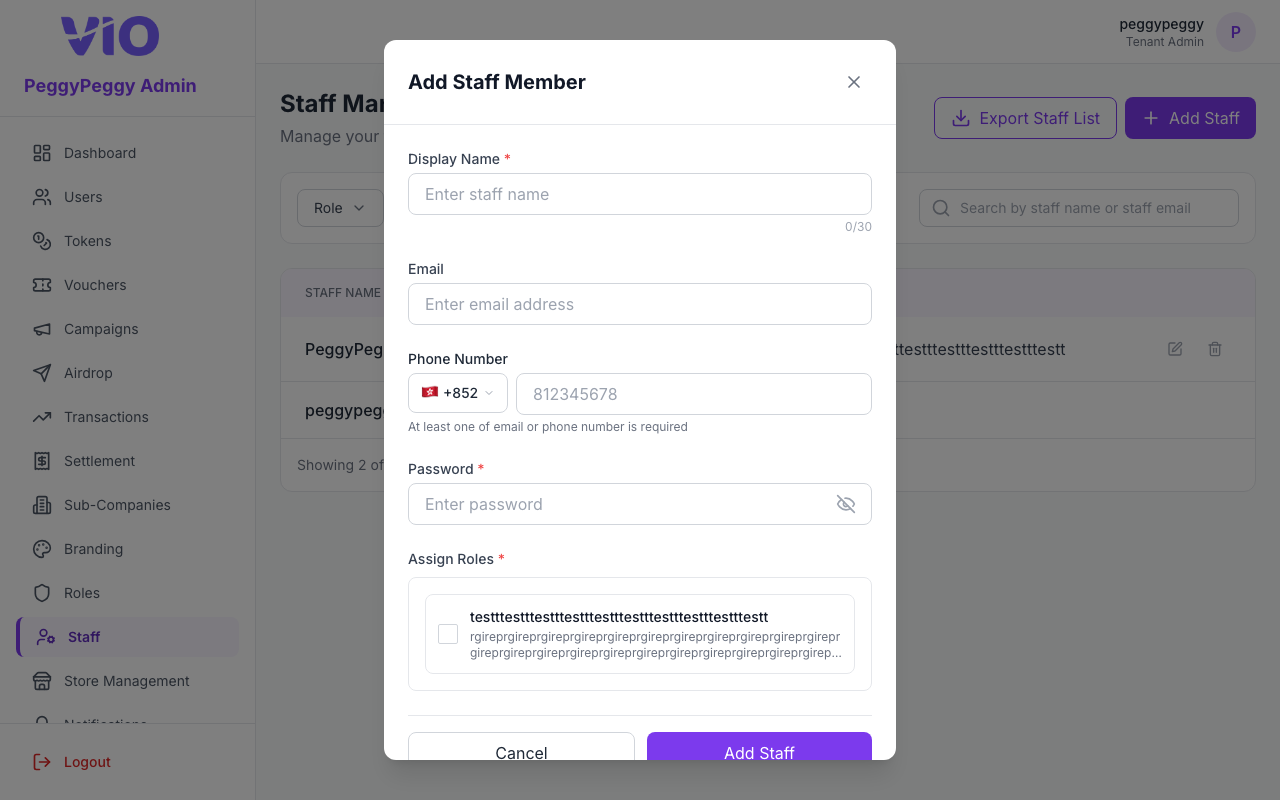
Administrative users for your tenant: searchable table with role filter, page size, CSV export, and modals to add, edit, or remove staff and assign custom roles.
How to use:
- Search by name or email; filter by assigned role; change rows-per-page for large teams
- Click Add staff (or equivalent) to invite someone — supply identity fields and attach one or more custom roles
- Use row actions to edit a staff member’s roles or deactivate/delete per policy
- Export the list when you need an offline roster for audits
- Coordinate password resets or MFA outside the portal if your organization requires it
Staff list
Add staff (modal — identity and custom roles)
17. Store Management
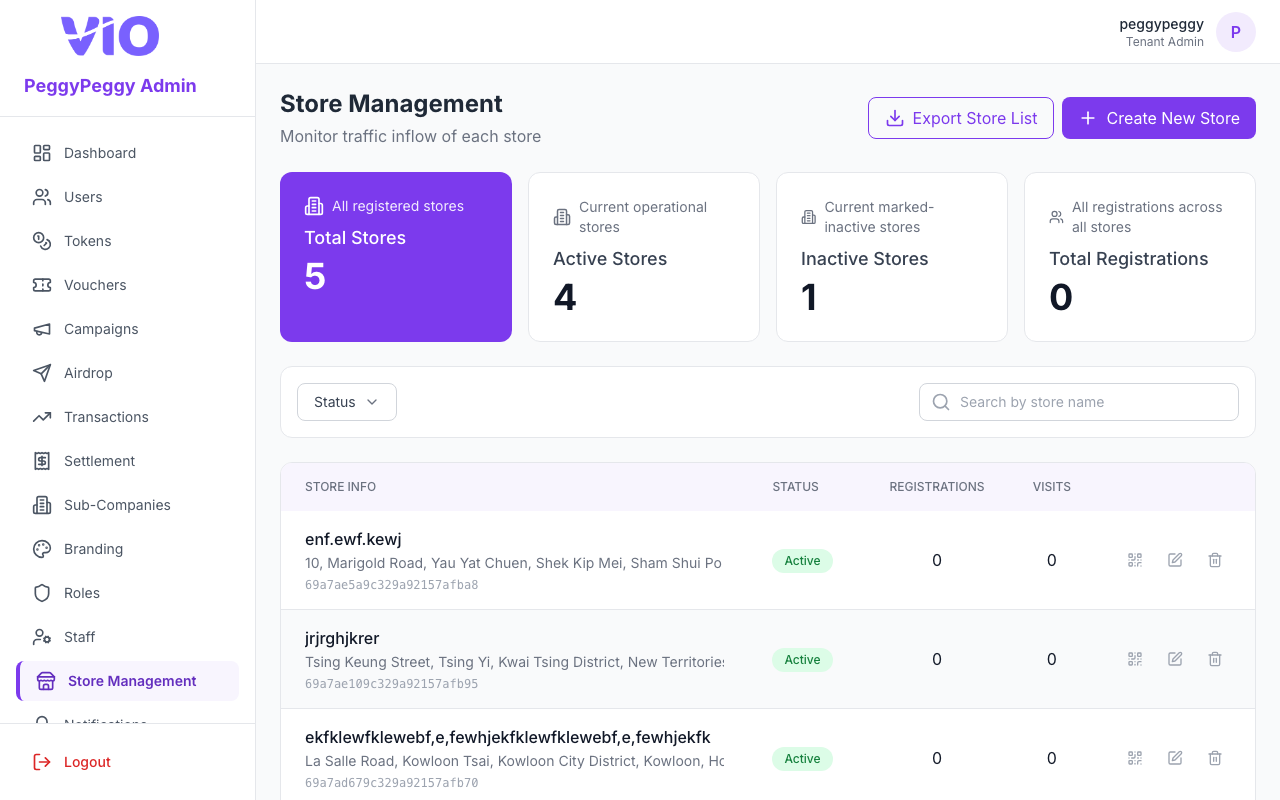
Matches the sidebar label Store Management (/stores). Outlet registry with dashboard stats, search, status filter, pagination, CSV export, and modals to create or edit each location.
How to use:
- Review the summary tiles for totals, active/inactive counts, and registrations
- Search and filter by status; navigate pages for long lists
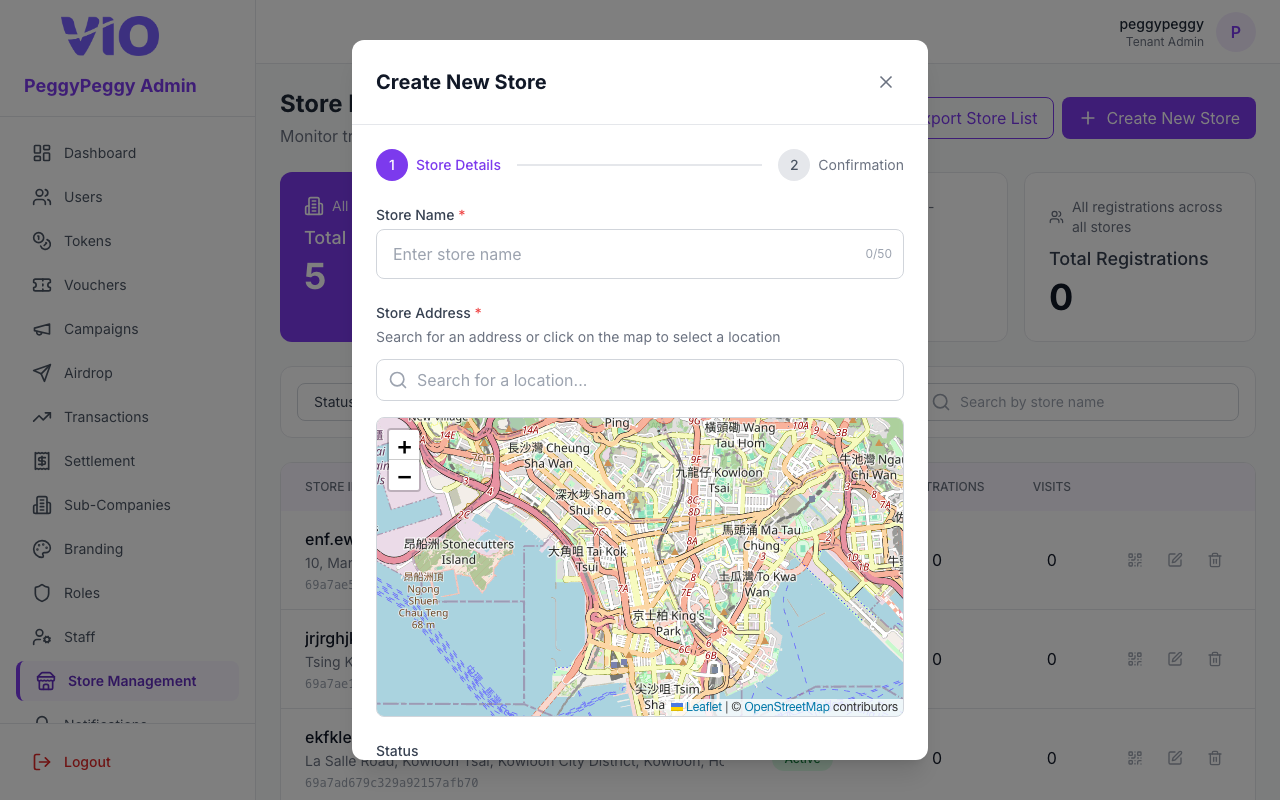
- Create or edit a store to capture name, address, geo/map pin, hours, and related metadata in the form
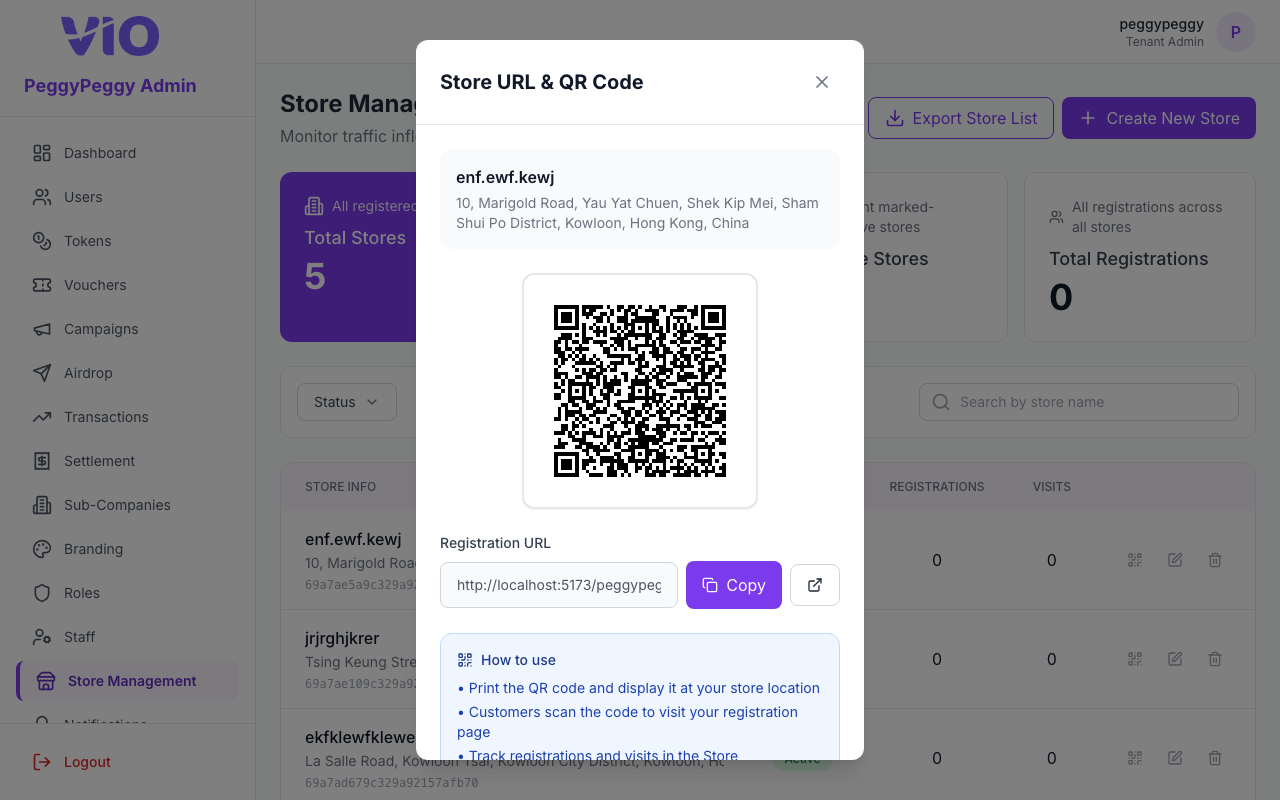
- On a store row, click the QR icon (tooltip View URL & QR Code) to open the Store URL & QR Code dialog — copy the registration URL, open it in a new tab, or use the QR code for in-store signage
- Export the directory for operations teams or deactivate stores that close
Store list
Create New Store (modal wizard — details, map, confirmation)
Store URL & QR Code (dialog — registration URL, QR, copy)
18. Notifications
Matches the sidebar label Notifications. Send push notifications to member app users, view subscription stats, and broadcast messages.
How to use:
- View push notification subscription statistics
- See subscribed users count and subscription rate
- Compose a broadcast notification with title and message
- Select notification category (News or Promotions)
- Optionally add a link URL for notification tap action
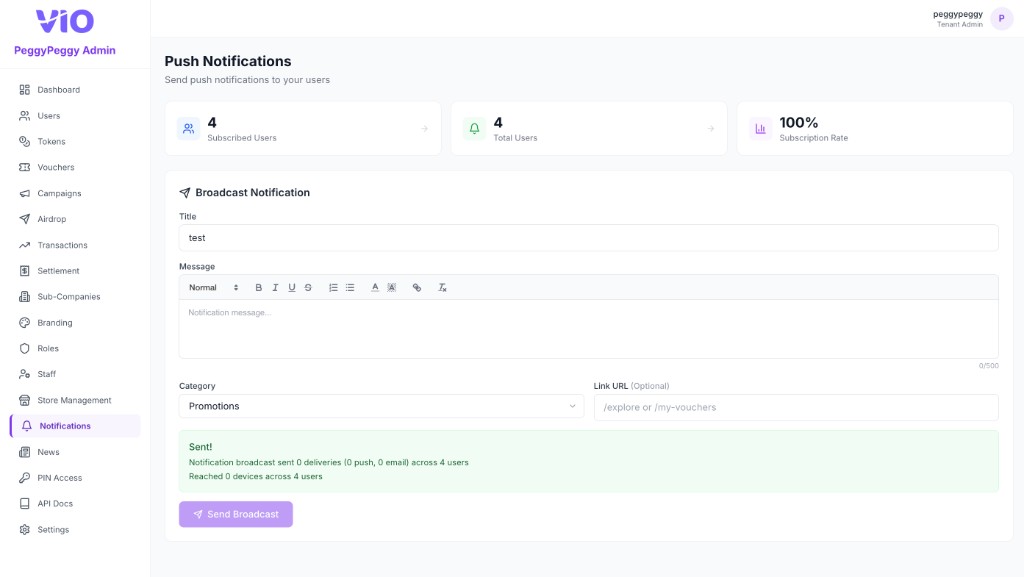
- Send broadcast to all subscribed users
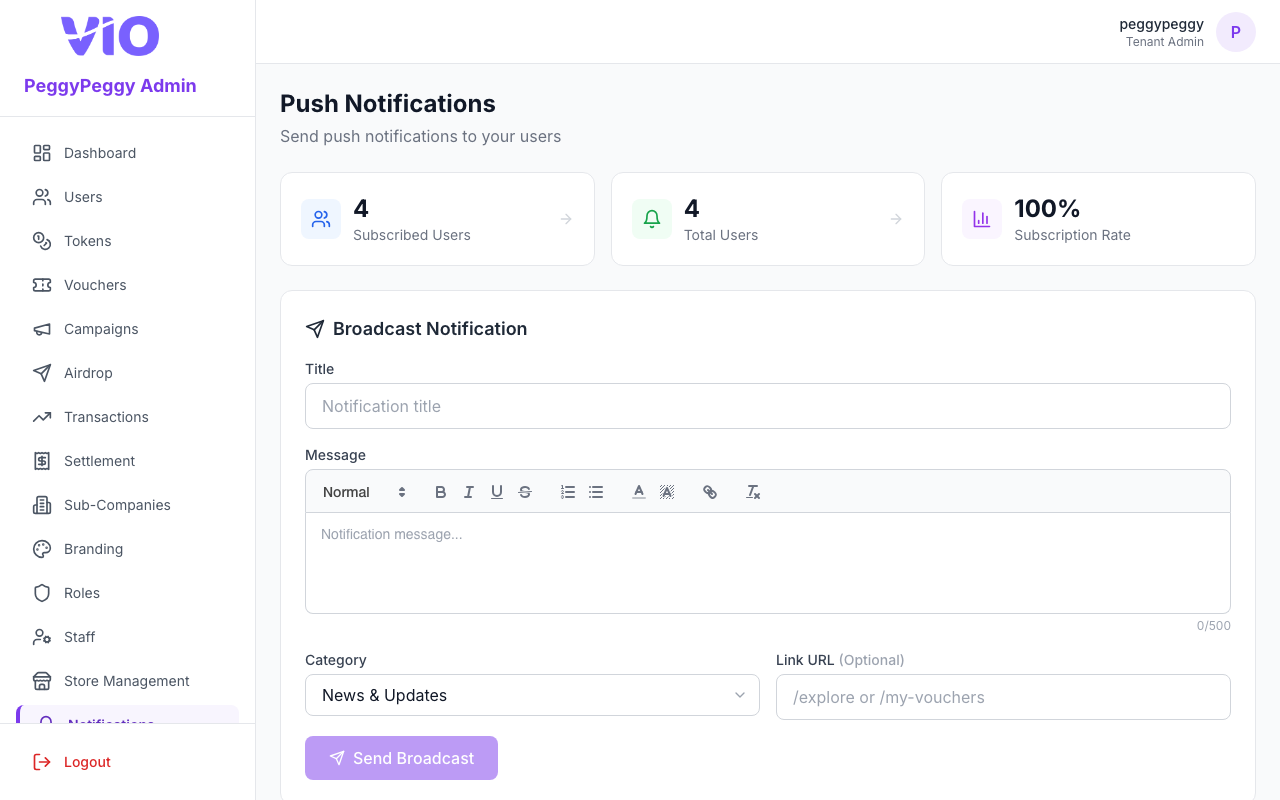
Push Notifications (subscription stats, broadcast form — title, rich message, category, optional link URL — and send result)
19. News
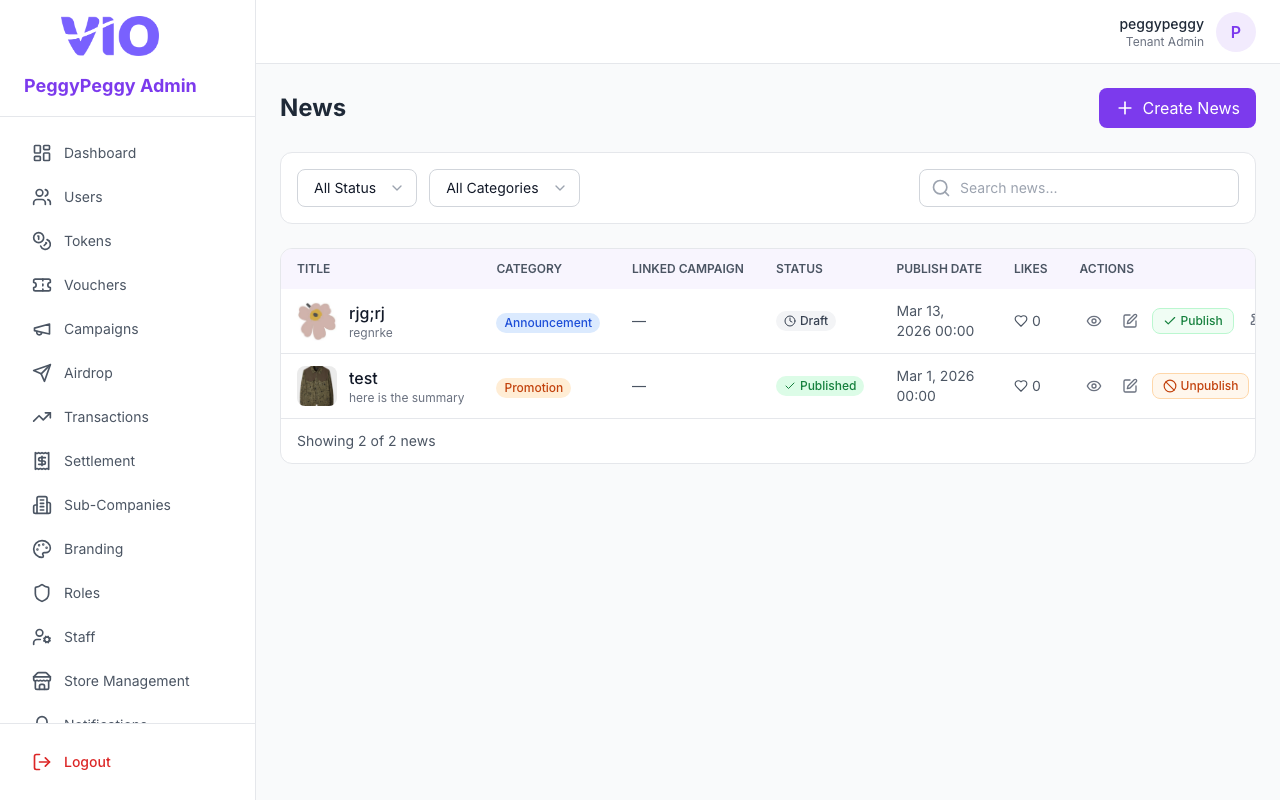
Create and manage news articles, announcements, and updates for your member app users. Supports rich media, categories, tags, draft/publish workflow, scheduled publishing, list filters, and pinning items for prominence in the member app.
How to use:
- View all news articles in a table with title, category, linked campaign (if any), status, publish date, likes, and actions
- Search: use the search field to match keywords in the list; the table reloads shortly after you stop typing and returns to page 1
- Filters: use the Status dropdown (All Status, Draft, Published, Unpublished) and/or the Category dropdown (All Categories, Announcement, Event, Promotion, Update, Other) to narrow the list; each change reloads results and resets to page 1. When a filter is active, click Clear to reset both dropdowns and page 1
- Pin: in the Actions column, use the pin icon — tooltip Pin or Unpin — to feature or unfeature an article (pinned rows show a small pin next to the title). Requires news → edit permission
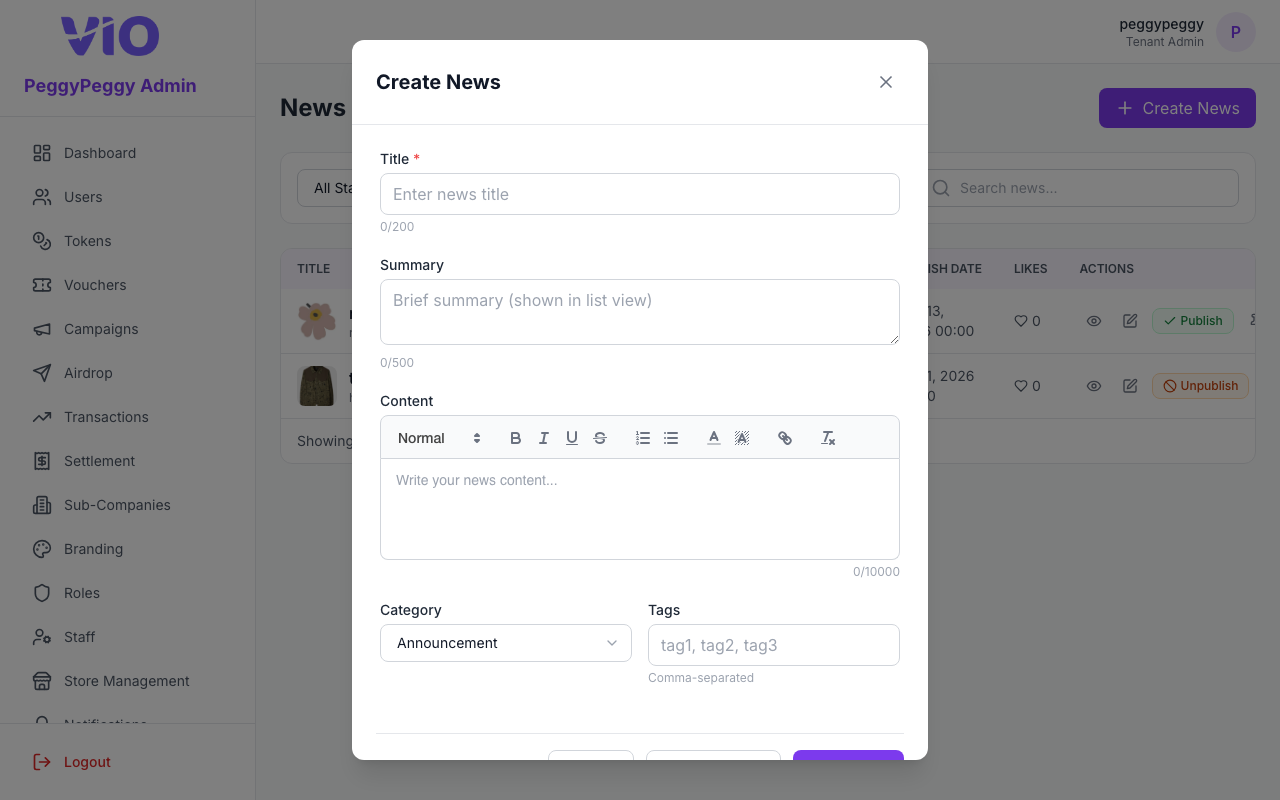
- Create a new article with title, summary, rich-text content, images, video, category, and tags
- Save as draft or publish immediately; set publish date/time and optional expiry date/time for scheduling and auto-hiding
- Publish, unpublish, edit, preview, or delete from the actions column as allowed
News list
Create News (modal — content, media, schedule)
20. PIN Access
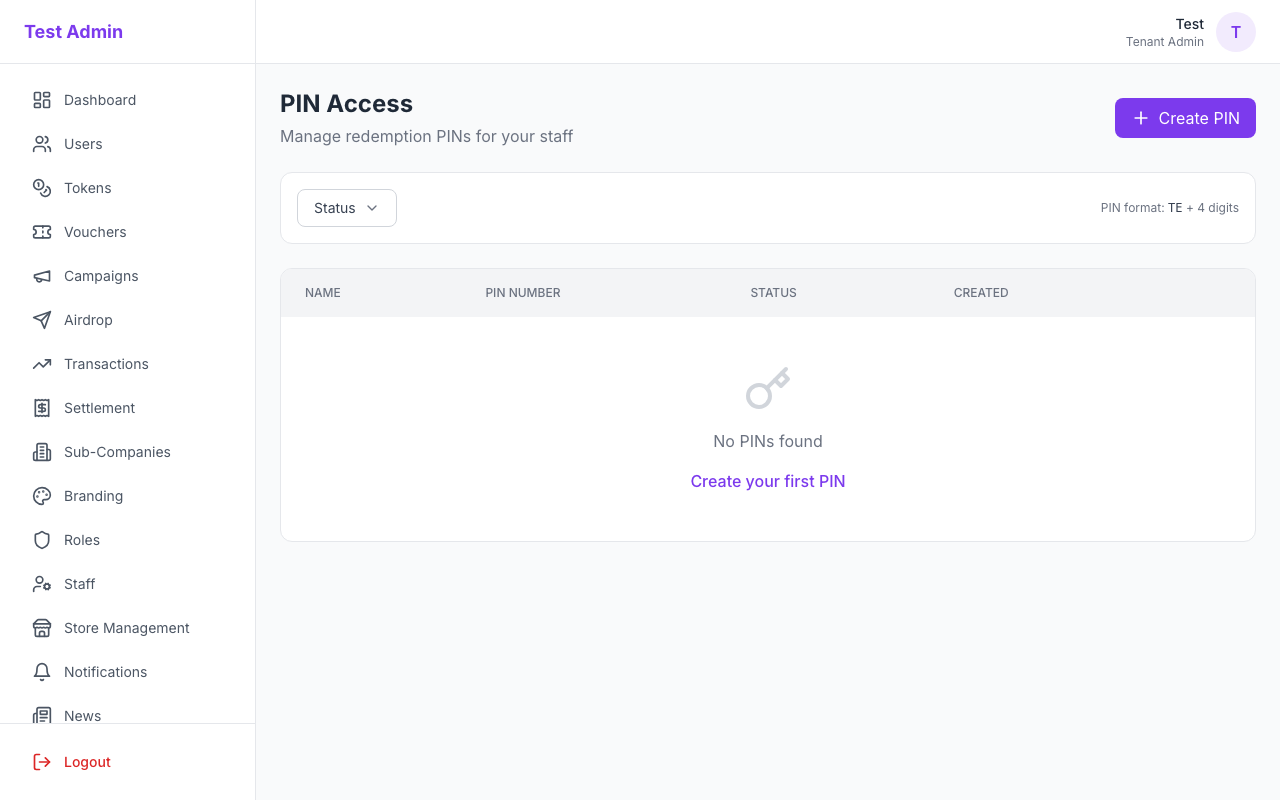
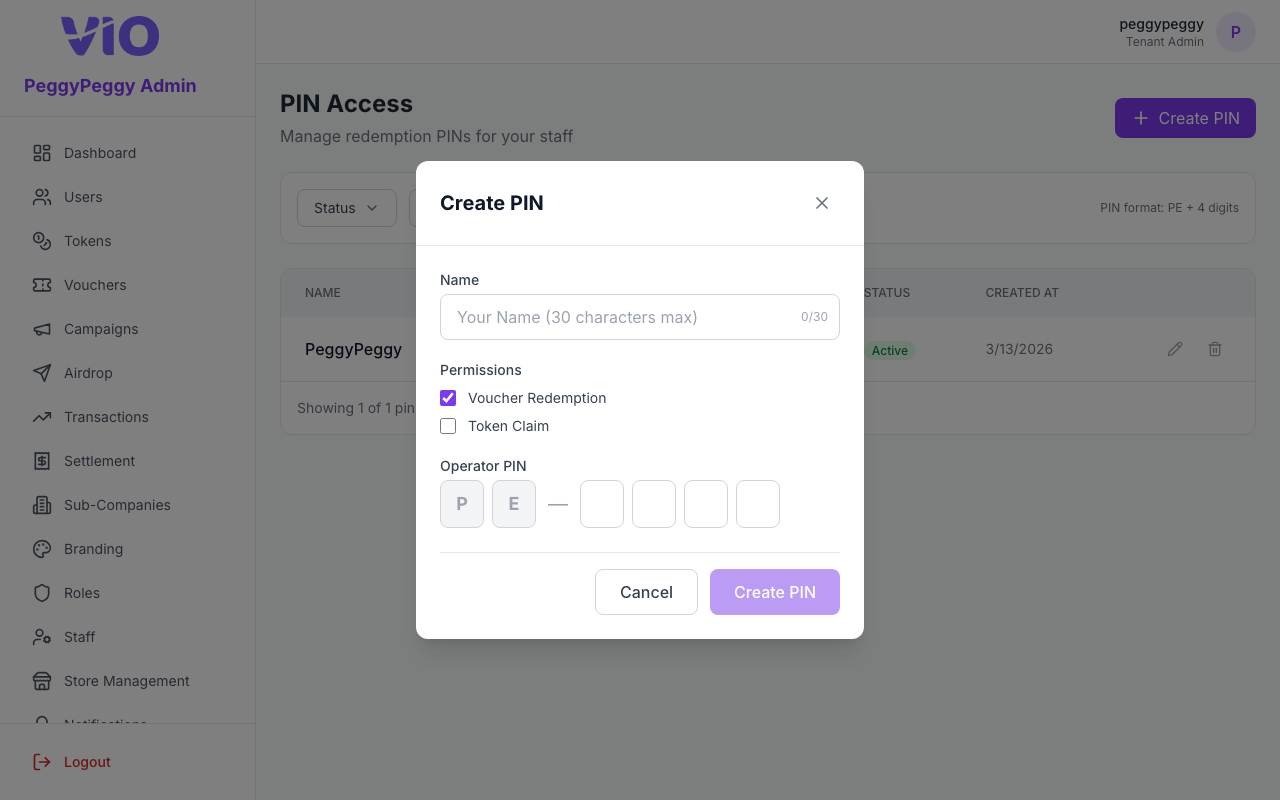
Manage staff PIN codes used to mark vouchers used (prefix, permissions such as Voucher Use or Token Claim, status). Filter, paginate, create, edit, delete, and reveal masked PINs when permitted.
How to use:
- Review the tenant PIN prefix shown at the top (if the API returns one) so staff know how codes are formatted
- Filter the table by status and by permission type; move between pages with the pagination controls
- Click Create (or Add PIN) to open the modal — set label, permission scope, usage limits, and validity window as the form provides
- Use row actions to edit, delete, or toggle visibility of a PIN’s secret (eye icon) when auditing codes
- Deactivate or remove compromised PINs promptly; new campaigns should use freshly generated codes
- The same PINs can be listed, created, updated, and verified via the External API (
/staff-pins) when the API key has thestaff_pinsscope
PIN list
Create PIN (modal — label, permissions, limits)
21. API Docs
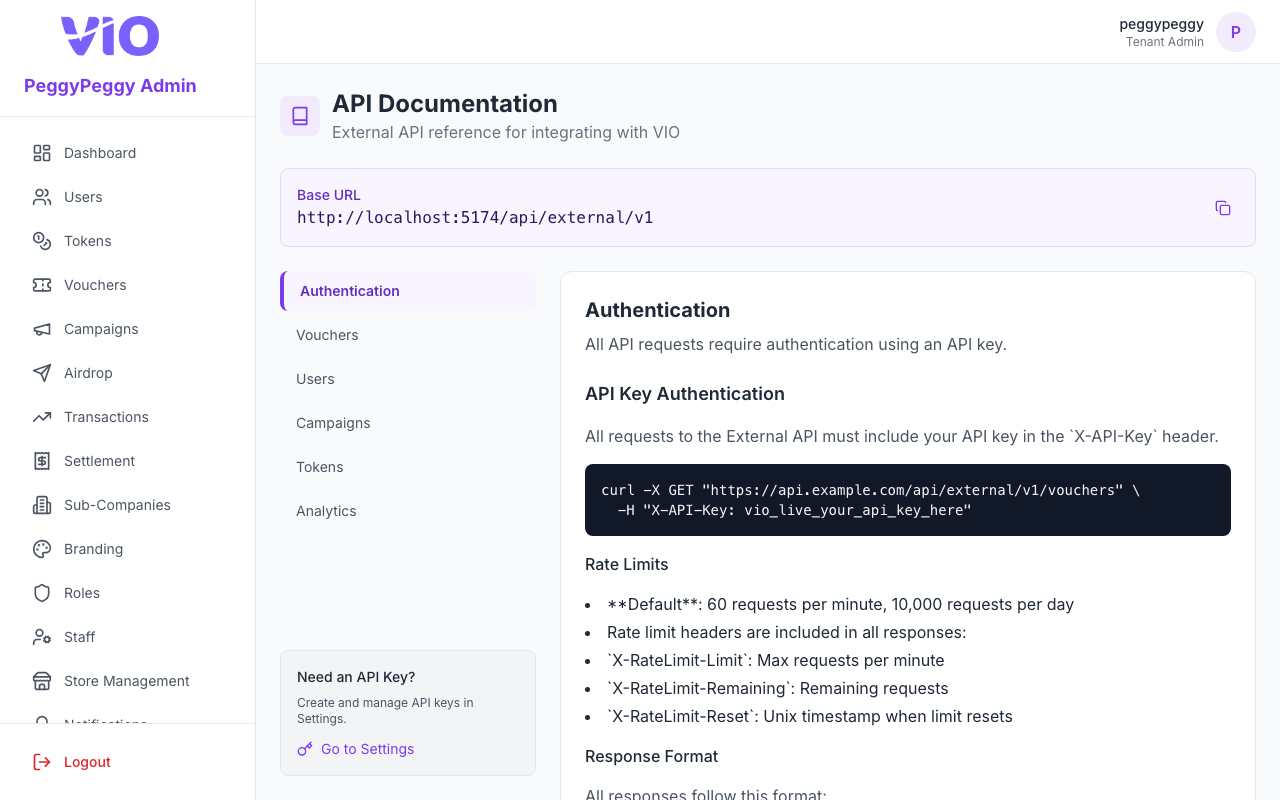
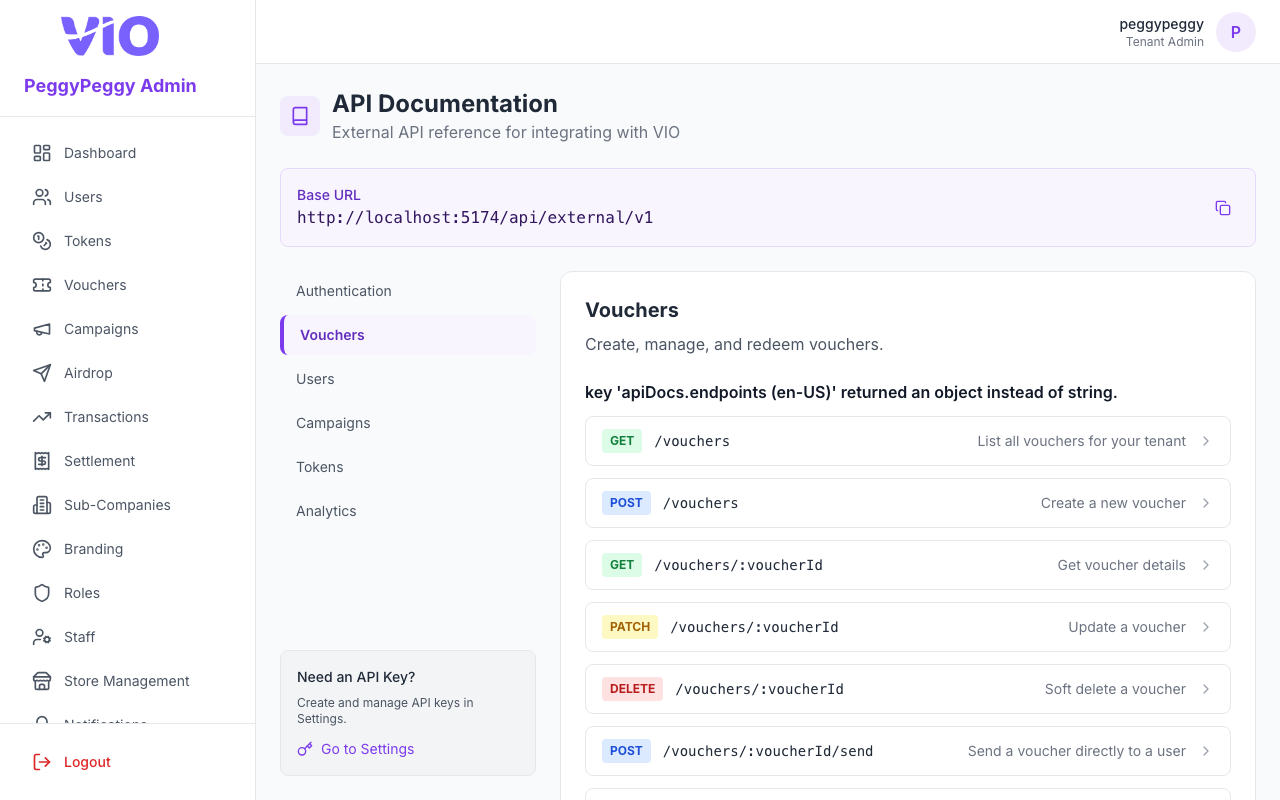
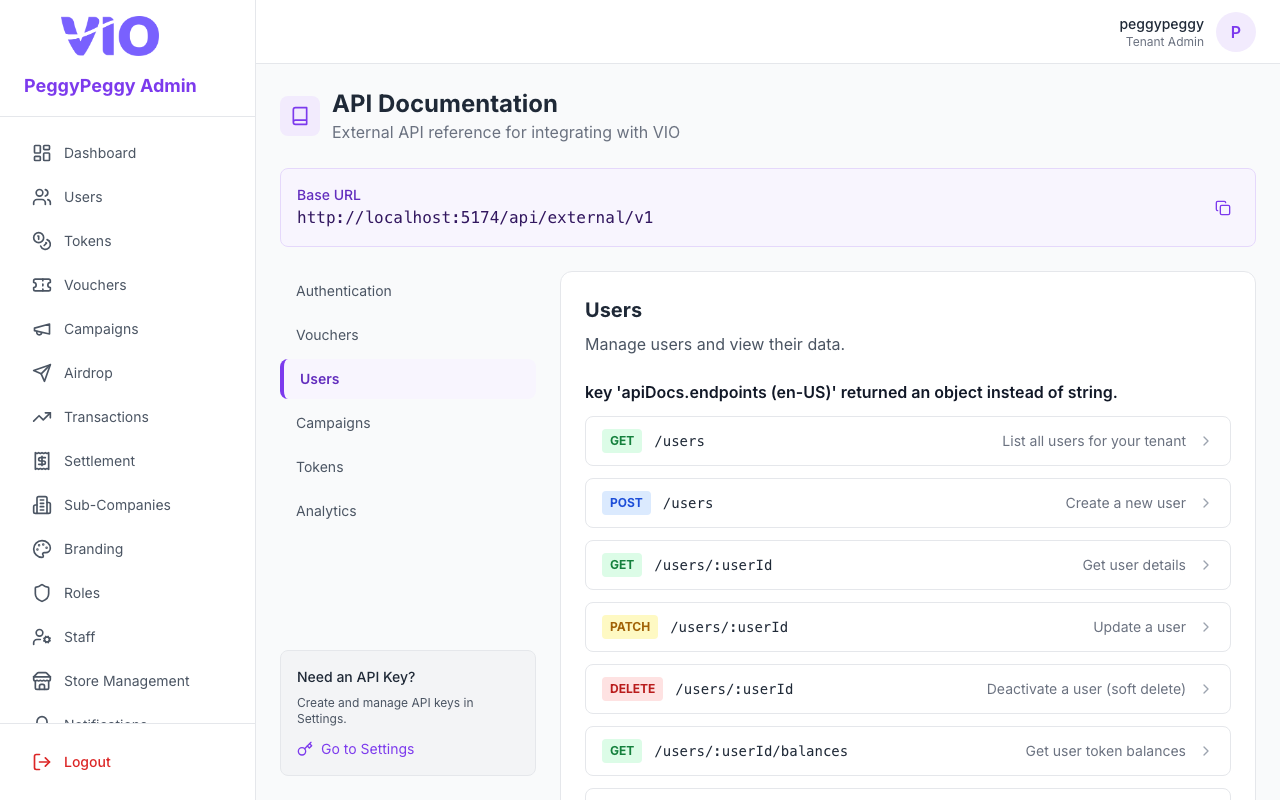
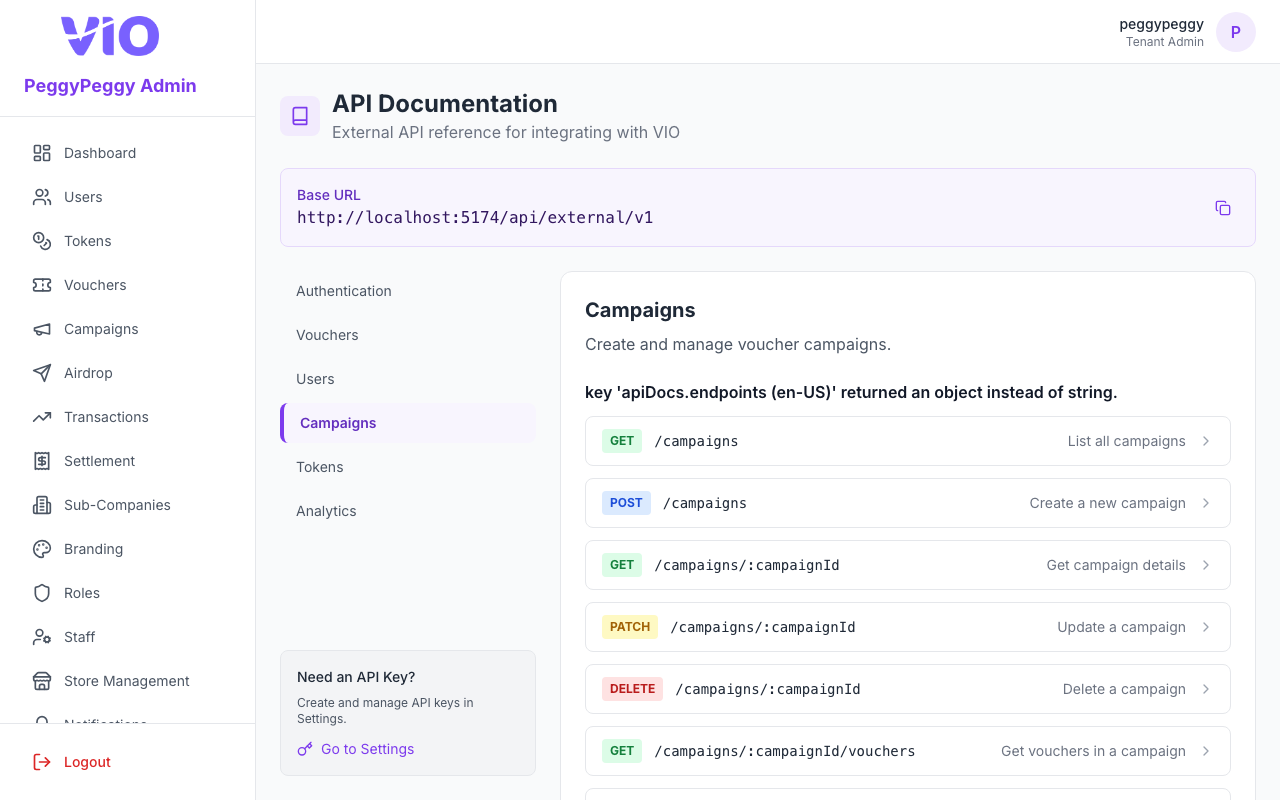
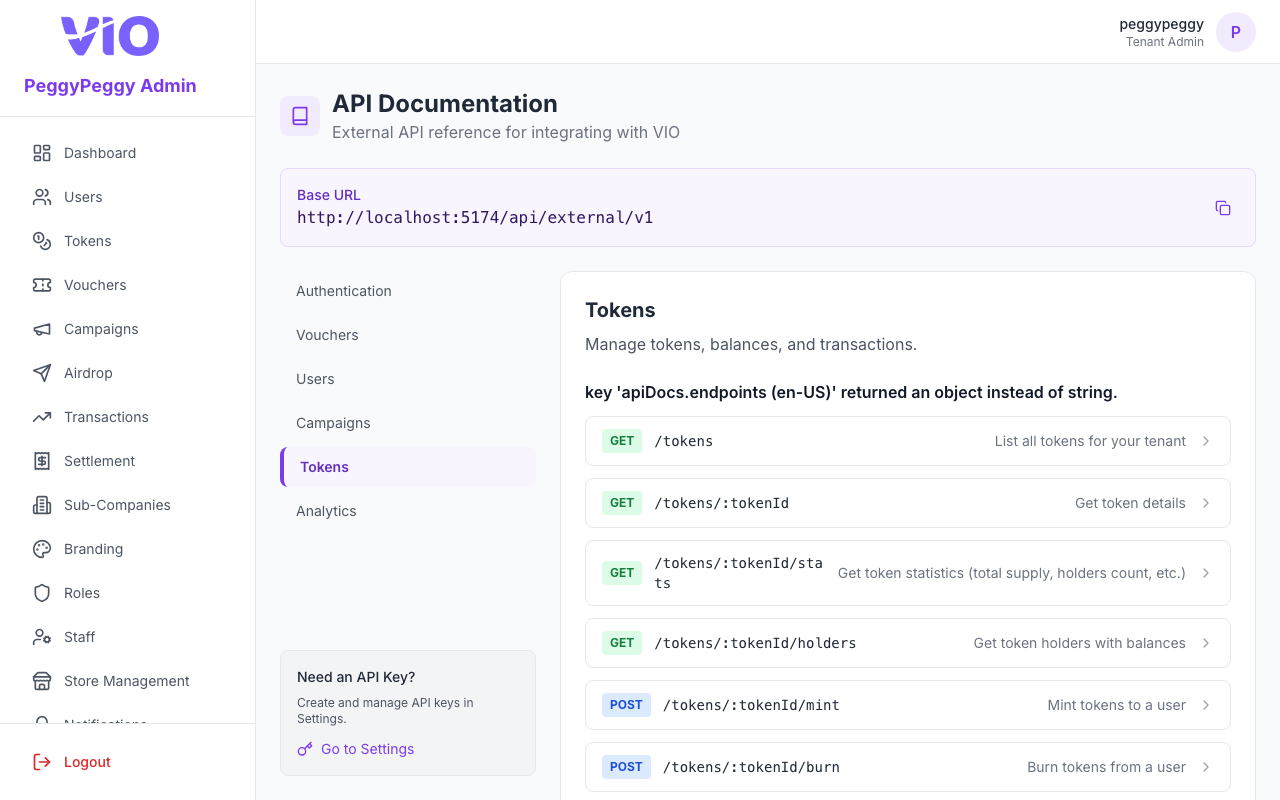
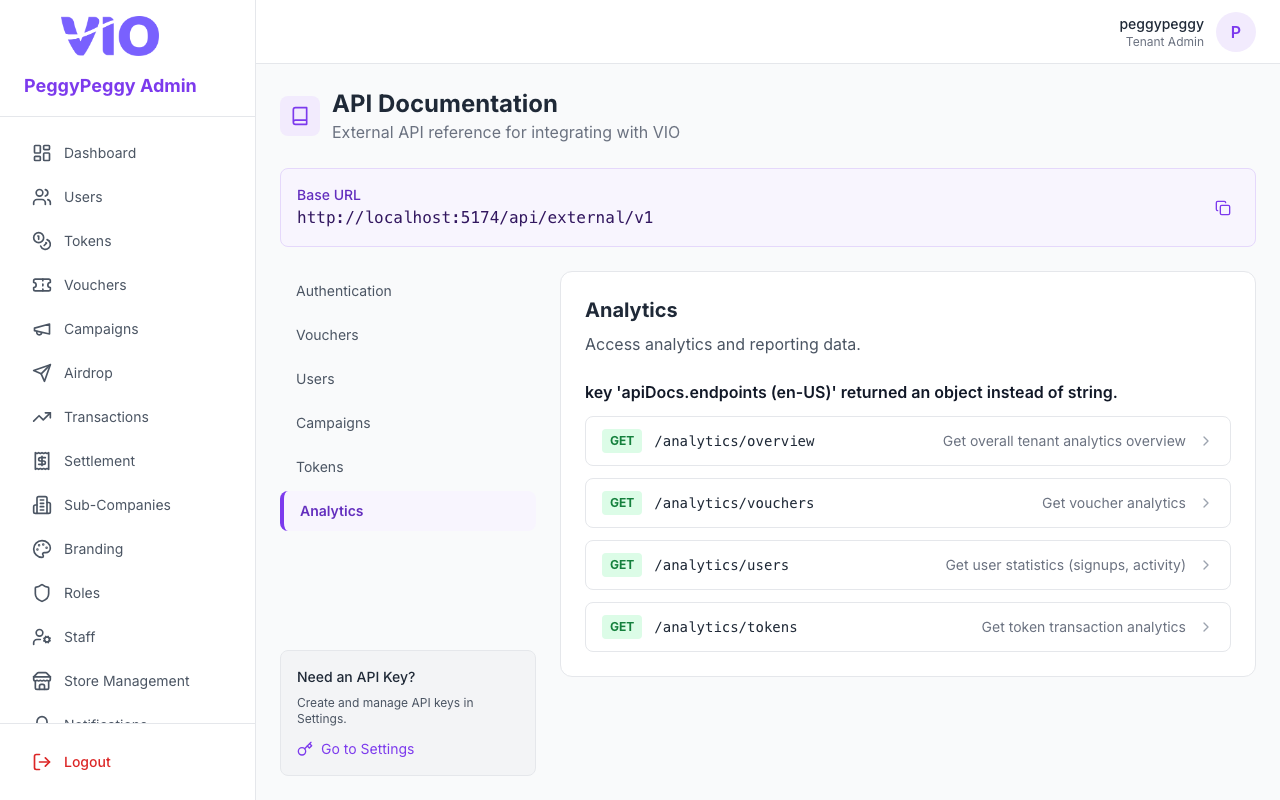
Matches the sidebar label API Docs (/api-docs). In-portal reference for the External API (/external/v1): Base URL banner at the top, then a second column of tabs (in-page sidebar) to switch documentation by area — Authentication, Vouchers, Users, Campaigns, Tokens, Analytics, and Staff PINs. Each area shows prose (where applicable), endpoint cards, parameters, example JSON, and example curl lines. API keys are created under Settings → API keys, not on this page.
How to use:
- Copy the Base URL from the blue panel if you need the exact external prefix
- Click a tab in the in-page left column (below the main app sidebar) to open that resource’s docs — order: Authentication → Vouchers → Users → Campaigns → Tokens → Analytics → Staff PINs
- Under Authentication, read how to send
X-API-Key, rate limits, and response envelope shapes - For other tabs, expand or scroll through endpoint cards — review path, query/body fields, and example responses
- Use Copy on code blocks where shown to paste into a terminal or Postman
- Use Go to Settings (bottom-left on large screens) for API key management when you need to create or rotate keys
Authentication
Vouchers
Users
Campaigns
Tokens
Analytics
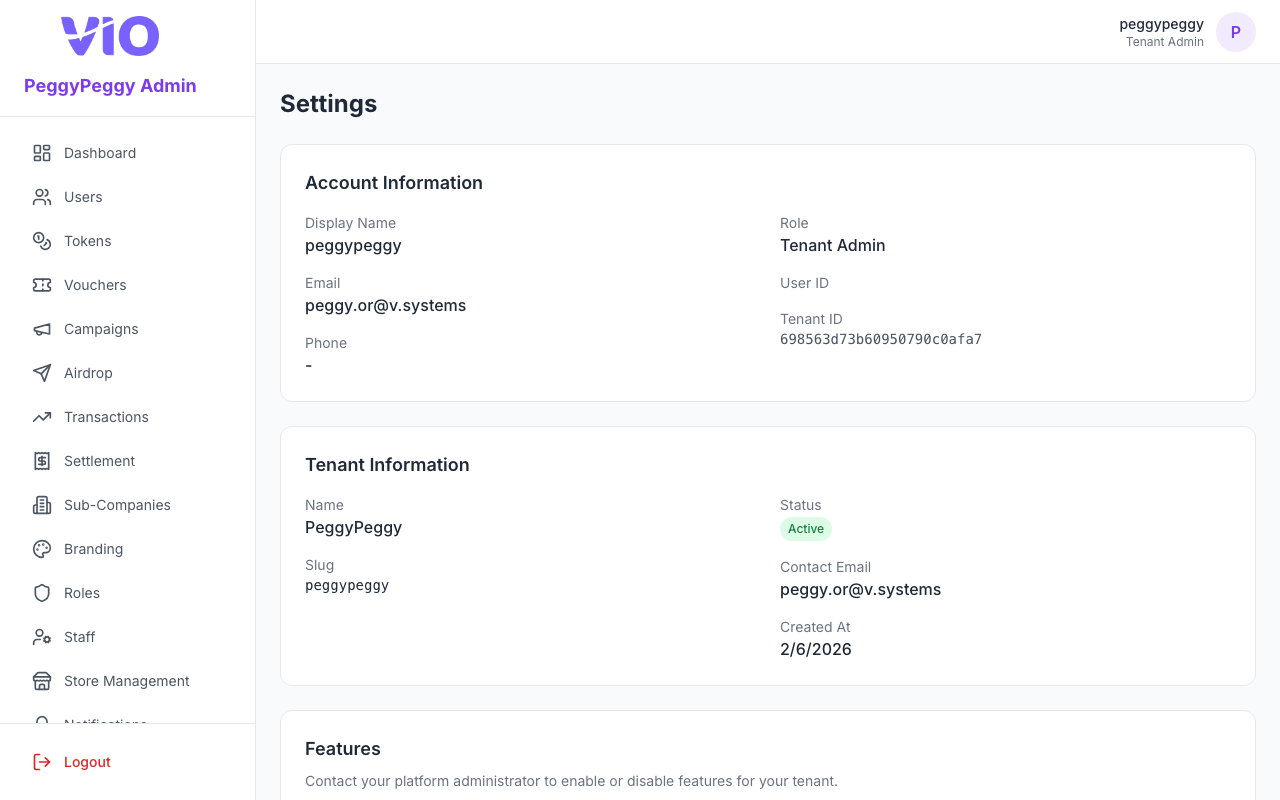
22. Settings
Read-only tenant profile, feature flags, and billing summaries for your login, plus self-service API key management (create, scope, copy once, revoke), interface language, and optional data export. Data export may show a “coming soon” notice.
How to use:
- Review Account information (your profile) and Tenant information (name, slug, status, contact)
- Scroll through Feature flags — toggles are informational; enabling/disabling is controlled by the platform operator
- Read Billing information: subscription fee (with billing cycle and discount), active billing models (with rate type — per unit, percentage, or token value percentage), minimum charges, and cross-tenant marketing fee configuration shown by your contract
- Under Language (globe icon), choose English, 繁體中文, or 简体中文 — the admin portal UI switches immediately; the active language shows a checkmark. Your choice is kept for this browser (i18n)
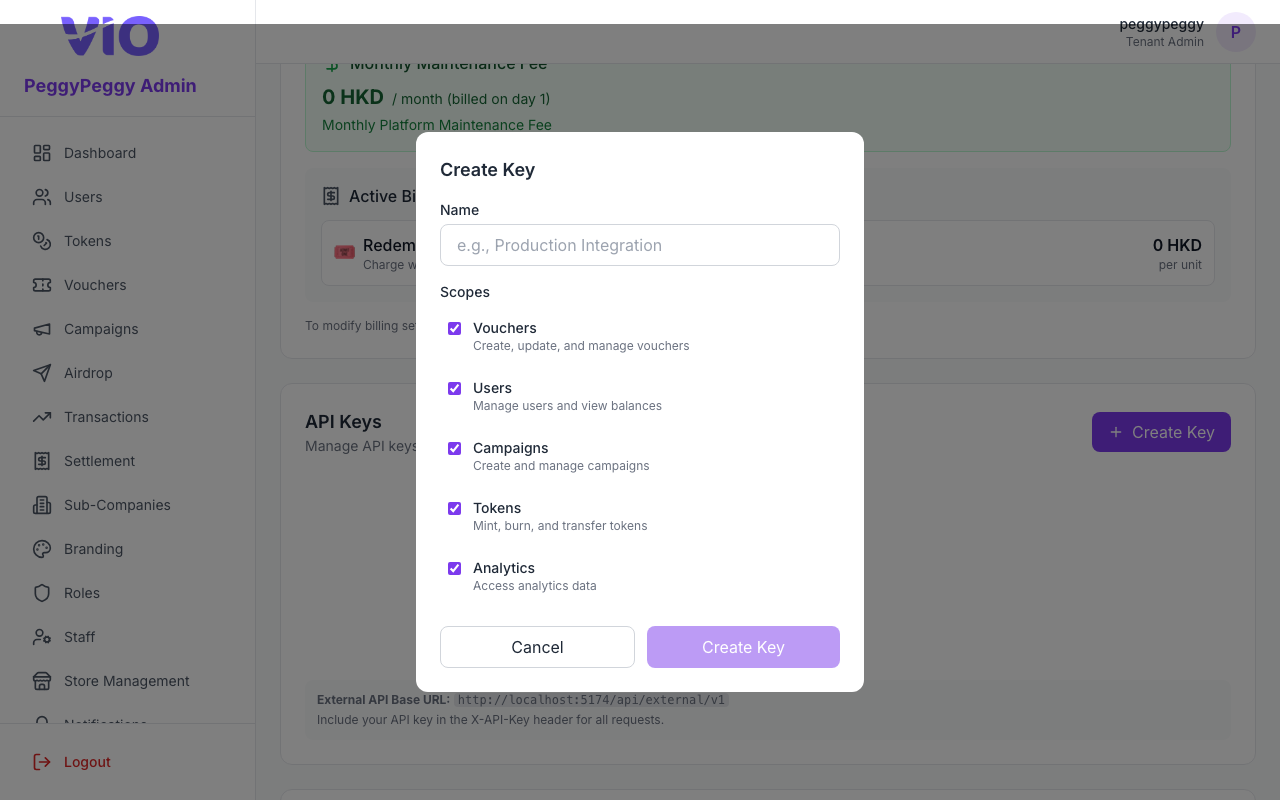
- Under API keys, click Create key, enter a label, pick scopes (vouchers, users, campaigns, tokens, analytics, staff_pins), copy the secret once, and revoke old keys when rotating
- Optional: in Danger zone, use Export if your tenant exposes data export — the app may show progress or a “coming soon” state
Settings
Create API key (modal — label, scopes, one-time secret copy)
23. Products
Matches the sidebar label Products (/products). Only visible when your tenant has the E-Commerce module enabled by the platform (Super Admin). Catalog table with cover image, name/SKU, category, price, inventory, and status, plus search, category and status filters, bulk activate/deactivate, and a multi-section create/edit form.
How to use:
- Use Search, the Category dropdown, and the Status dropdown (Active / Inactive) to narrow the list
- Click Create Product (when permitted) to open the product form, or click a row / Edit to update an existing product
- Fill in Name, rich-text Description and Terms, up to 10 images (the first image is the cover), and a Category
- Set Pricing: a fiat price, an optional fixed points price, and Allow points deduction if buyers may offset part of the fiat price with points at checkout. Choose Uniform pricing (one price for all variants) or Per-variant pricing (each variant priced independently)
- Optional: add up to 3 variant groups (e.g. Color, Size) with their option values — the form generates one row per combination; set SKU, inventory (or Unlimited), active state, and optional price/weight overrides per variant
- Set Shipping Scope — Worldwide or Limited to specific countries — so checkout can reject addresses outside scope
- Set Status to Active once at least one image, a valid price, and non-zero inventory (unless unlimited) are in place; Inactive products are hidden from the member shop
- Use row actions — Edit, Activate/Deactivate, Duplicate (opens a pre-filled draft, always saved as Inactive), Delete (blocked while the product has open orders) — or select rows for the bulk Activate/Deactivate bar
Note: The token used for points pricing is fixed per tenant (or sub-company) by the Super Admin when the E-Commerce module is enabled — see the Super Admin Portal guide.
24. Orders
Matches the sidebar label Orders (/orders). Order ledger for the E-Commerce module: search, status pill filters, date range, CSV export, and a detail page with shipment, cancellation, and refund actions.
How to use:
- Use the status pills (All, Pending Payment, Pending Shipment, Shipped, Completed, Cancelled, Refunding, Refunded) to filter by order state; use Search and the date range picker to narrow further
- Click Export to download the filtered list as CSV (order number, status, member, product/variant/quantity, currency, fiat/points/voucher amounts, payment method, carrier, tracking, timestamps)
- Click a row or the eye icon to open Order Detail — items, shipping address, payment breakdown (fiat, points, voucher, and which Stripe account collected the payment), and the order timeline
- On a Pending Shipment order, click Ship to record a carrier (pick a preset or enter your own) and tracking number — this moves the order to Shipped; use Edit logistics afterward to correct carrier/tracking
- Use Cancel on a Pending Payment or Pending Shipment order to release its inventory, points, and voucher back to the member
- Use Refund on a Pending Shipment, Shipped, or Refunding order to approve or reject a member's refund request — approving reverses the fiat payment (via the same Stripe account that collected it), points, and voucher, and lets you choose whether to restock the returned inventory; rejecting returns the order to its prior status with your review note
25. Paid Membership
Matches the sidebar label Paid Membership (/paid-membership). Here you sell membership plans that members pay for, by card, with points, or either, and you set what paying members get: a discount on campaign vouchers, welcome vouchers, vouchers and points every cycle, birthday vouchers, and more. The page has the tabs Plans, Compare (only once you have two or more plans), Members and Analytics. Each plan is set up in its own six-step workspace.
The menu item only appears after the platform (Super Admin) has switched Paid Membership on for your tenant or sub-company. If you open the page before that, it shows Paid membership is not enabled. What you can change also depends on your role's Paid Membership permissions (view, create, edit, delete). See Roles.
Two notices can appear at the top of the page:
- Sales are paused: the platform has paused new sign-ups and renewals. Existing members keep their benefits until their membership ends.
- Growth tiers and paid membership are not combined: this appears when your organisation also uses growth tiers (Membership Tiers in the sidebar). If a member has both a growth tier and a paid plan, they get the better of the two for each benefit. The two are never added together.
How paid membership works
- One plan per member. A member holds one plan at a time. They can renew it or upgrade to a higher plan. They cannot move down to a lower plan partway through a membership.
- When a membership ends. A membership ends at 23:59:59 on its end date, in your organisation's time zone. The platform sets the time zone on your organisation's details.
- Benefits are delivered automatically. Welcome vouchers are sent when someone joins. Vouchers every cycle and Points every cycle are delivered when someone joins and then again every cycle while the membership lasts. Birthday vouchers are sent once a year on the member's birthday.
- Received vouchers stay valid. Vouchers a member has already received stay valid until their own expiry, even after the membership ends. They are withdrawn only if you refund the membership.
- Growth tiers are never stacked. If your organisation also uses growth tiers (Membership Tiers), each benefit uses the better of the two: the larger discount, the lowest member price, and access to campaigns aimed at either one.
- Failed automatic renewals. If an automatic renewal charge fails, the membership enters a Grace period (3 days unless the platform sets another length). During the grace period the member keeps their benefits, the card is retried once a day, and the member is asked to update their card. If nobody pays before the grace period ends, the membership expires.
- Refunds are admin-only. Members cannot refund themselves. You can refund a membership only while the member has used nothing from it. See Refunding a membership below.
Plans tab
First run. When Paid Membership is first switched on, a draft plan is created for you, and the Plans tab opens with a Set up your first plan panel. The panel lists the six setup steps. Click Start setup to open the draft plan at step 1.
After that, the tab shows one card per plan:
- Each card shows the plan colour, name, status (Draft, On sale or Off sale), its active prices (for example HK$ 99.00 / month · or 500 pts), a one-line summary of its benefits, and Holders (members who currently hold it). With two or more plans the card also shows the plan's Rank
- A plan that is not on sale also shows its setup progress, for example 3 of 6 steps done · Next: Benefits
- The button on each card depends on where the plan is:
- Continue setup opens the plan at its next unfinished step
- Put on sale appears once every step is complete. Confirm Put this plan on sale? and members can buy it in the app straight away
- Manage (for a plan that is on sale) opens the plan, with its live Holders, Active members, Auto-renew on and Revenue this month shown at the top
- The line above the cards shows how many plans you have used out of your limit, for example 2 of 3 plans used. The platform sets the limit. Click Add plan (when permitted) to create another draft plan, which opens straight away at step 1. When you reach the limit, Add plan is disabled and Plan limit reached — ask the platform to raise it is shown
Setting up a plan
Each plan opens in its own workspace in place of the tabs. It has three columns:
- Setup steps (left): the six steps with their progress (for example 4 of 6 steps done). Each step is marked Done, To do or Needs fixing. Click any step to jump to it, or use Back / Next: step under the current step
- The current step (middle)
- Member preview (right, or below the step on narrower screens): the membership card as members will see it, with the first price, What members get in member wording, and the per-member economics. It updates as you type, before you save
Everything you change in the workspace, on any step, is saved together. While you have unsaved changes, a bar at the bottom says You have unsaved changes. Click Save to save, or Discard to go back to the last saved version. If you try to leave the workspace (Back to plans, the sidebar, or closing the browser tab) with unsaved changes, you are asked Leave without saving? first.
Step 1. Start
- Under Start from a template, choose Café, Retail, Lifestyle or Blank. Each card lists the benefits it switches on. A template switches on a typical set of benefits with suggested numbers. Blank starts with every benefit off. You still pick the actual vouchers and points yourself
- If the plan already has benefits switched on, you are asked Replace the current benefits? before the template is applied. Vouchers you already picked are kept
- Under Name and look, enter the Plan name (required) and an optional Description, then choose the Colour, an Icon URL and a Card image URL (the background of the membership card in the Member App)
- With two or more plans, set Rank (for upgrades). A higher rank is a higher plan, members can only upgrade to a higher rank, and no two plans can share the same rank
Step 2. Price
Each row is one period a member can buy (up to 6 rows). Add several to offer, for example, a monthly and a yearly price.
- Set the Period (1–36 months, quarters or years)
- Enter a Card price and currency, and/or a Points price plus which points pay for it. Points prices are only available when the platform allows paying with points; otherwise the row reads Paying with points is not enabled by the platform
- Use the Active switch to stop selling a period without deleting it
A price needs a card price, a points price, or both. Card prices below the card minimum for the currency, or above the platform's price cap, are highlighted in red. If you remove a price that members still renew on, it is kept but switched off.
Step 3. Benefits
Benefits are grouped by when the member gets them. Switch a benefit on with its toggle, then fill in its fields. Once a benefit is on, a one-line summary shows what members will get, and anything still missing is shown in red (for example Pick at least one voucher).
| Group | Benefit | What you set |
|---|---|---|
| When they join | Welcome vouchers: sent the moment someone joins | Vouchers and quantity |
| Every cycle | Vouchers every cycle: sent on joining and then every cycle | Vouchers and quantity |
| Points every cycle: credited on joining and then every cycle | Number of points and which points | |
| Always | % off campaign vouchers: members pay less for vouchers in your campaigns | % off |
| Claim each voucher more times: above the usual claim limit | Number of extra times per voucher | |
| Member-only campaigns: advertises member-only campaigns as a perk | Nothing here; see below | |
| Special days | Birthday vouchers: sent once a year on the member's birthday | Vouchers and quantity |
| At renewal | % off when they renew: a discount on every renewal | % off |
- One shared cycle. The Every cycle group has a single Cycle (days) field for both benefits. Vouchers and points are sent on joining and then every this many days
- Choosing vouchers. The voucher lists offer your active vouchers. A voucher that is no longer available stays in its row, marked Unavailable voucher, so you can replace it
- Member-only campaigns. The switch only controls whether the perk is advertised. Below it, the step lists the campaigns already targeted at this plan, with their status (Live, Scheduled, Ended or Inactive). If none are, it says so. Click Create a member-only campaign to open the campaign editor with this plan already selected under Target Membership Tiers, or Manage in Campaigns to go to the Campaigns page
Step 4. Extra lines
Optional. Under Extra lines shown to members, add up to 15 lines of display-only text for things the system does not handle, for example "Priority seating at weekends". Type a line and press Enter. These lines are not benefits; real benefits are set in step 3. Leaving this step empty does not block putting the plan on sale.
Step 5. Terms
- Enter the Membership terms members must accept when they join, renew or upgrade. Terms are required before the plan can go on sale
- If the box is empty, you can click Start from template. This generates a draft from this plan's prices, renewal, grace-period and refund rules, and your organisation's time zone. The draft is marked Draft wording — have it reviewed before publishing. Edit it and have it reviewed before you put the plan on sale
- When you save changed terms they become a new version (for example Version 2). Members accept the new version the next time they buy or renew
Step 6. Review & publish
- The Checklist shows every step with its state. Click a step to open it. Problems found by the final check are listed under the step they belong to: errors in red (they block the sale) and warnings in amber (worth checking, such as an inactive voucher or one running low on stock). The checklist reflects the last saved version, so save first to check again
- Under Sale status:
- Put on sale is available once every step is done and your changes are saved. While a plan is on sale, your edits are checked again when you save, and a change that would make the plan unsellable is refused
- Take off sale stops new purchases and upgrades to the plan. Current holders keep their benefits until their membership ends, and they can still renew
- Delete is only possible while nobody holds the plan (Members still hold this plan, so it cannot be deleted. Take it off sale instead.). Deleting cannot be undone
Per-member economics
The Per member, per period box in the member preview estimates, for one card price, what one member gets and what it costs you over one period. If the plan has several card prices, pick one from the list:
- Value: face value of all vouchers and points delivered in one period
- Est. cost: value × Redemption rate × Marginal cost
- Margin: price minus cost minus platform commission. If it is negative, a warning says benefits are expected to cost more than the price brings in
Click Details to see the breakdown (welcome vouchers, vouchers every cycle, birthday vouchers, points, platform commission, and Value ÷ price). You can also change the Redemption rate and Marginal cost there (defaults 40% and 33%); they are saved with the plan. Add a card price to see the economics. Voucher values are assumed to be in the price's currency.
Compare tab
The Compare tab appears once you have two or more plans. It shows every plan side by side: status, prices, and each benefit, with Not finished for a benefit that is switched on but not filled in. The tab is read-only. Click Edit under a plan's name to open its workspace.
Members tab
- Search by name, email, phone or member number. Filter by status (Entitled (active + grace), Active, Grace period, Pending, Expired, Refunded) and by plan
- The table shows each Member, Plan, Status (with a Gift badge for gifted memberships), Period, Auto-renew and Discounted claims
- Click Export CSV to download the filtered list. It includes member number, status, plan, contact details, start and end dates, auto-renew, source, member since, discounted claims and tokens saved
- Click Gift membership (when permitted) to give a member a plan free of charge. Search for the member, choose the Plan and optionally a Renewal price (the price the membership renews on) and a number of Days (1–3660; leave blank to use the price's period). The member must not already hold a membership. A gifted membership starts now and sends the welcome vouchers like a paid one
- Click a row to open Membership details. It shows the member, member number, plan, status, period, grace end date (when in grace), Member since and auto-renew with the saved card. Below that are the Payments, Benefits delivered (with any delivery errors) and Consents (which terms version was accepted, and whether auto-renew was disclosed)
Actions in the detail window (when permitted; only for an active or grace membership):
- Extend: add a number of days (1–3660) at no charge. Extending a membership in grace brings it back to active
- Upgrade to… then Upgrade: move the member to a higher plan at no charge. The member gets any extra welcome vouchers of the higher plan. You cannot move a member to a lower plan
- Refund: see below
Refunding a membership
Only administrators can refund. The Refund button is available only while the member has used nothing from the membership:
- no member discount taken on any voucher,
- no voucher from the membership used, and
- no membership points received.
If any of these has happened, the button is disabled and the reason is shown under it. When you refund (you can add an optional reason), every payment of the current membership is returned. Card payments go back to the card. Points payments come back as a new points credit, not as the original points with their old expiry. The membership ends immediately with status Refunded, and the unused vouchers it delivered are withdrawn. A refund cannot be undone.
Analytics tab
Click Refresh to update the figures. The time of the last update is shown next to the button.
| Tile | Meaning |
|---|---|
| Entitled members | Members who are active or in grace, with the number of Plans on sale |
| Penetration | Entitled members as a share of your active users |
| Revenue this month | Membership payments this month, one line per currency |
| Renewal rate (90 days) | Of the memberships that came up for renewal in the last 90 days, the share that renewed. The number that lapsed is shown underneath |
| Benefit cost ratio (90 days) | Estimated cost of redeemed benefits ÷ membership income. Above 0.7 the tile turns amber (Benefits are taking most of the income). Above 1.0 it turns red (Benefits cost more than members pay) |
| 7-day zero-use rate | Of members who joined 7–37 days ago, the share who used no benefit (no member discount, no membership voucher) in their first week |
| Member vs non-member claims | How many times more vouchers members claim than non-members over 30 days |
| Delivery issues | Benefits that failed to deliver. Check Membership details for the affected members |
The Members by plan chart shows entitled members on each plan. Hover a bar to see how many of them have auto-renew on.
Member prices and plan targeting in campaigns and vouchers
While Paid Membership is on, your paid plans can be chosen next to growth tiers wherever you target or price for tiers. Paid plans are labelled Paid: plan name so you can tell them apart from growth tiers:
- Campaigns → Create / Edit Campaign → Target Membership Tiers: select one or more plans (and/or growth tiers) to make the campaign visible only to their members. Leave it empty to show the campaign to everyone. This is how the Member-only campaigns benefit works. A plan's Benefits step lists the campaigns targeted at it and has a Create a member-only campaign shortcut
- Vouchers → create / edit wizard → Target Membership Tiers: same idea for a single voucher. Leave it empty to make the voucher available to all members
- Campaigns → Manage Vouchers → Member prices (crown icon on each voucher row): set a lower token price for members of particular plans or tiers. A blank row means that plan or tier pays the normal price, and the crown shows how many member prices are set. Click Apply, then save the campaign's voucher changes as usual. The confirmation step lists Member prices updated (n)
Note: A member always pays the lowest price they qualify for: the normal price, the price after their % off campaign vouchers discount, or a member price set for a plan or tier they hold. Discounts and member prices are never combined.
Need Help?
If you encounter any issues or have questions about administration features, please contact your system administrator or super admin.
This guide was automatically generated on 4/13/2026